Monday, 10 May 2010

Apple to Release Carrier Locked iPad After All


When announcing the iPad, Apple promised that all 3G models would be unlocked. Turns out that is not the case.

The iPad releases to nine additional countries on May 28th. Eight of those countries will get an unlocked iPad. Japan will not.

All Japanese models will be SIM-locked to Softbank Mobile, Apple's iPhone partner in Japan, Apple said late Monday. The company confirmed the presence of a SIM lock but couldn't immediately explain why it was enforcing the restriction in Japan.

This runs contrary to a direct pledge made by Apple CEO Steve Jobs. "All the iPad 3G models are unlocked," he said.

Hopefully Japan is an anomaly and Apple doesn't plan to release more locked iPads to other countries still waiting for the device.


Read More

Apple Starts Accepting International iPad Pre-orders


Apple has started accepting international pre-orders for the iPad Wi-Fi and iPad 3G.

So far Germany, the U.K., Australia, Switzerland, Spain, Italy, and France are accepting pre-orders. Canada and Japan will likely go live soon.

The iPad will launch in these nine countries on May 28th.

Read More [via AppleInsider]
Saturday, 8 May 2010

Force Your iPhone Apps into iPad Mode Using FullForce


Using FullForce you can make your iPhone applications run in fullscreen iPad compatibility mode.

We already posted an in depth tutorial on
how to accomplish this earlier; however, Ryan Petrich has released a tweak in Cydia to make the process much easier.

Once you install FullForce, simply open your Settings.app, select FullForce from the Extensions list, and use the switches to set compatibility mode for whichever apps you choose.

You can download FullForce from the Big Boss Cydia repository.


Winterboard for iPad Makes Great Progress [Now Available]


Saurik has announced that he and DHowett have made great progress on a new version of Winterboard for iPad.

While not 100%, @DHowett and I have made great progress on WinterBoard's iPad support with version 0.9.3182.

This new version is now available in Cydia for your download. To install WinterBoard you must be jailbroken.

Friday, 7 May 2010

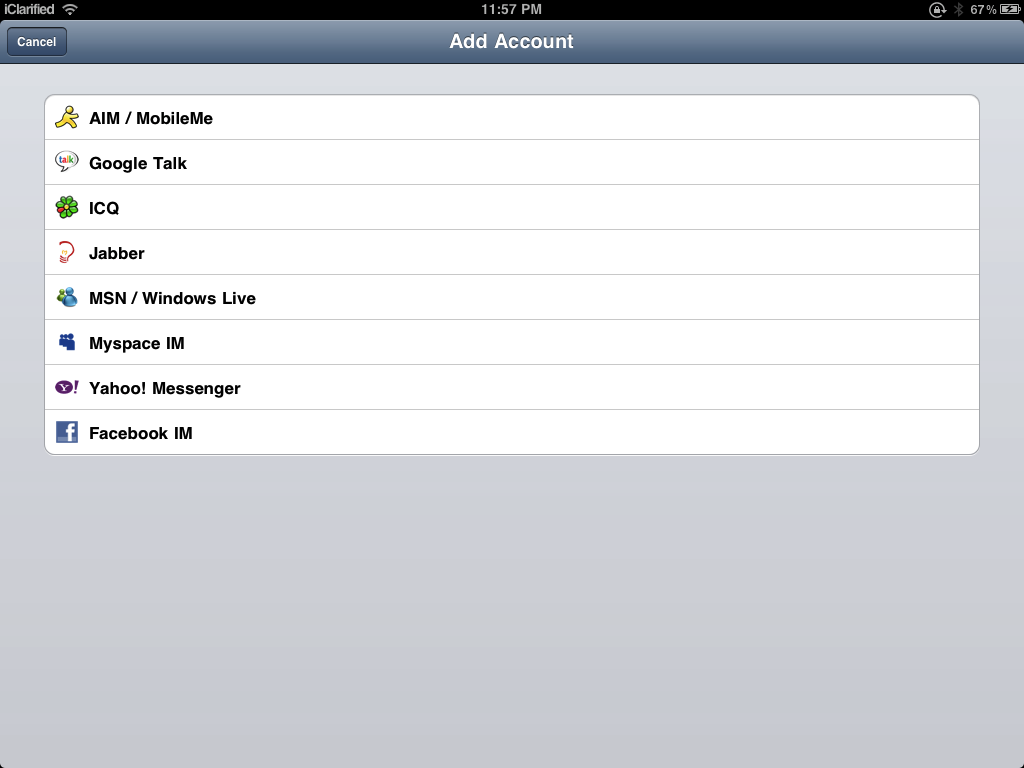
How to Make iPhone Apps iPad Compatible


These are instructions on how to make iPhone applications run as iPad apps without pixelation or size doubling.

Please note that not every app will format properly using this method; however, for some apps it may work very well.

Step One
Jailbreak your iPad.

Step Two
Install
OpenSSH from Cydia. You can find instructions on how to do that here

Step Three
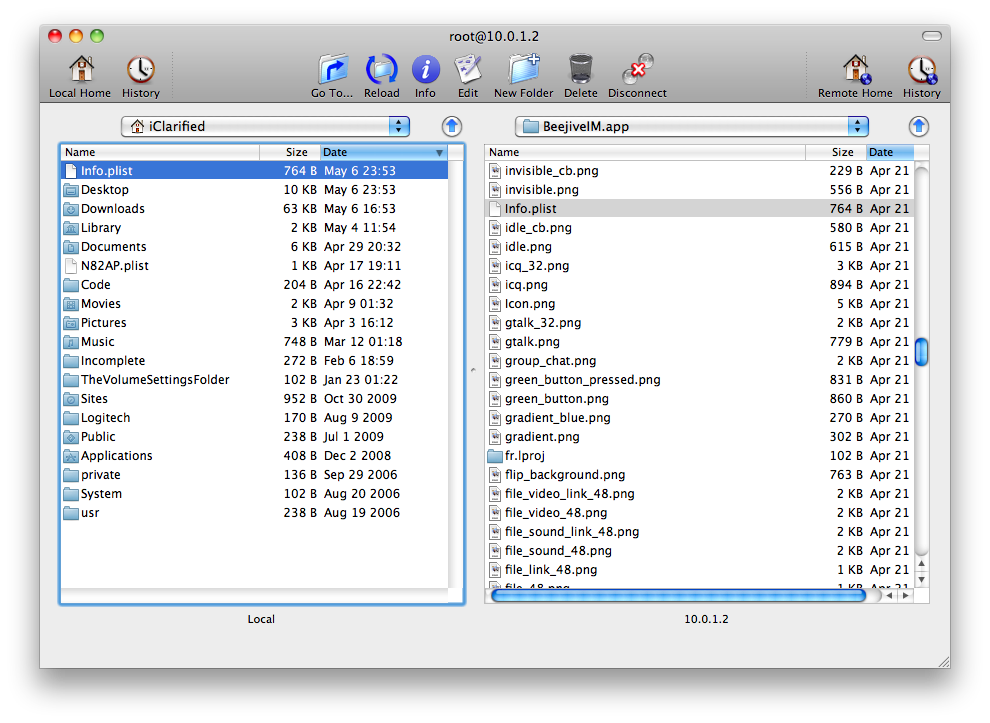
Connect your iPad to the same local network as your computer and launch
Fugu. If you do not have Fugu installed you can get it here.


Step Four
Enter the IP Address of your iPad in the
Connect To: field. Set the Username: to root and click the Connect button.


Step Five
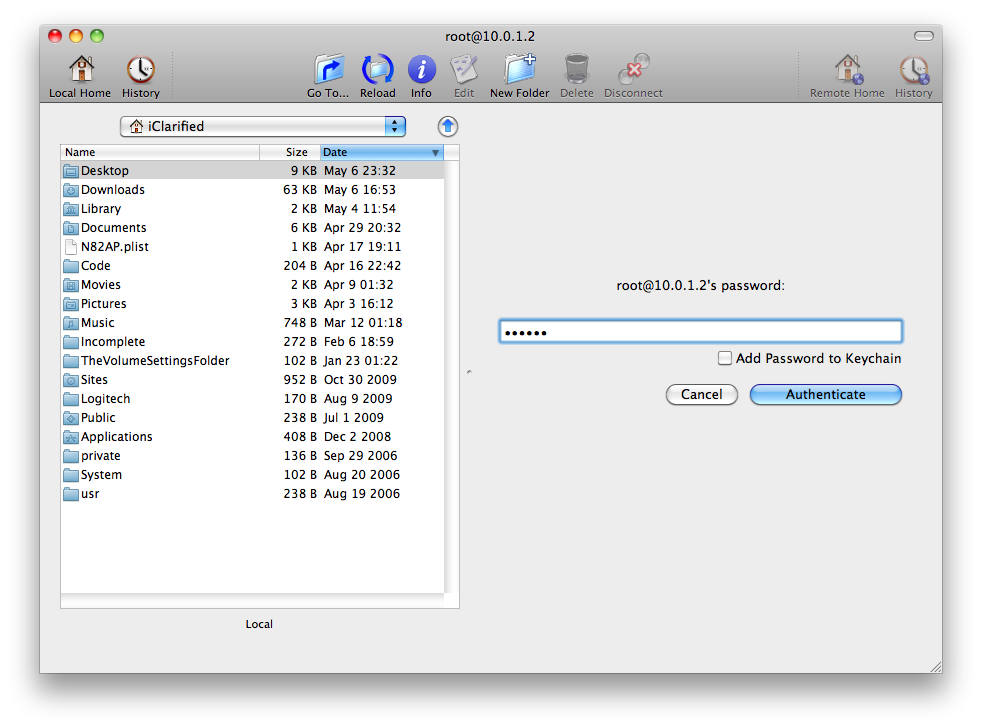
When prompted enter in your root password. If you haven't changed it then the root password will be
alpine. Click Authenticate to continue.


Step Six
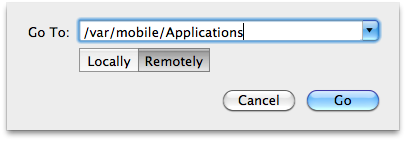
Click the
Go To... button on the toolbar.


Step Seven
Enter
/var/mobile/Applications, ensure Remotely is selected and click the Go button.


Step Eight
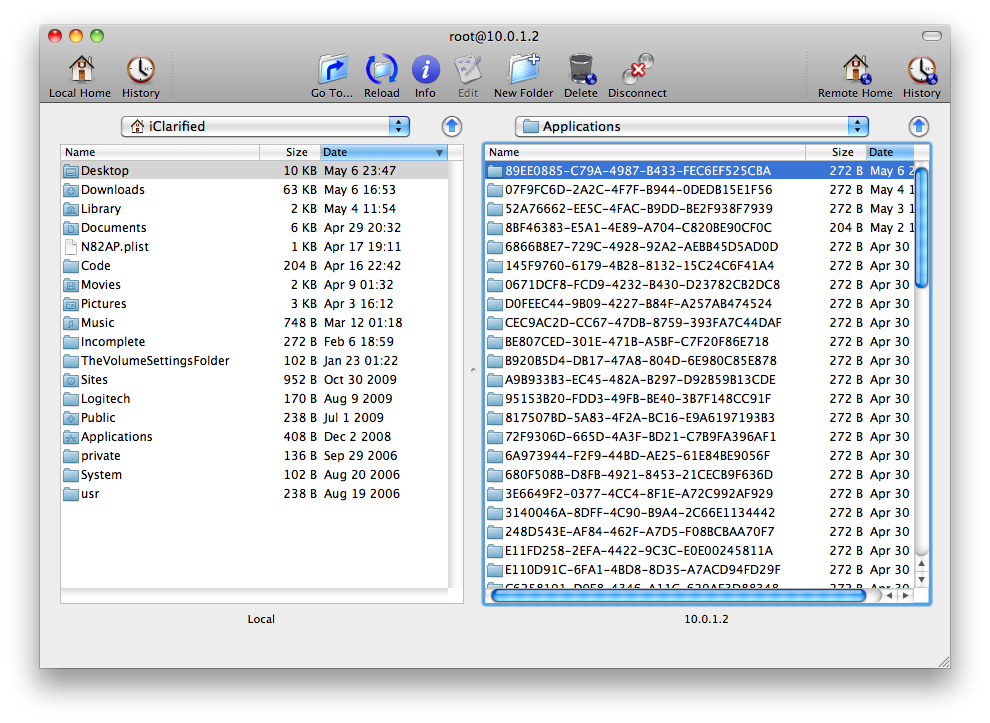
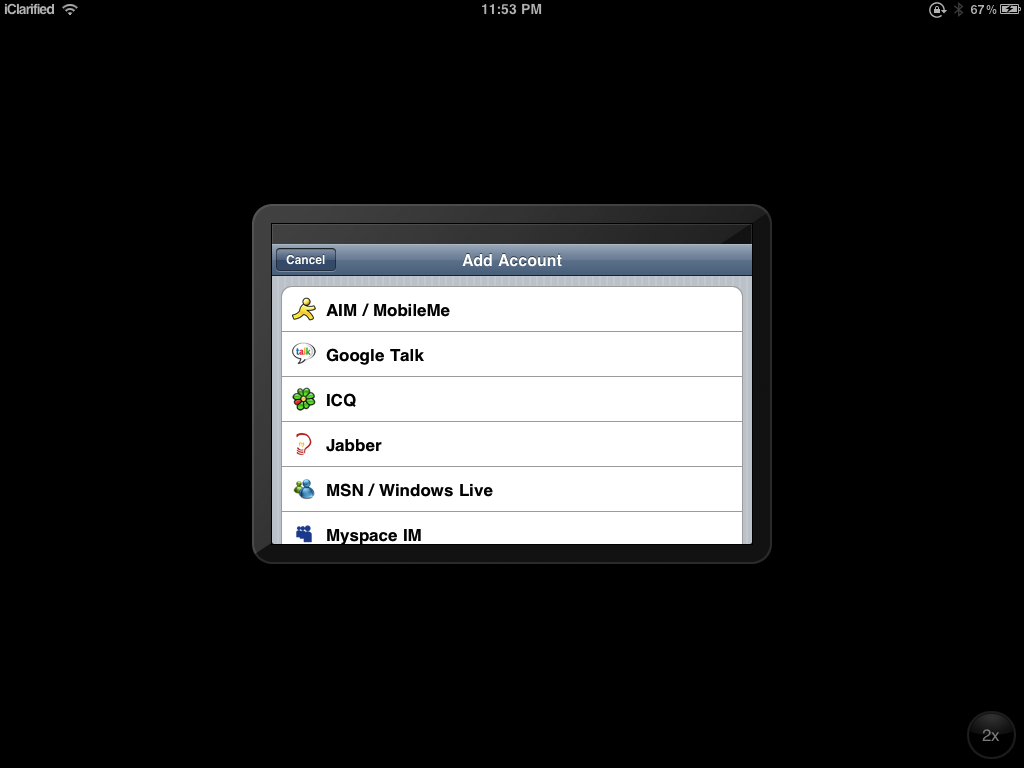
You will be presented with a list of application folders. Unfortunately its a bit difficult to determine which application is which. Use the date modified to help you.


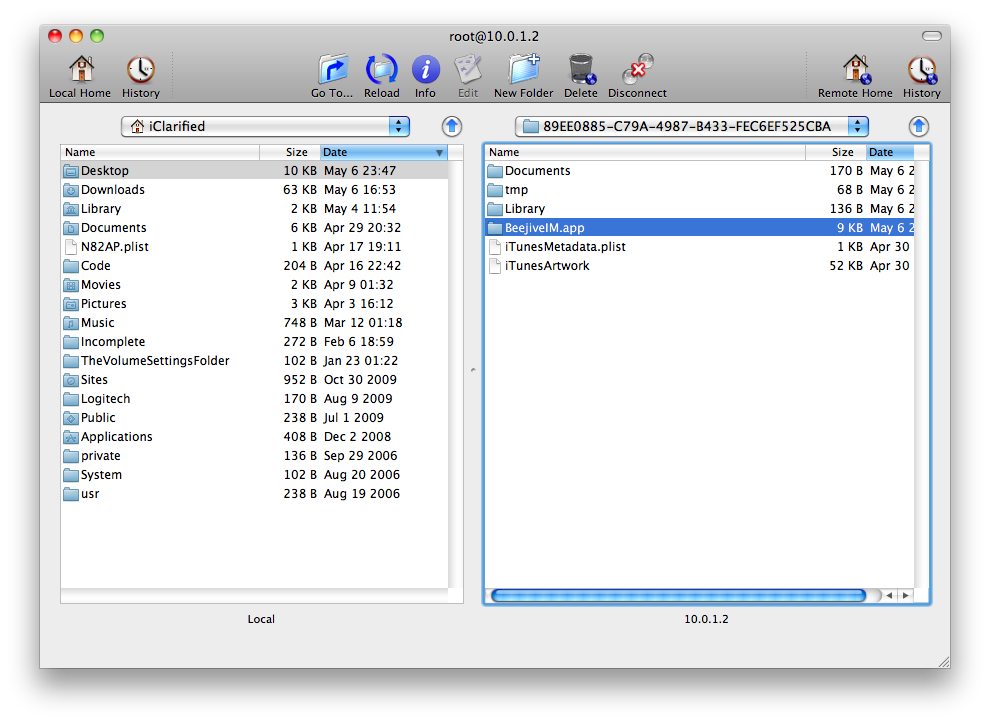
Double click a folder and you will notice the another folder with the application name, for example:
BeejiveIM.app


Step Nine
Double click to enter the .app folder and drag the
Info.plist from the right pane to the left pane. This will copy the file to your computer.


Step Ten
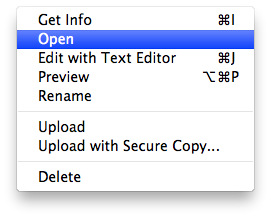
Right click (Control+click) the newly copied
Info.plist file in the left panel and click Open form the contextual menu.


Step Eleven
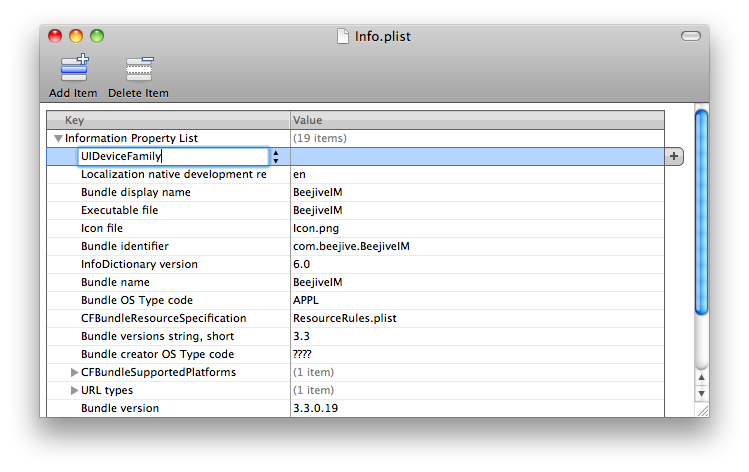
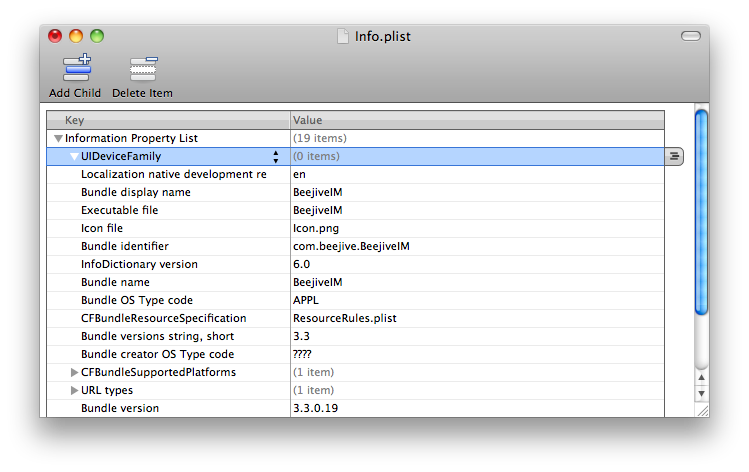
Property List Editor will open the file. Click
Add Child from the toolbar and name the new child UIDeviceFamily.


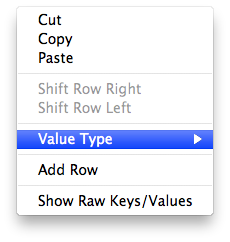
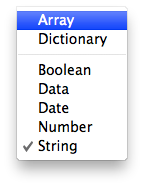
Right click the UIDeviceFamily entry we just created and then select
Value Type then Array from the contextual menus.


Click the arrow to the left of
UIDeviceFamily so that it points down.


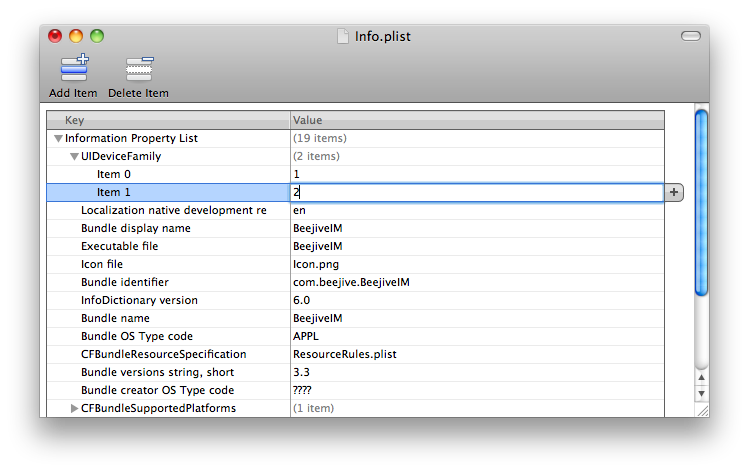
Click the
Add Child toolbar button twice.


Set the values of the newly created items to
1 and 2.


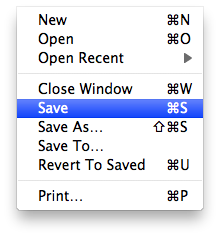
Click
Save from the File menu to save your changes.


Step Twelve
Go back to
Fugu and drag the Info.plist file from the left panel to the right.

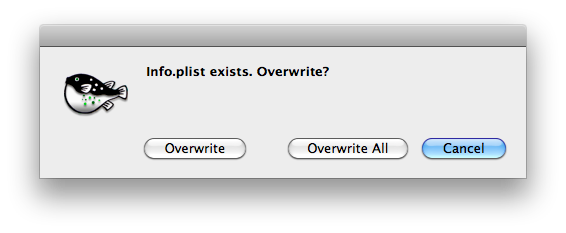
You will be asked to confirm. Click the
Overwrite button.


Step Thirteen
Respring your iPad or turn it on and off to see the improvement.


[
via FSM]