Showing posts with label Downgrade. Show all posts

Sunday, 28 October 2012

How to Downgrade Your iPad 2 From iOS 6.x to iOS 5.x (Windows)

How to Downgrade Your iPad 2 From iOS 6.x to iOS 5.x (Windows)


These are instructions on how to downgrade your iPad 2 from iOS 6.x to iOS 5.x using saved SHSH blobs and Redsn0w for Windows.

Step One
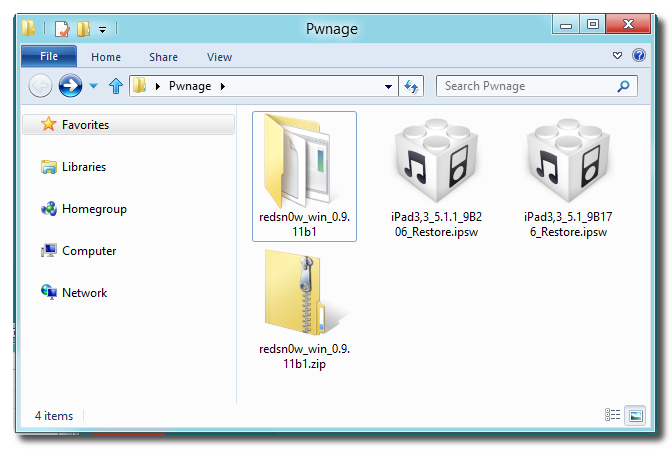
Create a folder on your desktop called Pwnage

Download the latest version of RedSn0w from here and place it in the Pwnage folder. Likewise, download the 5.x firmware you would like to restore to and the 4.x firmware you also have SHSH Blobs for from here and place it/them in the Pwnage folder. 

Extract the RedSn0w archive to the Pwnage folder.

Step Two
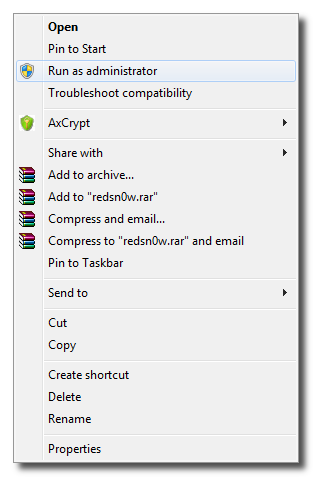
Right click or control-click the redsn0w application from the redsn0w folder we extracted earlier and chooseRun as administrator from the popup menu that appears.


Step Three
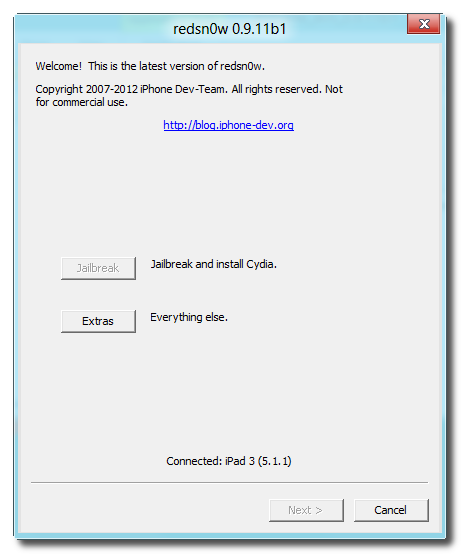
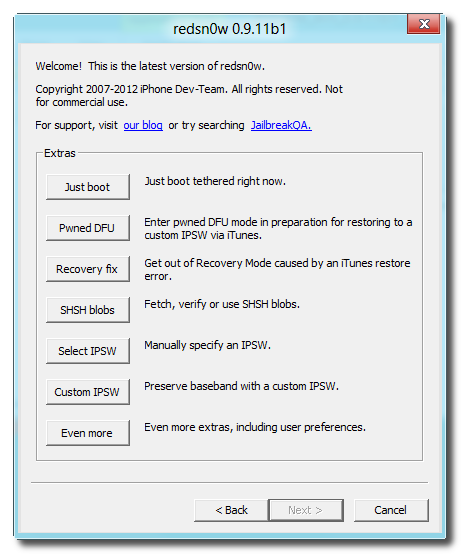
Click Extras from the main menu.

Step Four
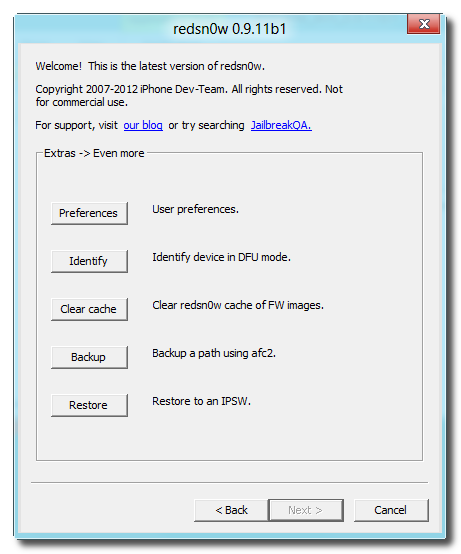
Click Even More from the Extras menu.

Step Five
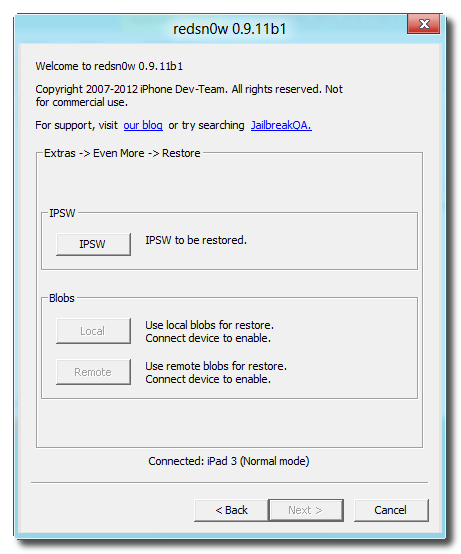
Click Restore from the Even More menu.

Step Six
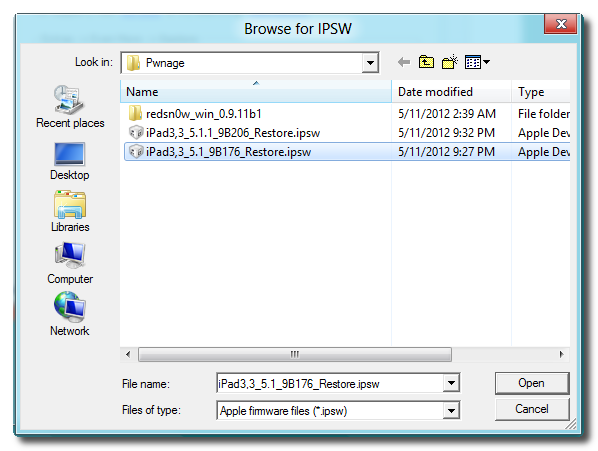
Click IPSW from the Restore menu, choose the IPSW you would like to restore to from the window that appears, and click Open.


Step Seven
When prompted, connect your iPad 2 to the computer in normal mode and click OK

Step Eight
You will be informed that a 4.x IPSW will be required to continue. Click the OK button.

Step Nine
Select the 4.x firmware IPSW from the Pwnage folder on your desktop and click Open.

Step Ten
Your iPad will now be placed into recovery mode.

Step Eleven
RedSn0w will check Cydia to see if you have the correct blobs saved.

If RedSn0w is unable to find your blobs automatically click the Remote button to try again or you can click theLocal button to search for blobs on your computer.

Step Twelve
RedSn0w will prepare the 4.x restore image.

Step Thirteen
You will then be prompted to place your iPad into DFU mode.

Hold down both the Home button and the Power button for 10 seconds.

Release the Power button and continue holding the Home button for another 10 seconds. You screen should stay blank.

Click the OK button to continue.

Step Fourteen
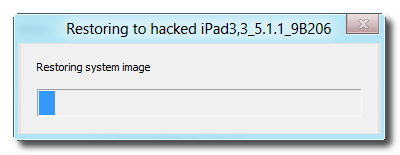
RedSn0w will now restore to iOS 4.x.

Step Fifteen
Once the restore to iOS 4.x is complete, RedSn0w will put your device back into recovery mode and prepare the iOS 5.x restore image.

Step Sixteen
iOS 5.x will now be restored.

Step Seventeen
You'll be notified once the restore is complete.


How to Downgrade Your iPad 2 From iOS 6.x to iOS 5.x (Mac)

How to Downgrade Your iPad 2 From iOS 6.x to iOS 5.x (Mac)


These are instructions on how to downgrade your iPad 2 from iOS 6.x to iOS 5.x using saved SHSH blobs and Redsn0w for Mac.

You will need to have saved SHSH Blobs for iOS 5.x and iOS 4.x for this tutorial to work.

Step One
Create a folder on your desktop called Pwnage

Download the latest version of RedSn0w from here and place it in the Pwnage folder. Likewise, download the 5.x firmware you would like to restore to and the 4.x firmware you have saved SHSH Blobs for from here and place it/them in the Pwnage folder. 

Extract the RedSn0w zip file by double clicking it.

Step Two
Right click or control-click the redsn0w application from the redsn0w folder we extracted earlier and chooseOpen from the popup menu that appears.


Step Three
Click Extras from the main menu.

Step Four
Click Even More from the Extras menu.

Step Five
Click Restore from the Even More menu.

Step Six
Click IPSW from the Restore menu, choose the IPSW you would like to restore to from the window that appears, and click Open.


Step Seven
When prompted, connect your iPad 2 to the computer in normal mode and click OK

Step Eight
You will be informed that a 4.x IPSW will be required to continue. Click the OK button.

Step Nine
Select the 4.x firmware IPSW from the Pwnage folder on your desktop and click Open.

Step Ten
Your iPad will now be placed into recovery mode.

Step Eleven
RedSn0w will check Cydia to see if you have the correct blobs saved.

If RedSn0w is unable to find your blobs automatically click the Remote button to try again or you can click theLocal button to search for blobs on your computer.

Step Twelve
RedSn0w will prepare the 4.x restore image.

Step Thirteen
You will then be prompted to place your iPad into DFU mode.

Hold down both the Home button and the Power button for 10 seconds.

Release the Power button and continue holding the Home button for another 10 seconds. You screen should stay blank.

Click the OK button to continue.

Step Fourteen
RedSn0w will now restore to iOS 4.x.

Step Fifteen
Once the restore to iOS 4.x is complete, RedSn0w will put your device back into recovery mode and prepare the iOS 5.x restore image.

Step Sixteen
iOS 5.x will now be restored.

Step Seventeen
You'll be notified once the restore is complete.


Thursday, 24 May 2012

How to Downgrade Your iPad 2 Using RedSn0w (Windows)


These are instructions on how to downgrade the firmware of your iPad 2 using RedSn0w for Windows.

In order to continue you will need to have SHSH Blobs saved for the lower firmware version you are downgrading to. You may haved used RedSn0w or TinyUmbrella to save your SHSH blobs. Also make sure you have performed a backup of your device using iTunes.


Step One
Create a folder called Pwnage on your desktop and download the following items into the folder.
- The latest version of RedSn0w
- The current iOS firmware (ie. iOS 5.1.1)
- The older firmware you want to downgrade to (ie. iOS 5.0.1 or iOS 5.1)
Extract the RedSn0w archive.


Step Two
Launch the RedSn0w application from the extracted RedSn0w folder by right clicking its icon and selecting Run as Administrator from the contextual menu.


Step Three
Select Extras from the main menu.


Step Four
Choose Even More from the extras menu.


Step Five
Select Restore from the even more menu.


Step Six
Click the IPSW button.


Step Seven
Navigate to the Pwnage folder on your desktop and choose the firmware ipsw you would like to restore to and click Open.


Step Eight
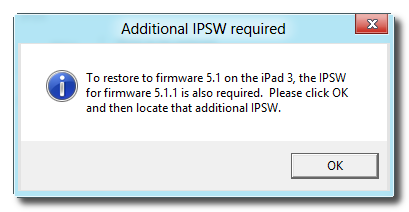
You will be informed that an additional IPSW is required. Make note of the ipsw file requested and click the OKbutton.


Step Nine
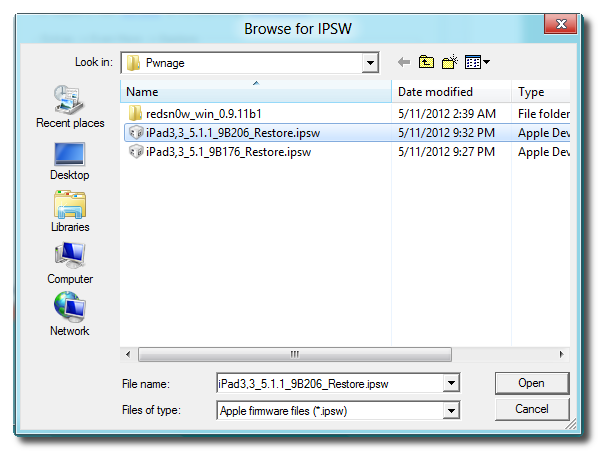
Select the additional ipsw specified in the previous step and click the Open button. (This will likely be the most current firmware ipsw).


Step Ten
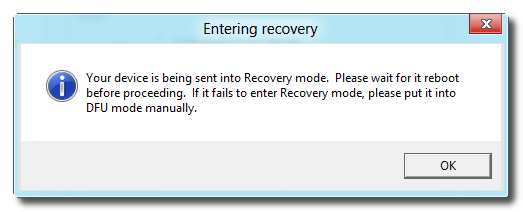
You will now be informed that your device will be placed into recovery mode. Click the OK button.


Step Eleven
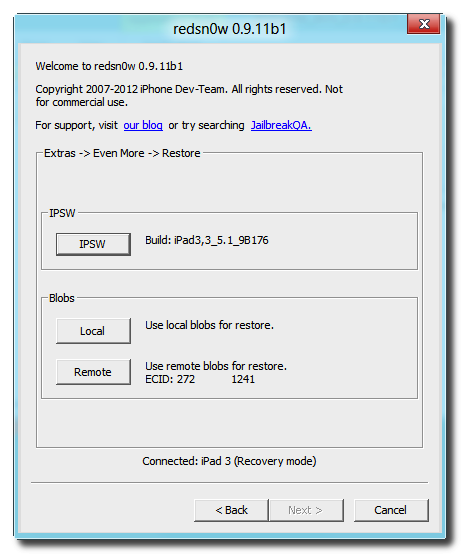
You must now select your blobs for restore. You can choose to specify local blobs or remote blobs.


REMOTE BLOBS
- Choose this option if you previously saved your blobs with RedSn0w and they were stored on the Cydia server. This is the easiest option if it's available to you.

LOCAL BLOBS
- Choose this option if you previously saved your blobs with TinyUmbrella or you used RedSn0w but did not let Cydia save a copy of your blobs.
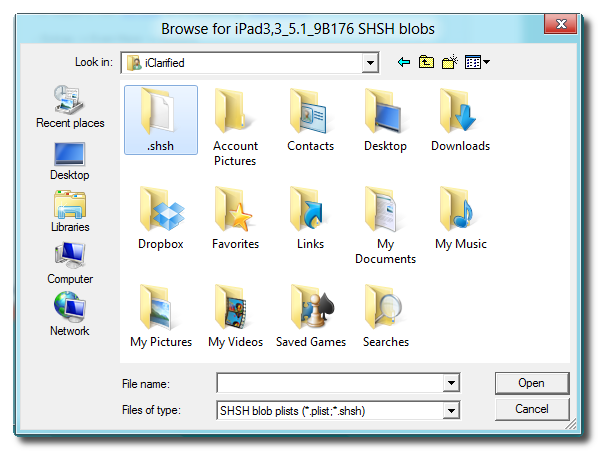
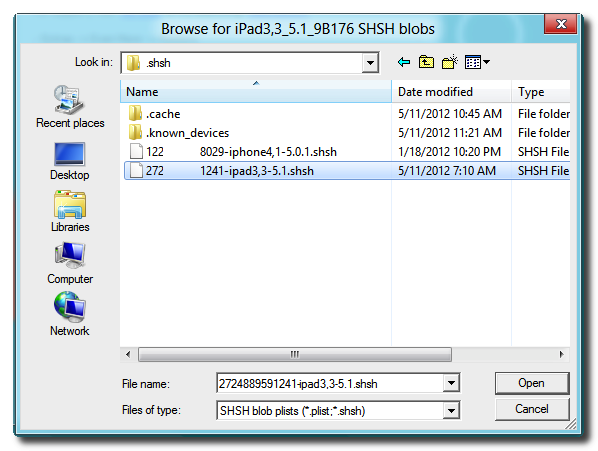
- After clicking Local you will be prompted to select your saved blob file for the firmware you are downgrading to. If you used TinyUmbrella, simply navigate to your home folder and go into the .shsh folder to find your saved SHSH blobs. Select the file that matches the ECID displayed in RedSn0w and the firmware version you are downgrading to, then click Open.


Step Twelve
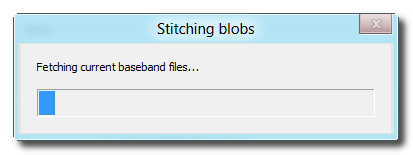
RedSn0w will now stitch your blobs to the firmware ipsw and automatically begin a restore to the modified firmware.


Step Thirteen
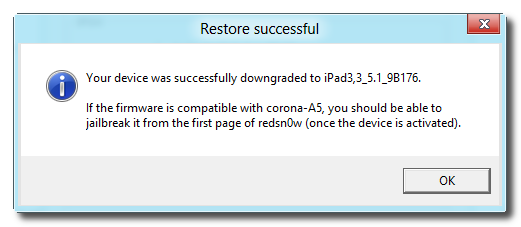
You will be informed that your restore has been successful! If you were downgrading to jailbreak you can find jailbreak instructions here