Showing posts with label Applications. Show all posts

Monday, 26 September 2011

How to Install the Leaked Official FaceBook App on Your iPad


These are instructions on how to install the leaked official FaceBook app on your iPad. To perform this tutorial you will need a jailbroken device. You can find instructions on how to jailbreak here

Step One
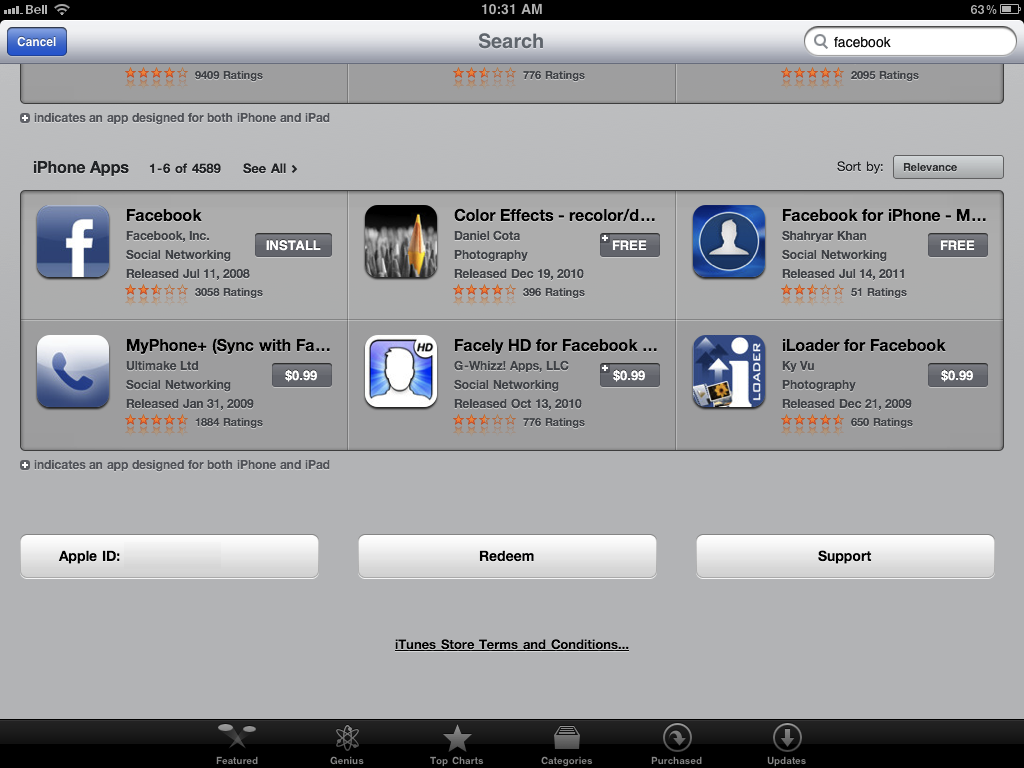
Press to launch the App Store from your Springboard and install the iPhone Facebook App.


Step Two
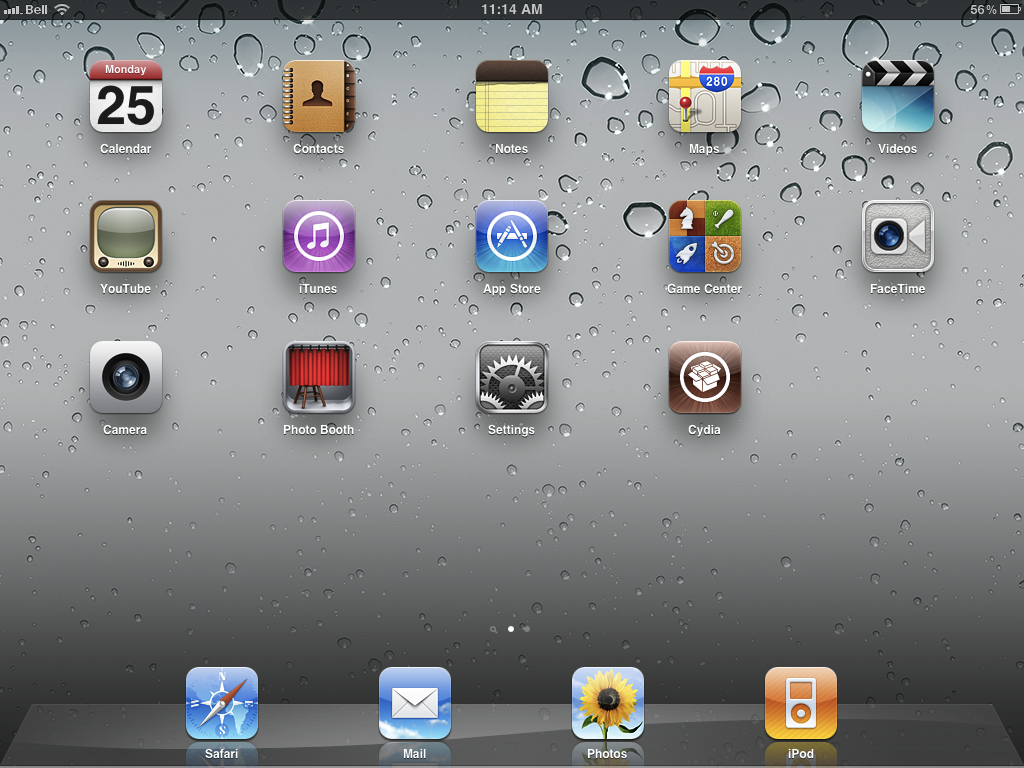
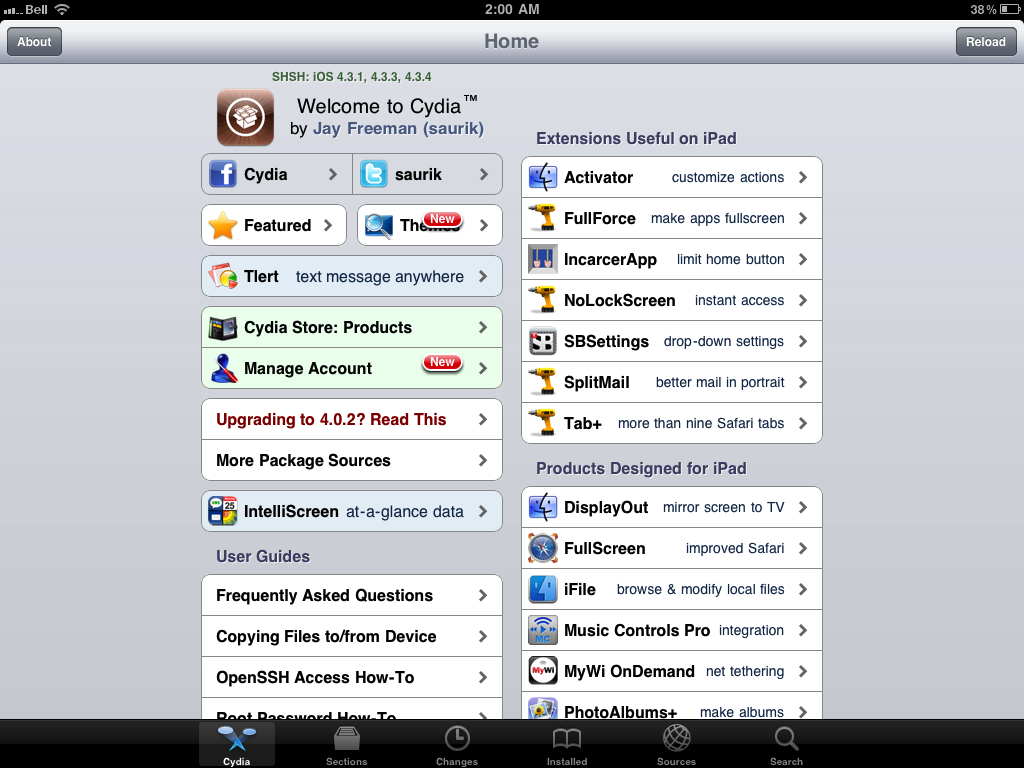
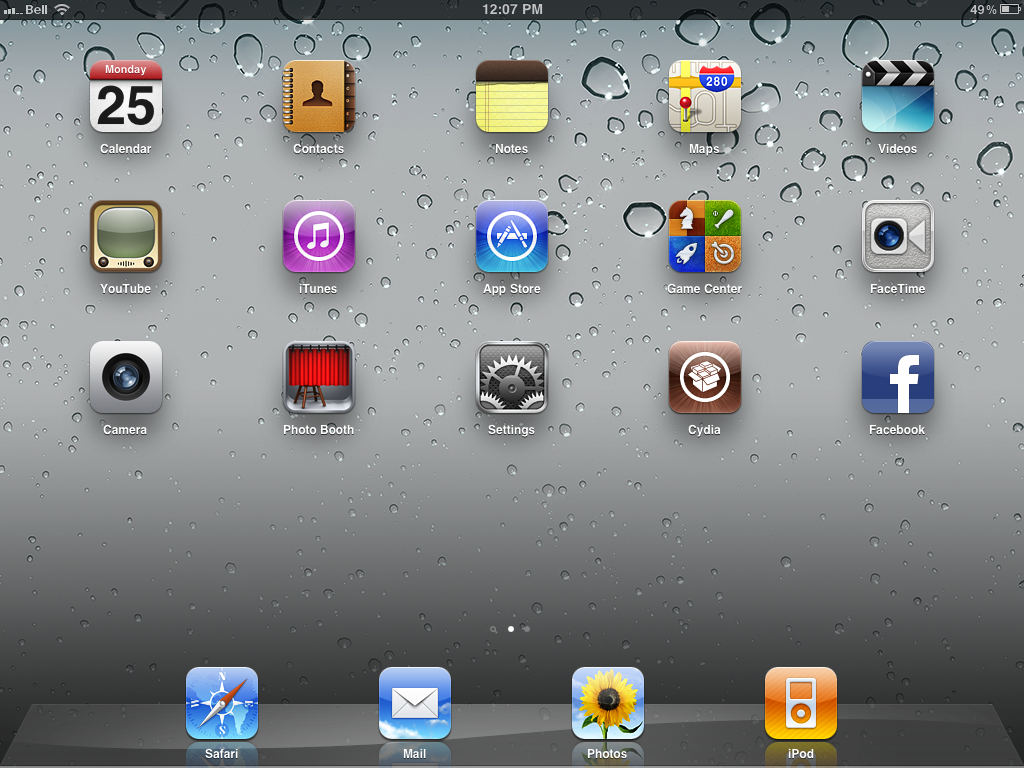
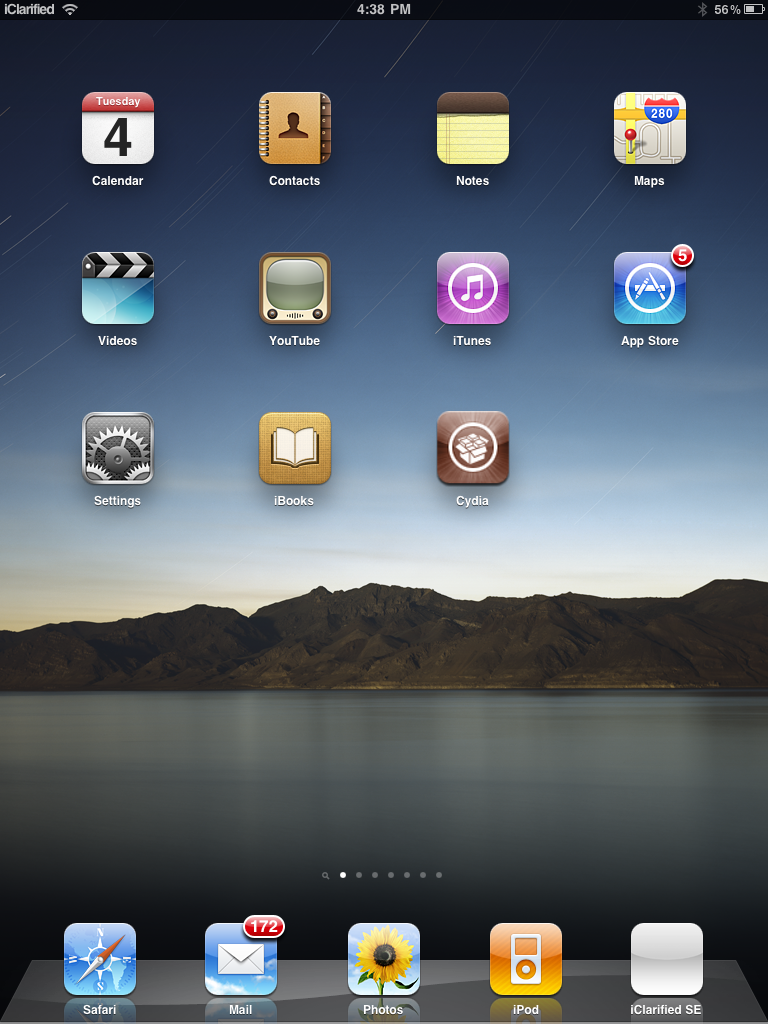
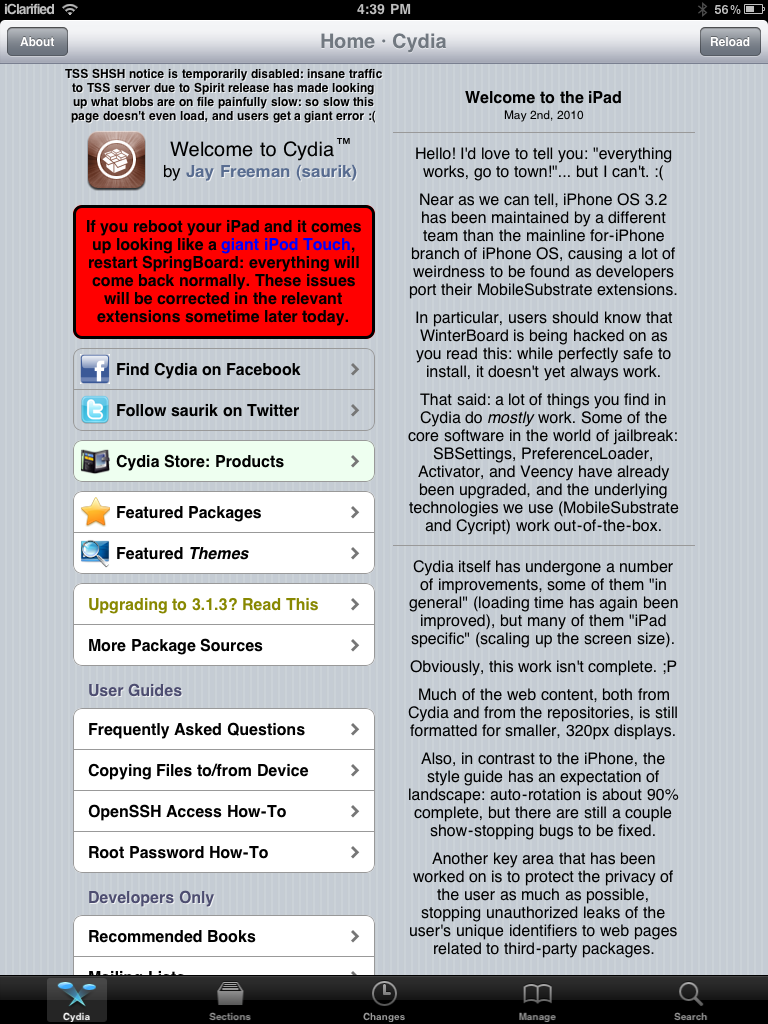
Press to launch Cydia from your Springboard and press to select the Sections tab at the bottom of the screen.


Step Three
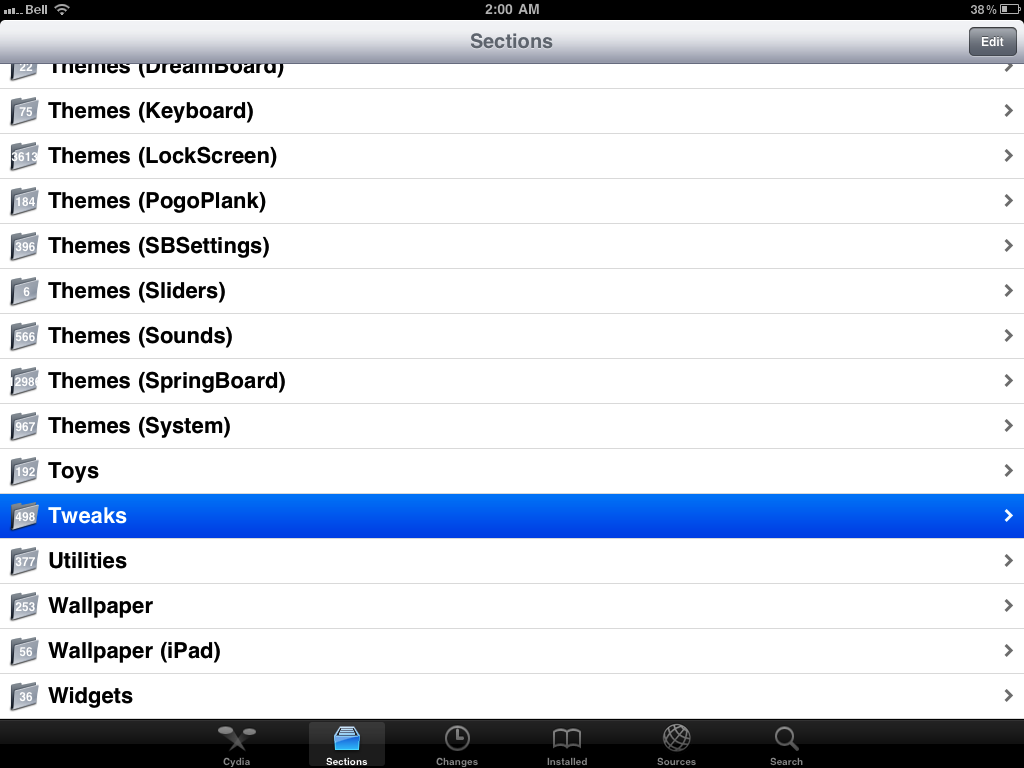
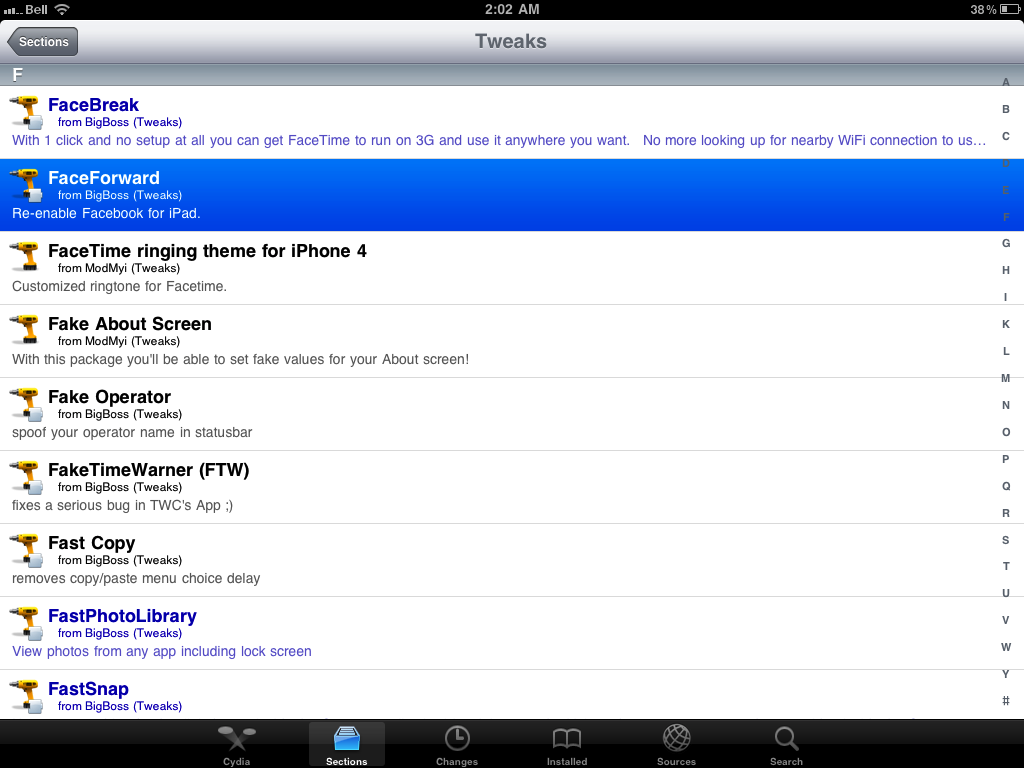
Press to select Tweaks from the list of Sections.


Step Four
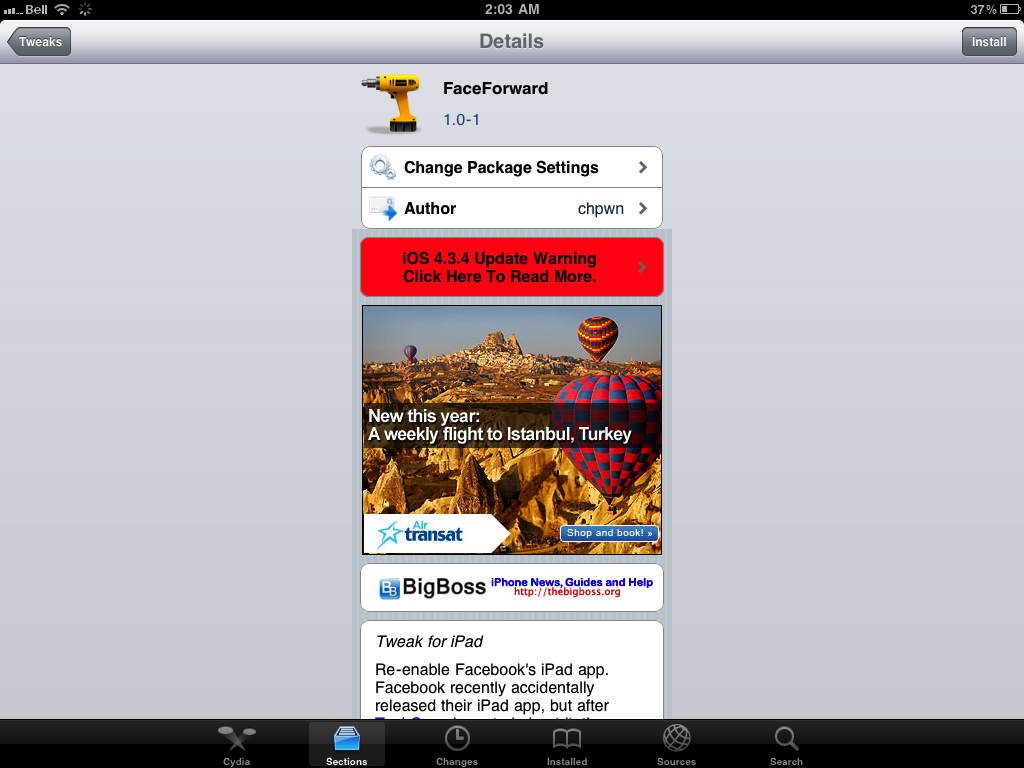
Press to choose FaceForward from the list of packages.


Step Five
Press the Install button at the top right of the screen.


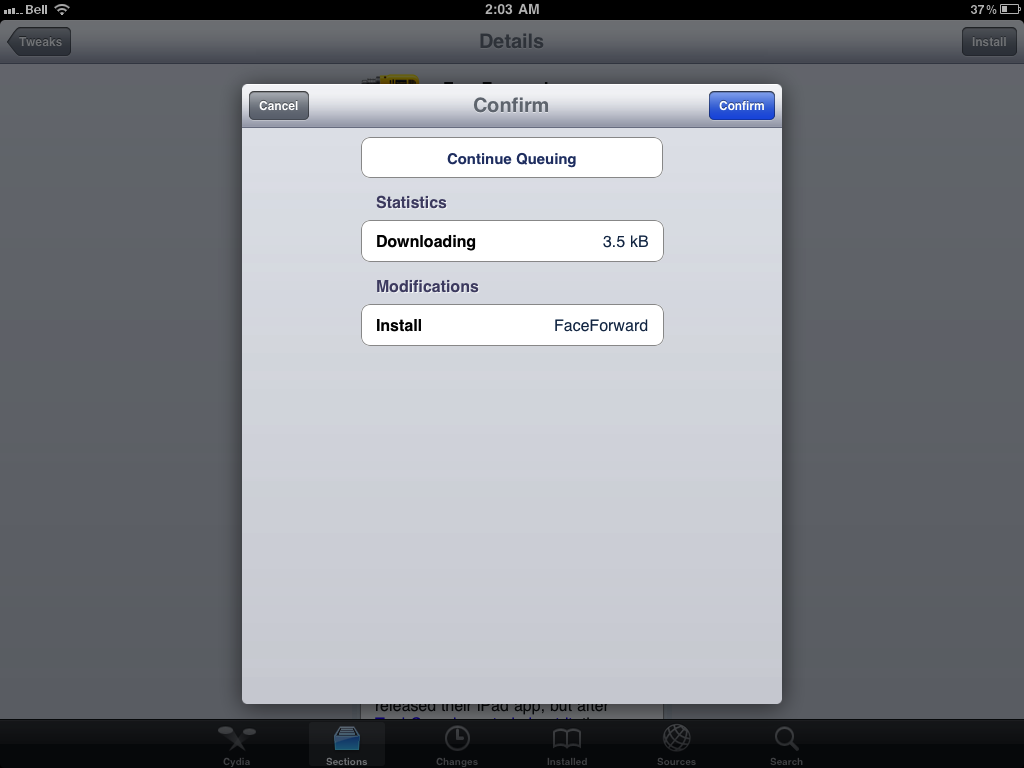
Step Six
Press the Confirm button to begin installation.


Step Seven
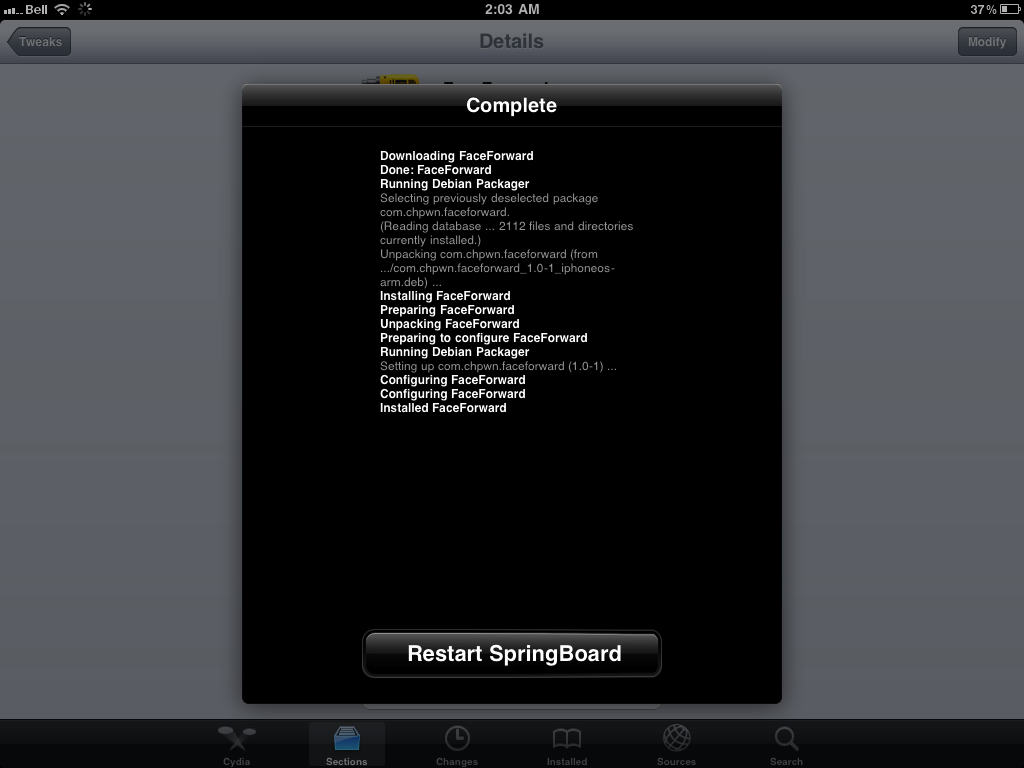
Once installation has completed successfully click the large Restart Springboard button.


Step Eight
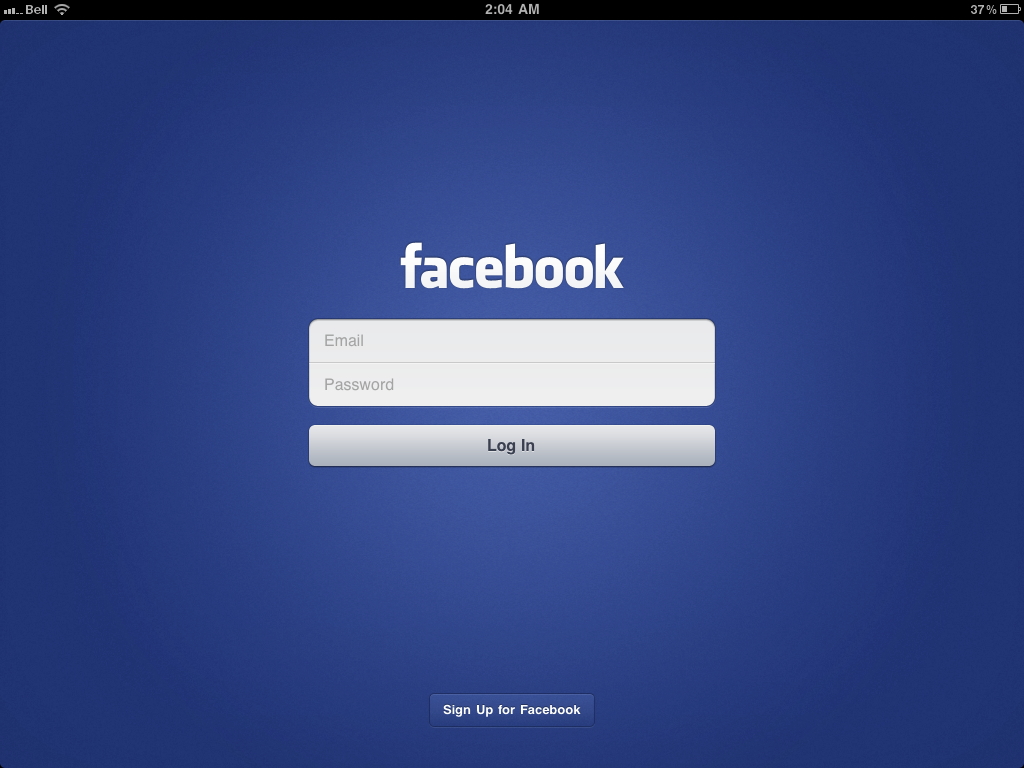
Launch the new iPad Facebook application from your Springboard!


Friday, 7 May 2010

How to Make iPhone Apps iPad Compatible


These are instructions on how to make iPhone applications run as iPad apps without pixelation or size doubling.

Please note that not every app will format properly using this method; however, for some apps it may work very well.

Step One
Jailbreak your iPad.

Step Two
Install
OpenSSH from Cydia. You can find instructions on how to do that here

Step Three
Connect your iPad to the same local network as your computer and launch
Fugu. If you do not have Fugu installed you can get it here.


Step Four
Enter the IP Address of your iPad in the
Connect To: field. Set the Username: to root and click the Connect button.


Step Five
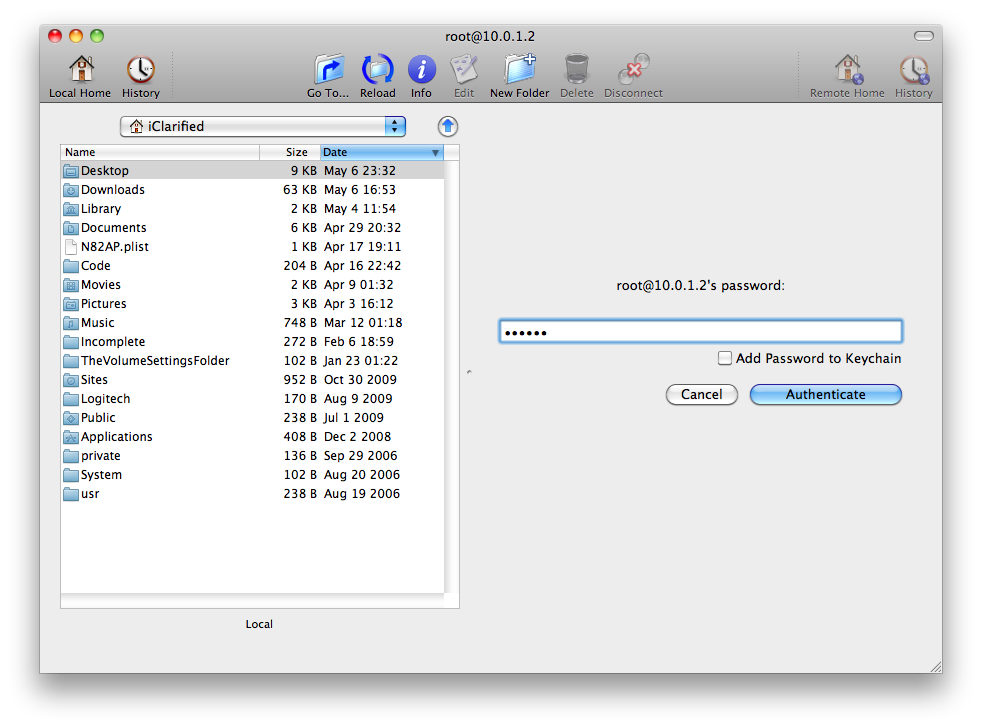
When prompted enter in your root password. If you haven't changed it then the root password will be
alpine. Click Authenticate to continue.


Step Six
Click the
Go To... button on the toolbar.


Step Seven
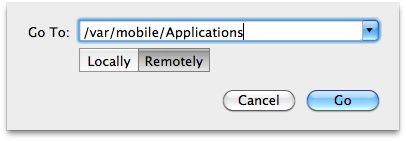
Enter
/var/mobile/Applications, ensure Remotely is selected and click the Go button.


Step Eight
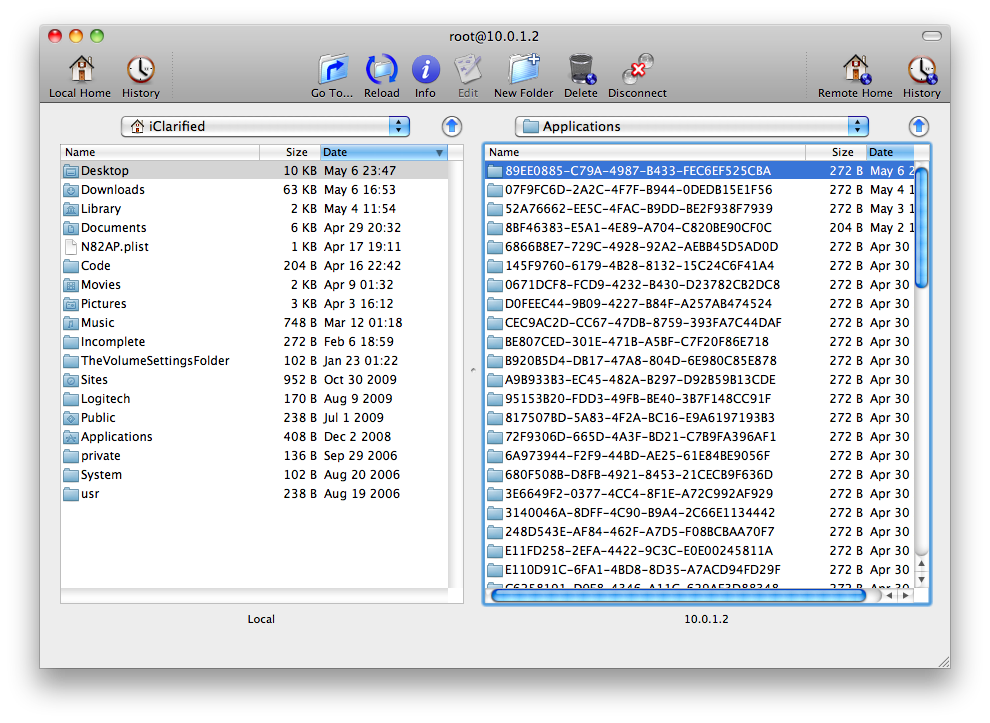
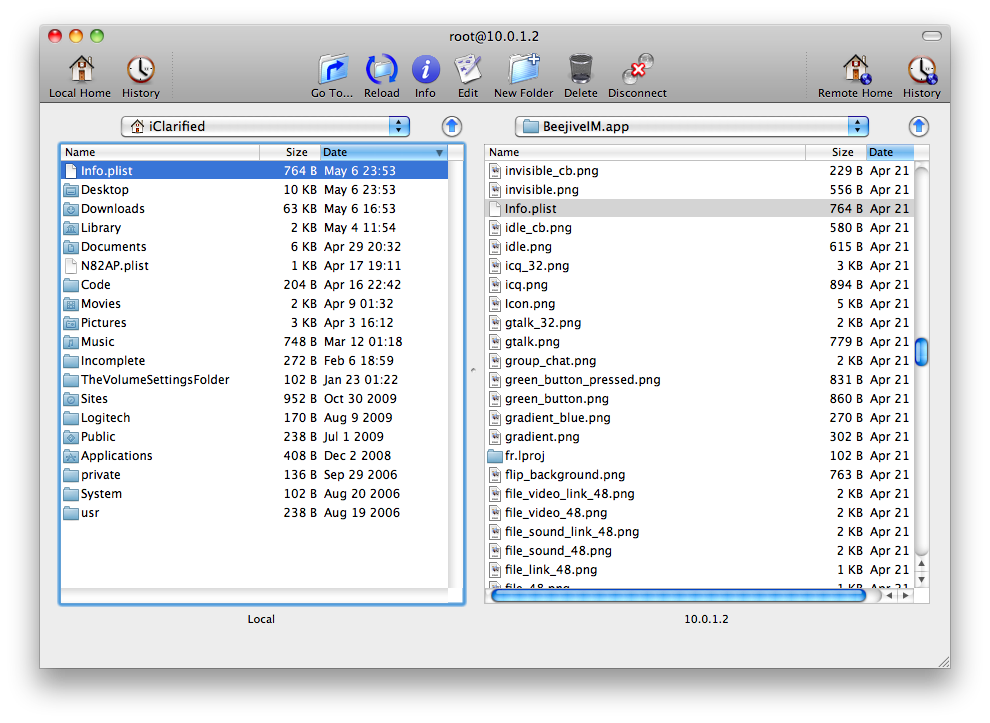
You will be presented with a list of application folders. Unfortunately its a bit difficult to determine which application is which. Use the date modified to help you.


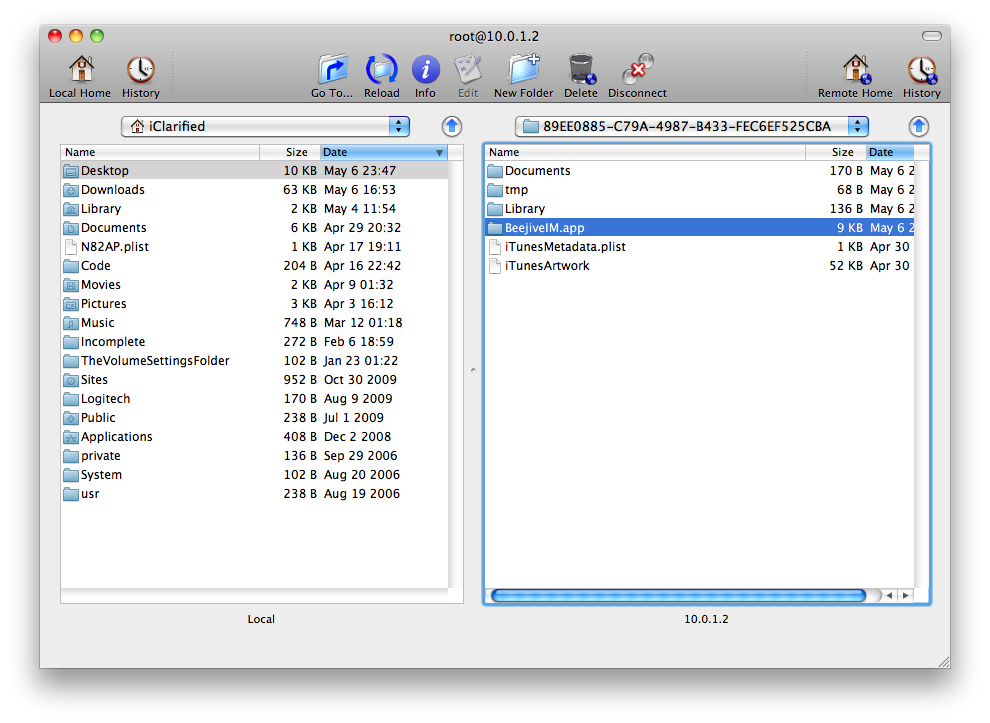
Double click a folder and you will notice the another folder with the application name, for example:
BeejiveIM.app


Step Nine
Double click to enter the .app folder and drag the
Info.plist from the right pane to the left pane. This will copy the file to your computer.


Step Ten
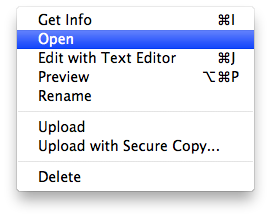
Right click (Control+click) the newly copied
Info.plist file in the left panel and click Open form the contextual menu.


Step Eleven
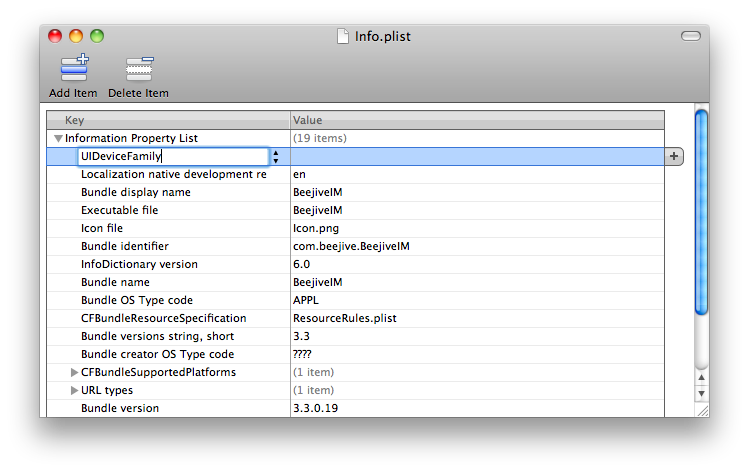
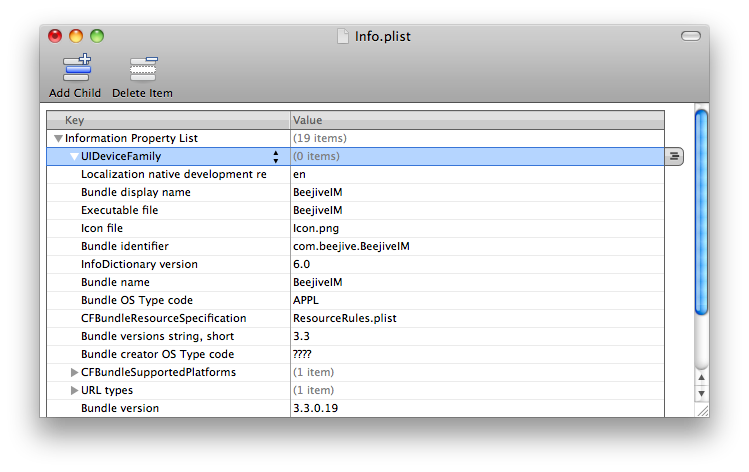
Property List Editor will open the file. Click
Add Child from the toolbar and name the new child UIDeviceFamily.


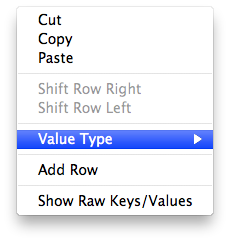
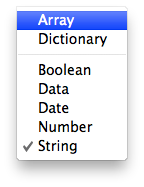
Right click the UIDeviceFamily entry we just created and then select
Value Type then Array from the contextual menus.


Click the arrow to the left of
UIDeviceFamily so that it points down.


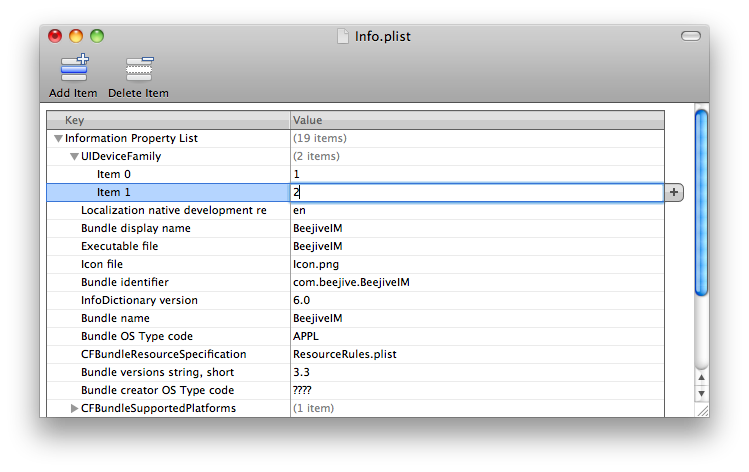
Click the
Add Child toolbar button twice.


Set the values of the newly created items to
1 and 2.


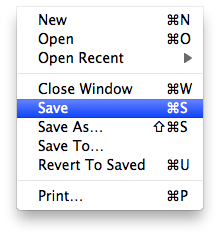
Click
Save from the File menu to save your changes.


Step Twelve
Go back to
Fugu and drag the Info.plist file from the left panel to the right.

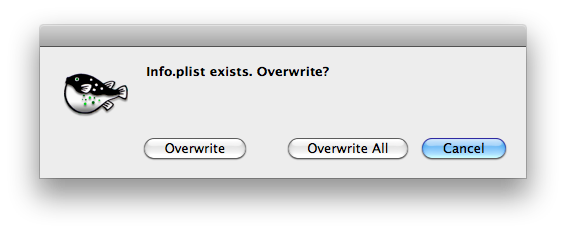
You will be asked to confirm. Click the
Overwrite button.


Step Thirteen
Respring your iPad or turn it on and off to see the improvement.


[
via FSM]

Thursday, 6 May 2010

How to Run iPad Apps in the Background


These are instructions on how to run iPad applications in the background using Backgrounder.

Step One
Jailbreak your iPad. You find instructions on how to do that here:
Windows, Mac.

Step Two
Press to launch
Cydia from the Springboard.


Step Three
Press to choose
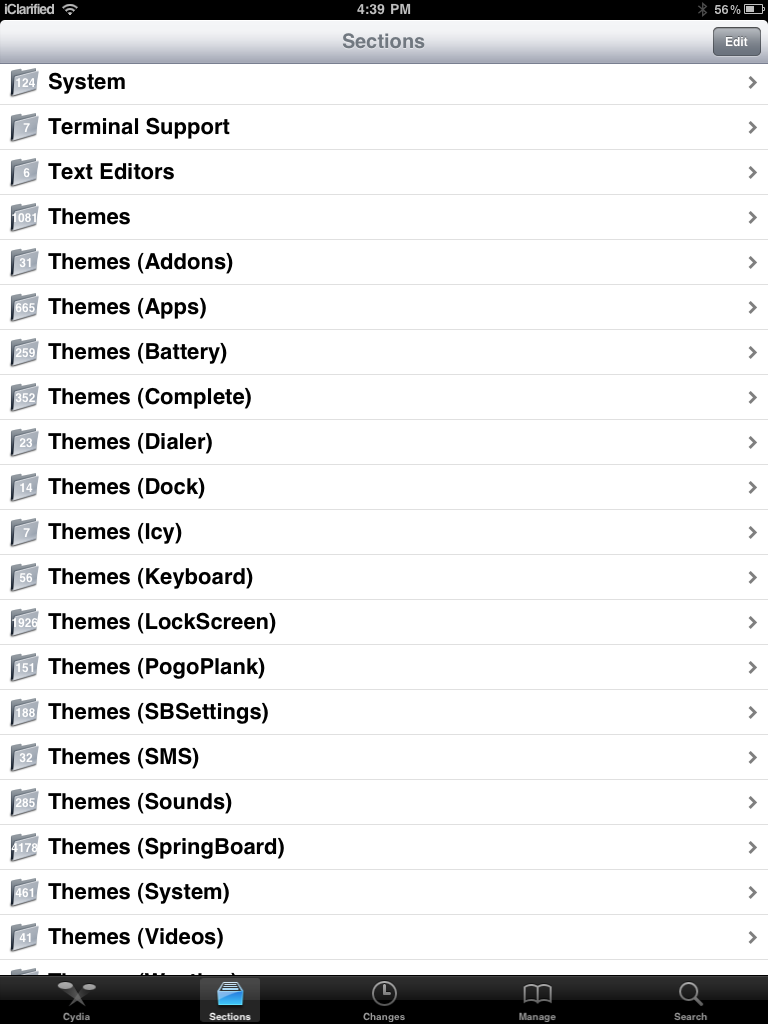
Sections from the tabs at the bottom of the screen.


Step Four
Press to select
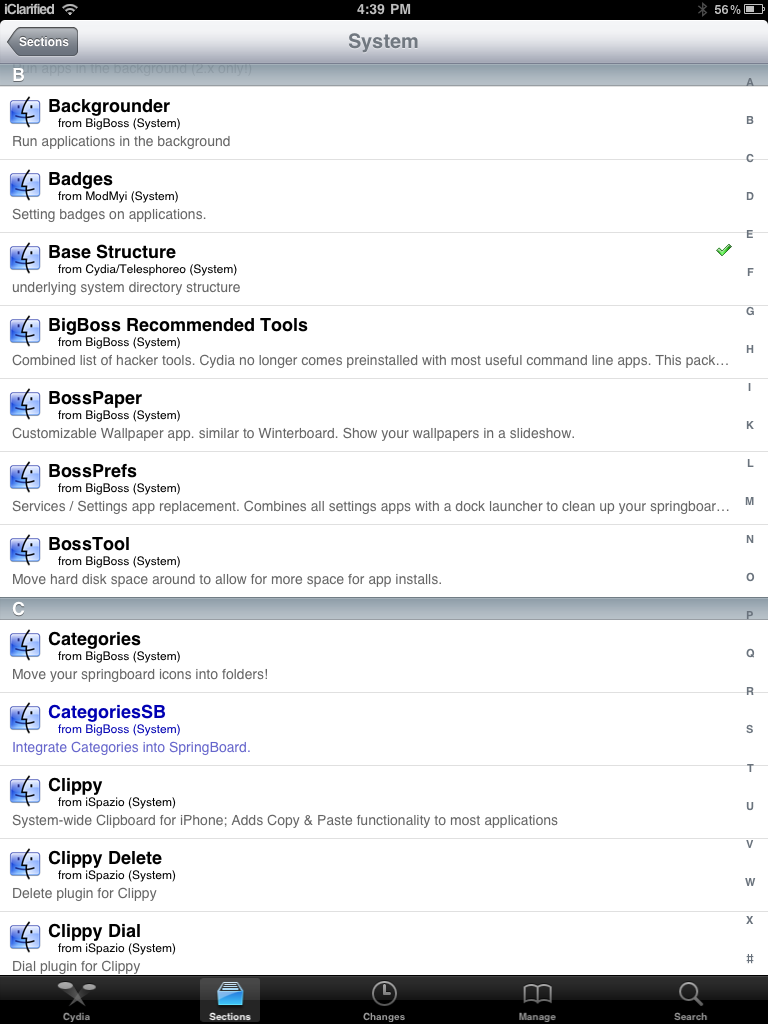
System from the list of Sections.


Step Five
Press to select
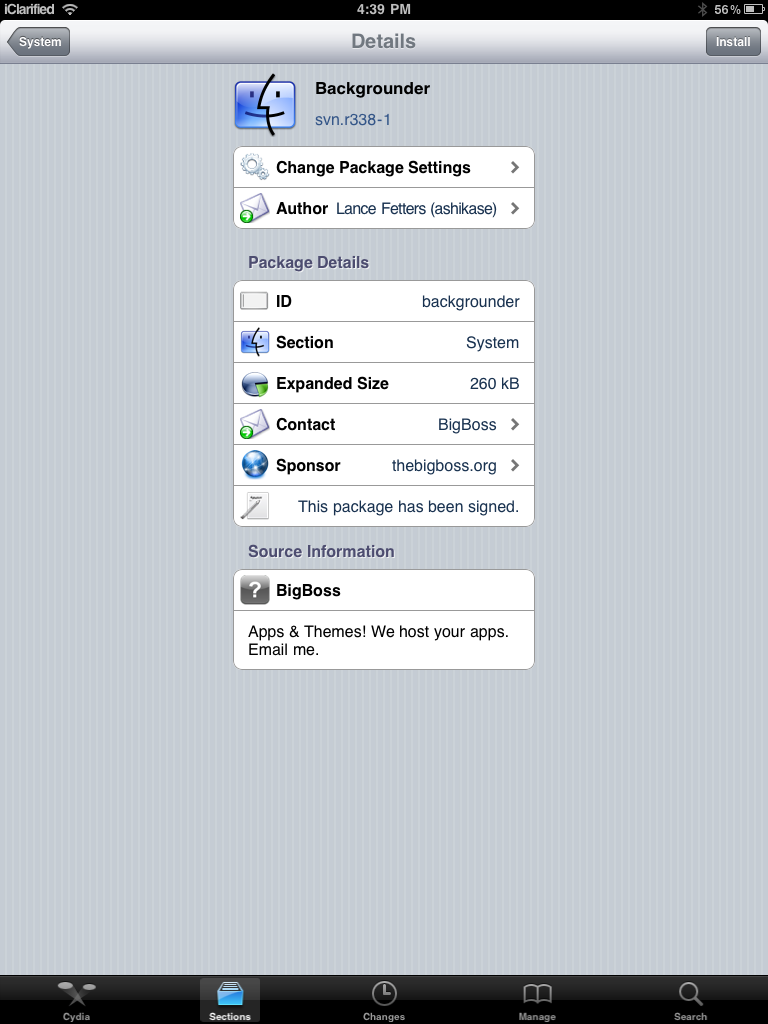
Backgrounder from the list of Packages


Step Six
Press the
Install button at the top right of the screen.

Step Seven
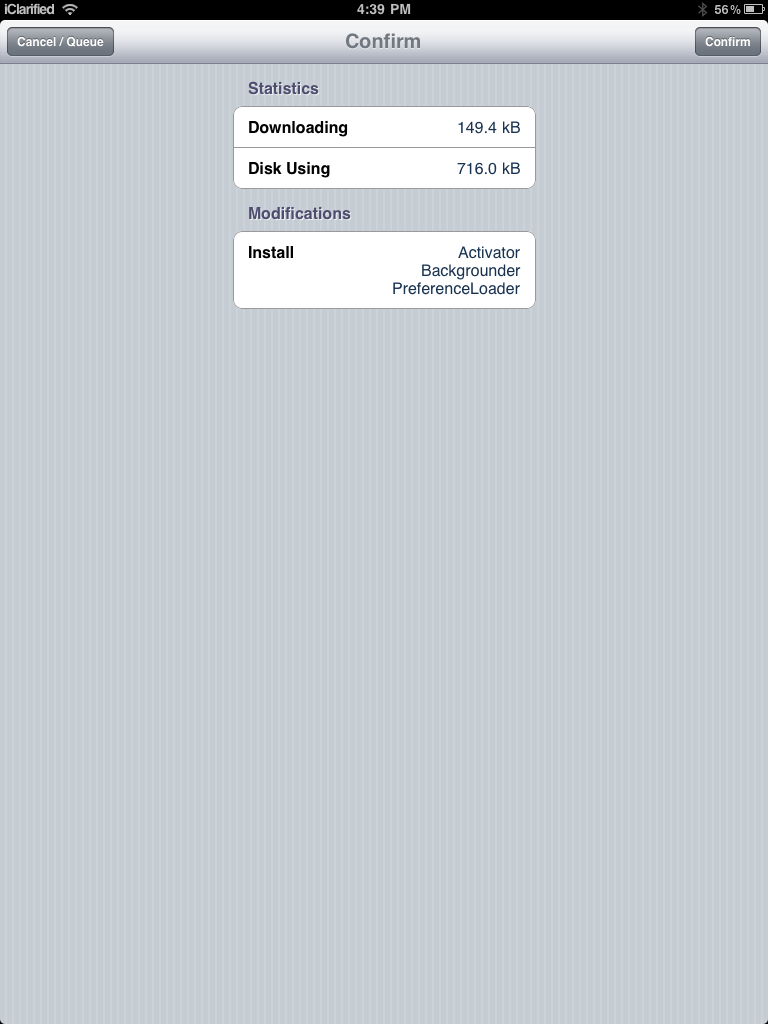
Press the
Confirm button to begin installation.

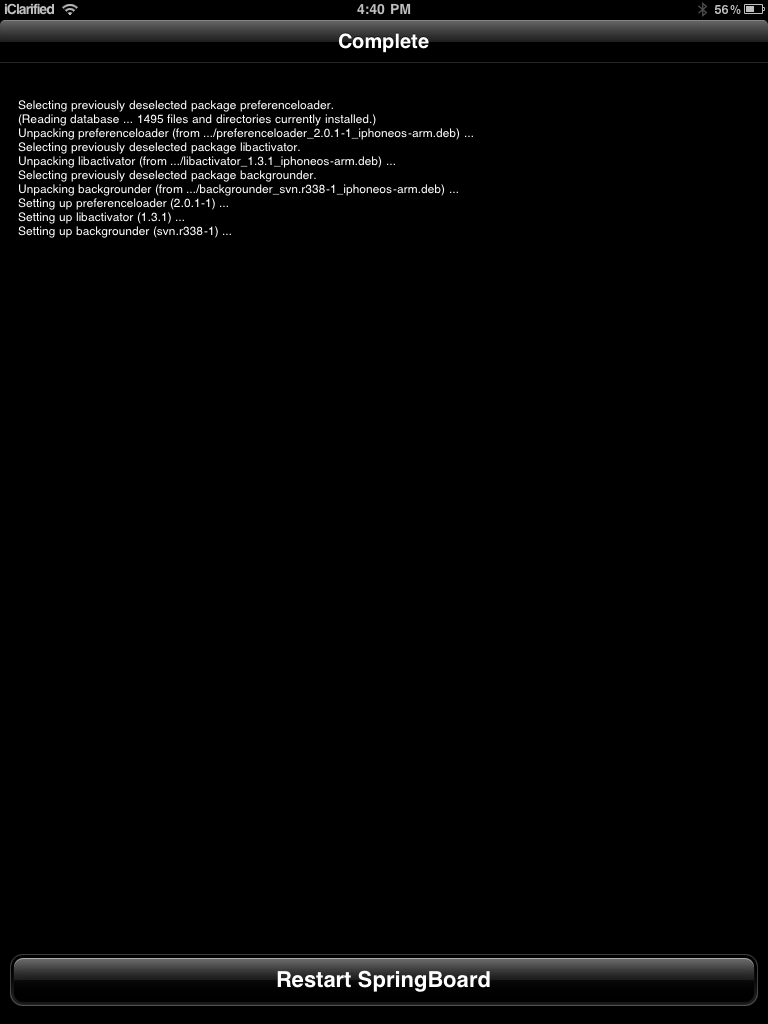
Step Eight
Once the installation has completed successfully you can press the large
Restart Springboard button.


Step Nine
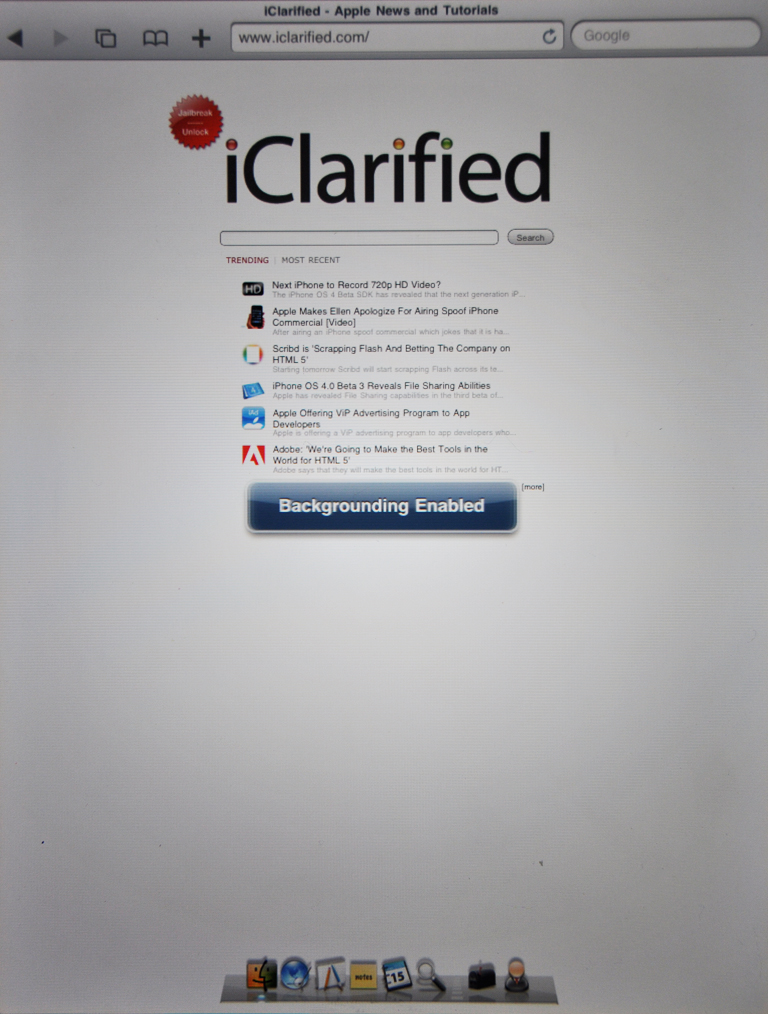
Now open the application you would like to run in the background. Press and hold the
Home button until you see a "Backgrounding enabled" message.


To stop an application from running in the background press and hold the
Home button until you see a "Backgrounding disabled" message.

Soon there will be background managers available in Cydia. These will let you see which applications you have set to run in the background and help you switch between them with ease.

Wednesday, 7 April 2010

Ultimate Way to Experience Twitter on Your iPad


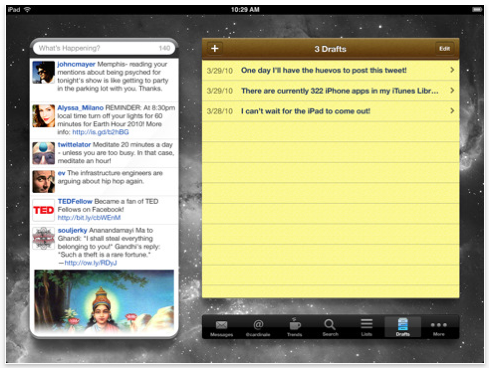
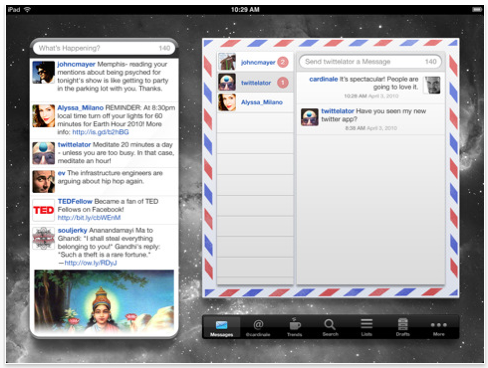
Stone Design/Big Stone Phone have announced the release of Twittelator for iPad 1.0.1, an evolution of its award winning Twitter client. Its beautiful user interface allows you to always keep your friends' tweets in view while you explore the rest of what Twitter has to offer. Twittelator for iPad is available now for only $4.99 from the App Store.

"Twittelator for iPad represents the perfect blend of user experience design and rich functionality," said Andrew Stone (@twittelator), Stone Design's CEO.

Twittelator for iPad features include:
* Terrific multiple account support
* Images are shown inline. No more having to follow a link just to preview a photo
* Keep your friends' tweets in view at all times
* View messages in an organized conversation view
* Create and manage drafts
* Discover nearby tweets in a map view
* Set customizable wallpapers
* Post photos and voice recordings
* Automatically splits up long tweets to allow for longer messages
* All of this amongst a rich set of other highly tuned features

Twittelator for iPad is based on the mature framework used in Twittelator Pro for the iPhone, which Mac|Life magazine deemed best-of-breed and of which Apple named as one of the summer's hottest releases.

"Absolutely nothing was taken for granted when designing Twittelator for the iPad. Every graphic and interaction was distinctly tailored to create an ideal Twitter experience," said designer Anthony Cardinale.

Pricing and Availability:
Twittelator for iPad 1.0.1 is only $4.99 USD (or equivalent amount in other currencies) and available worldwide exclusively through the App Store in the Social Networking category.

Read More


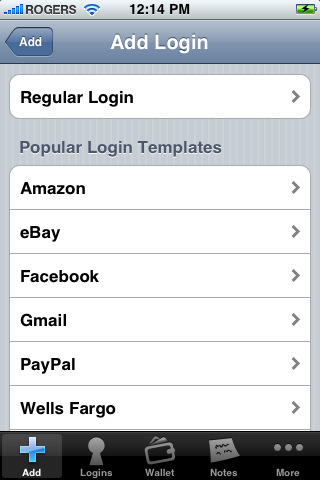
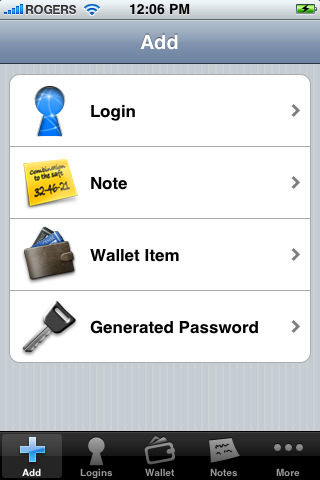
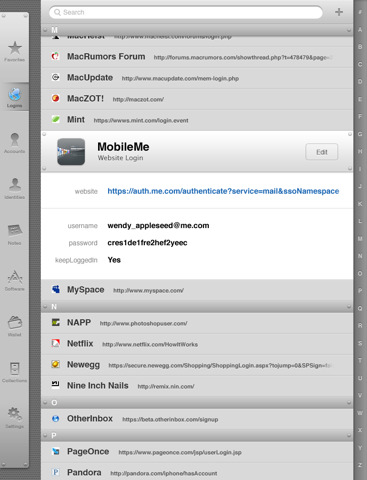
1Password Pro Gets Updated With iPad Interface


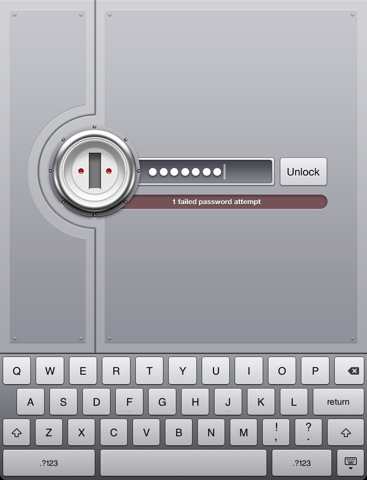
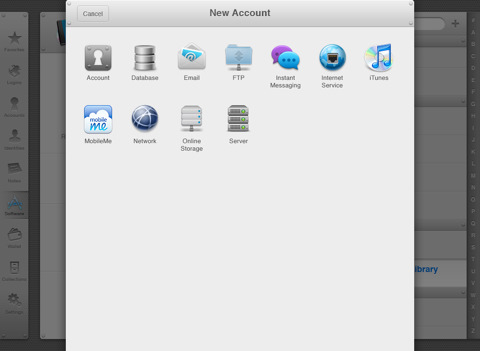
1Password Pro has been updated as a universal application with iPad support for existing customers. This means if you have already purchased the application you do not need to pay again or download the iPad only version.

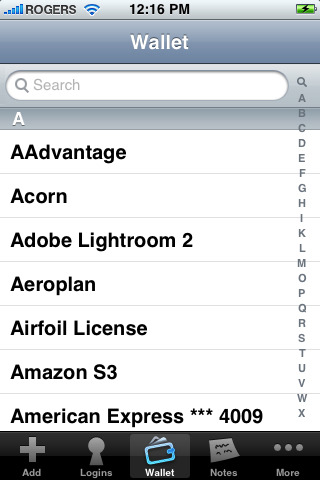
1Password will securely store your important information and can automatically log you into websites with a single tap. There's no need to remember the username, password, or even the website address. With the ability to save and sync text notes, credit card numbers, and other sensitive information, everyone from Macworld to Apple itself loves 1Password!

FEATURE LIST:
• Includes user interface for both iPhone and iPad.
• Special easy switching mode allows you to quickly copy-and-paste usernames and passwords to Mobile Safari.
• Folders for better organization (in this version a desktop application required - sold separately)
• Features coming soon: Favorites, MobileMe/WebDAV syncing, and more.
• Securely store your website names and passwords so you never forget them again
• Save important information like credit cards and membership numbers
• Jot down other notes too sensitive for stickies or bar napkins
• Synchronize it all with 1Password for Mac via Wi-Fi (sold separately, available at http://1password.com)
• Automatically log into Web sites on iPhone and iPod touch to avoid remembering and typing usernames and passwords
• Hardware-accelerated AES encryption and Auto-Lock keep your data protected even if your iPhone is lost or stolen
• All cryptographic operations are performed using standard iPhone libraries to ensure there are no security gaps or backdoors
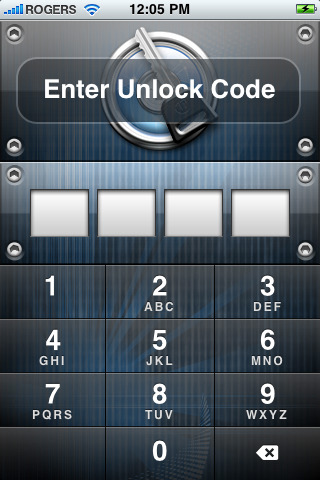
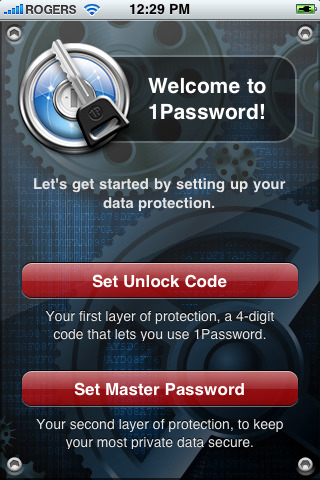
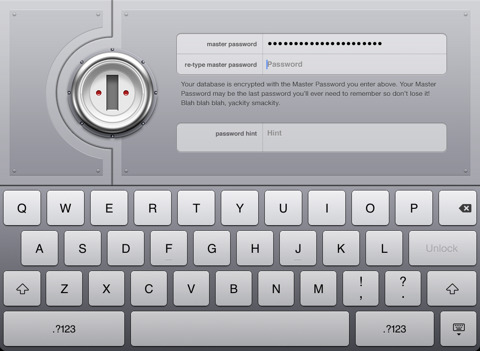
• Two-layer defense with Unlock Code and Master Password to combine security and convenience
• Data Backup & Restore option available on Mac, Windows and Linux.

What's New In This Version:
This update includes new user interface for iPad.

You can purchase 1Password Pro from the App Store for $14.99.

Read More