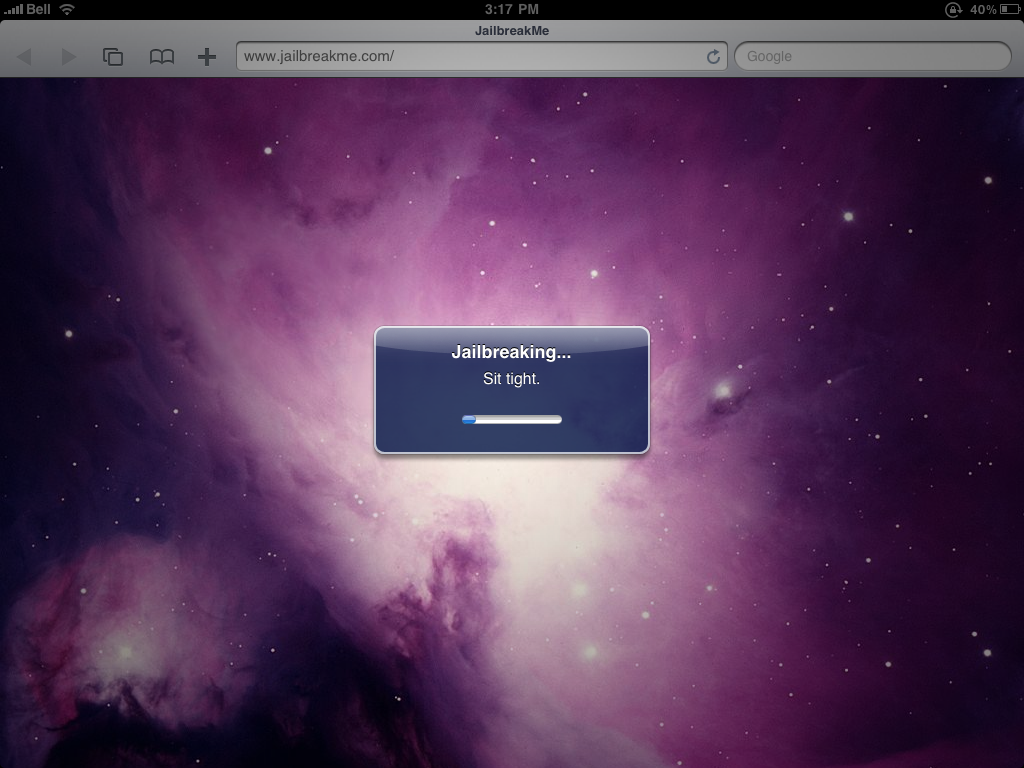
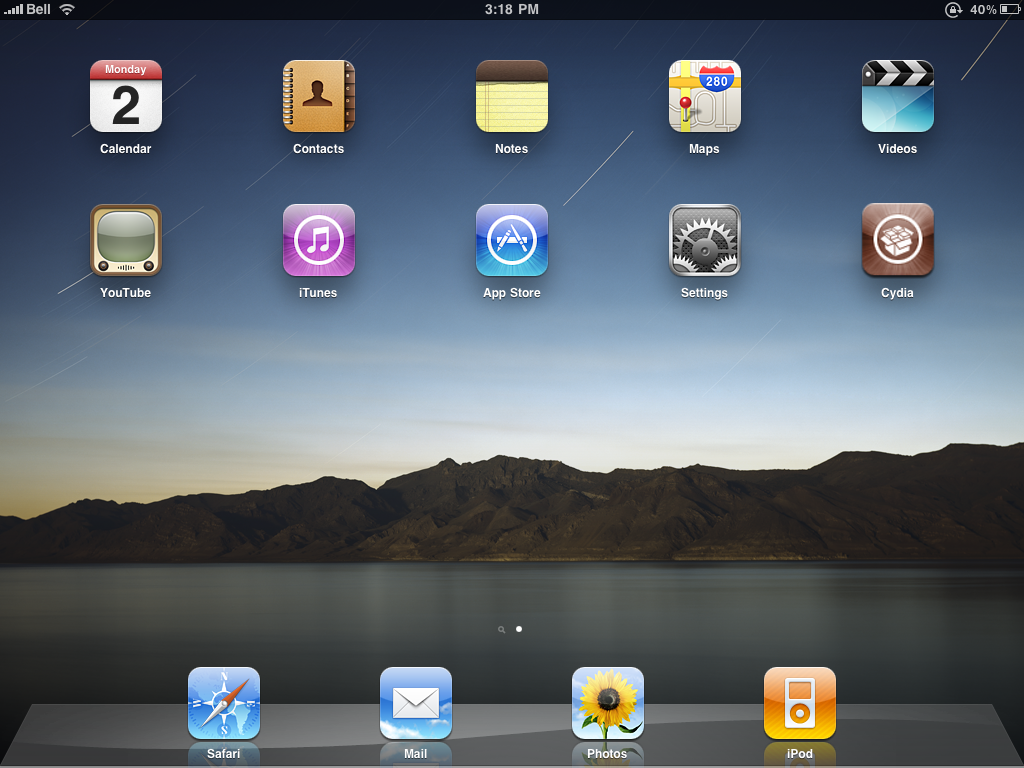
These are instructions on how to jailbreak your iPad 2 and iPad 1 on iOS 4.3.3 using JailbreakMe.
Step One
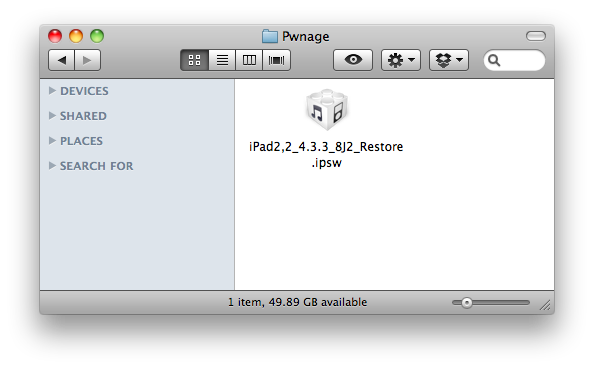
Create a Pwnage folder on your desktop and place the iOS 4.3.3 ipsw in it.
You can download the ipsw for your device from here:
4.3.3 (iPad 1): iPad1,1_4.3.3_8J3_Restore.ipsw
4.3.3 (iPad 2 Wi-Fi): iPad2,1_4.3.3_8J2_Restore.ipsw
4.3.3 (iPad 2 GSM): iPad2,2_4.3.3_8J2_Restore.ipsw
4.3.3 (iPad 2 CDMA): iPad2,3_4.3.3_8J2_Restore.ipsw

Step Two
Connect your iPad to the computer and launch iTunes.

Step Three
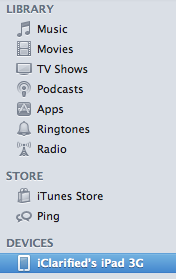
Select your iPad from the list of devices on the left

Step Four
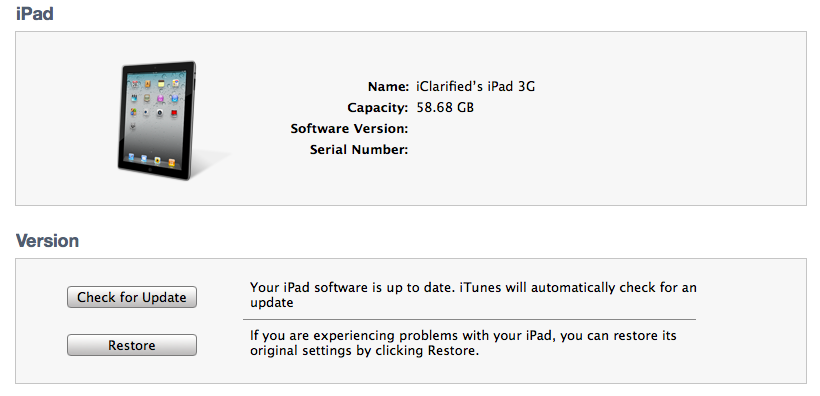
Hold down the Option (Mac) or Shift (Windows) key and click the Restore button.

Step Five
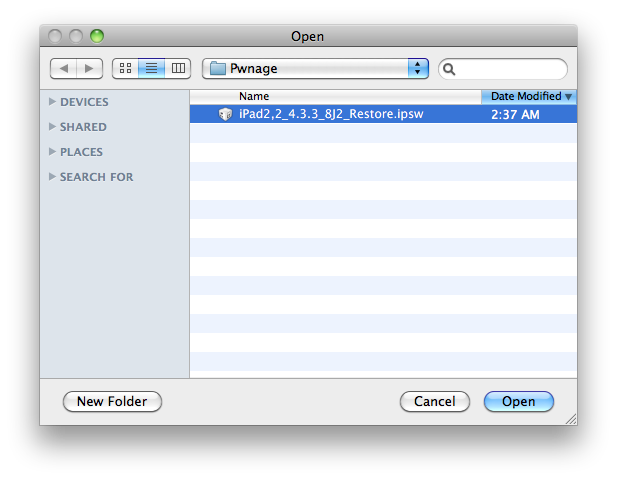
Select the iOS 4.3.3 ipsw from the Pwnage folder on your desktop and click Open.

Step Six
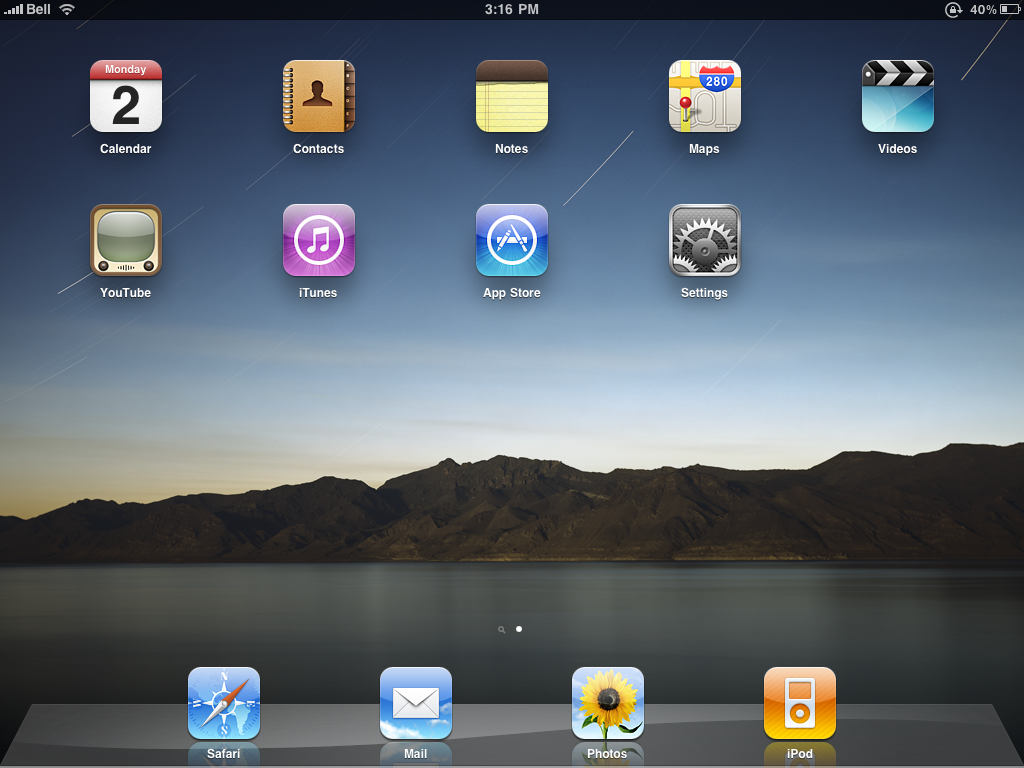
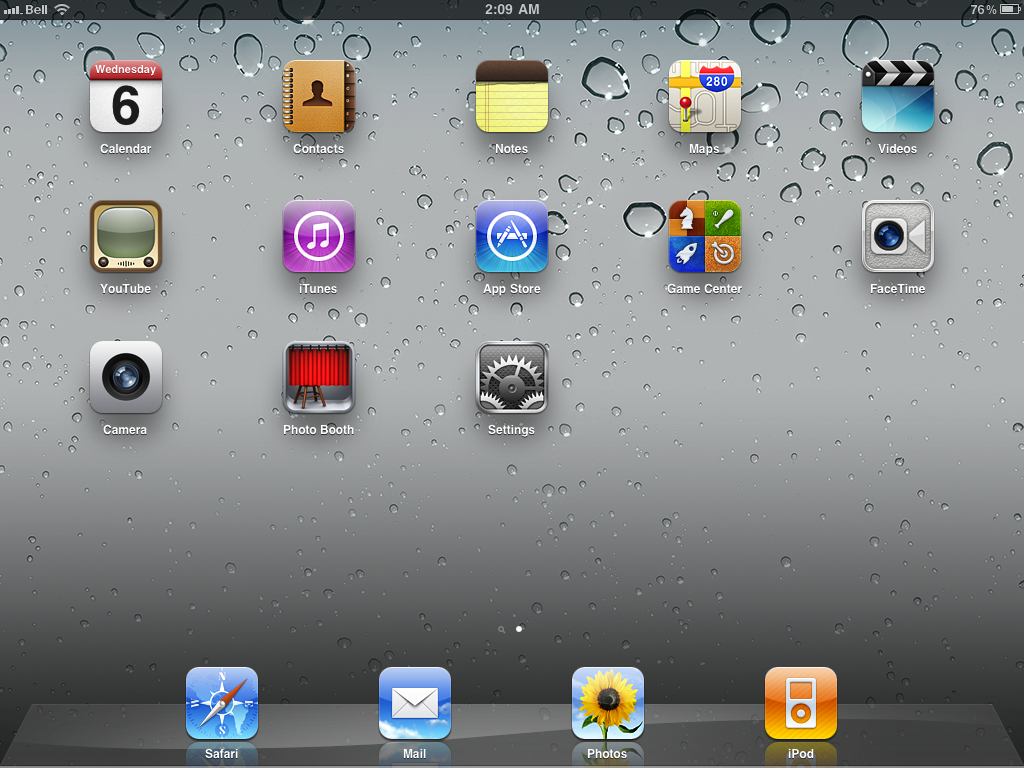
Once your iPad is running iOS 4.3.3, press to launch Safari from your desktop.

Step Seven
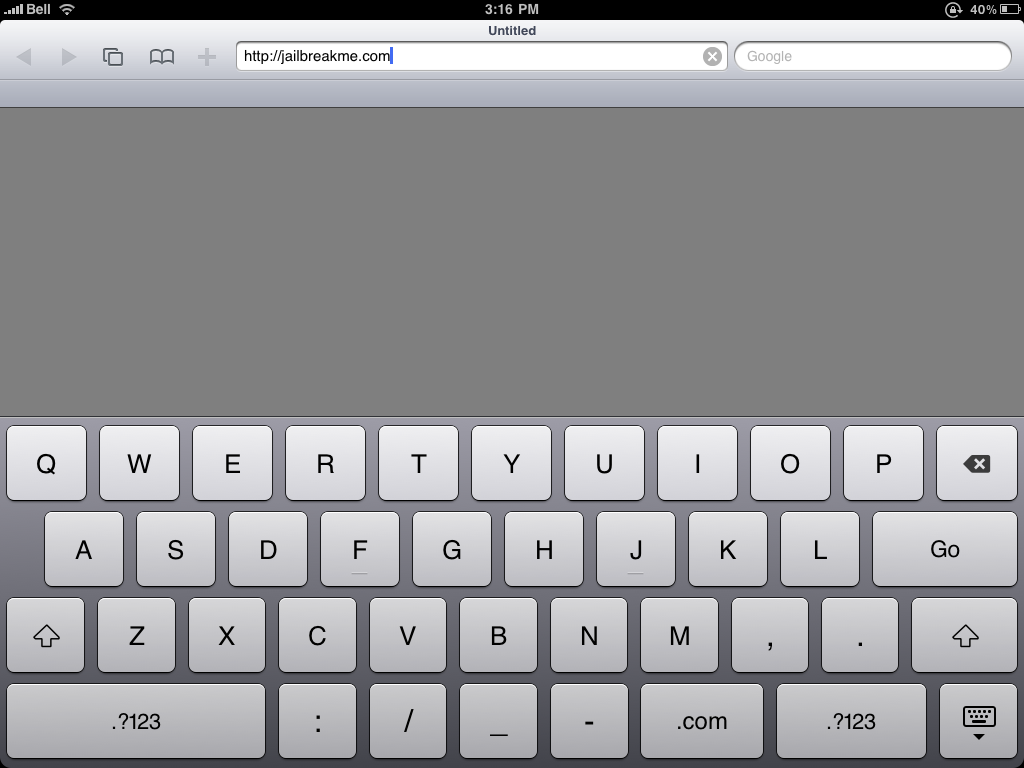
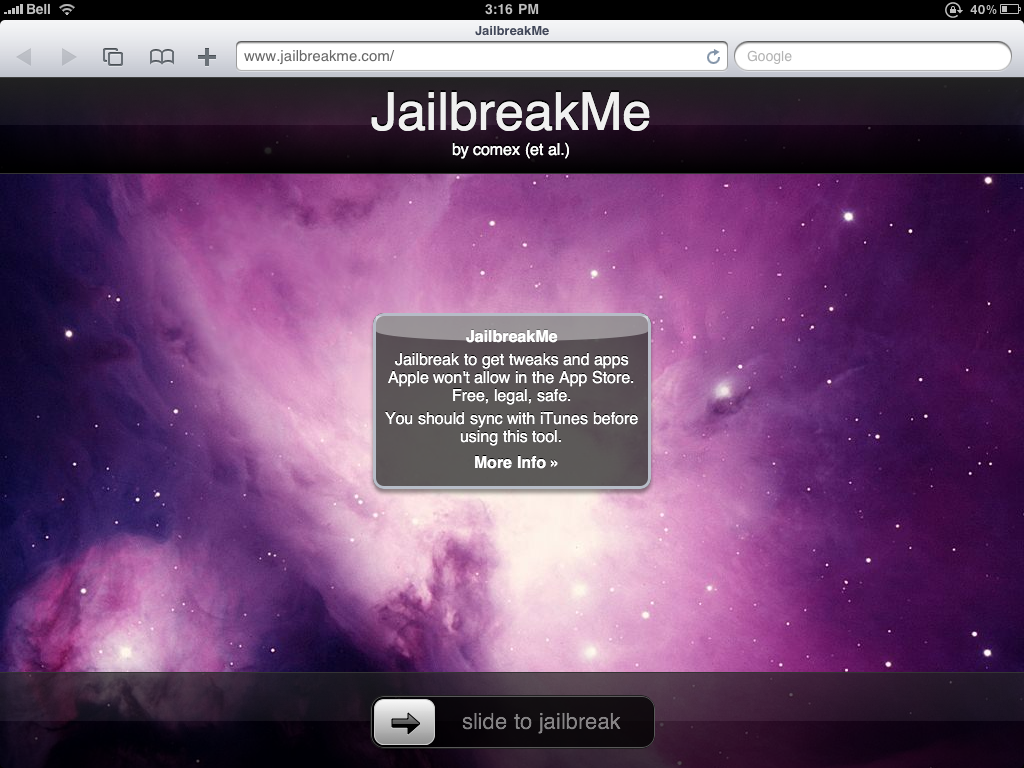
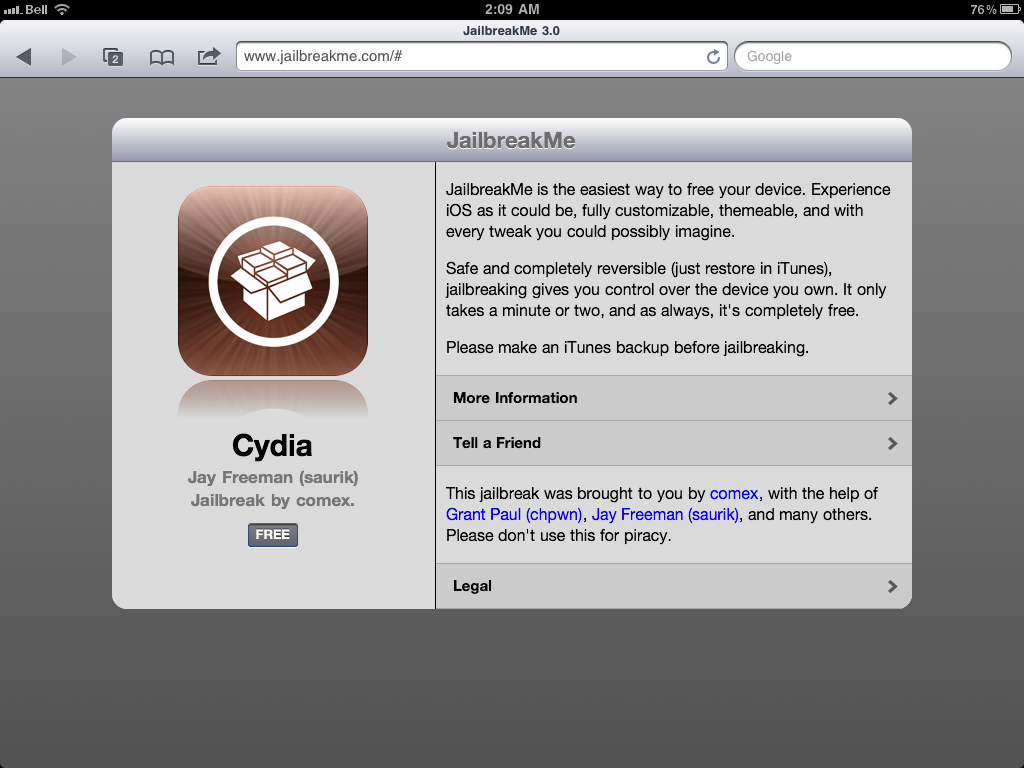
Navigate to http://www.jailbreakme.com and press the Free button.

Step Eight
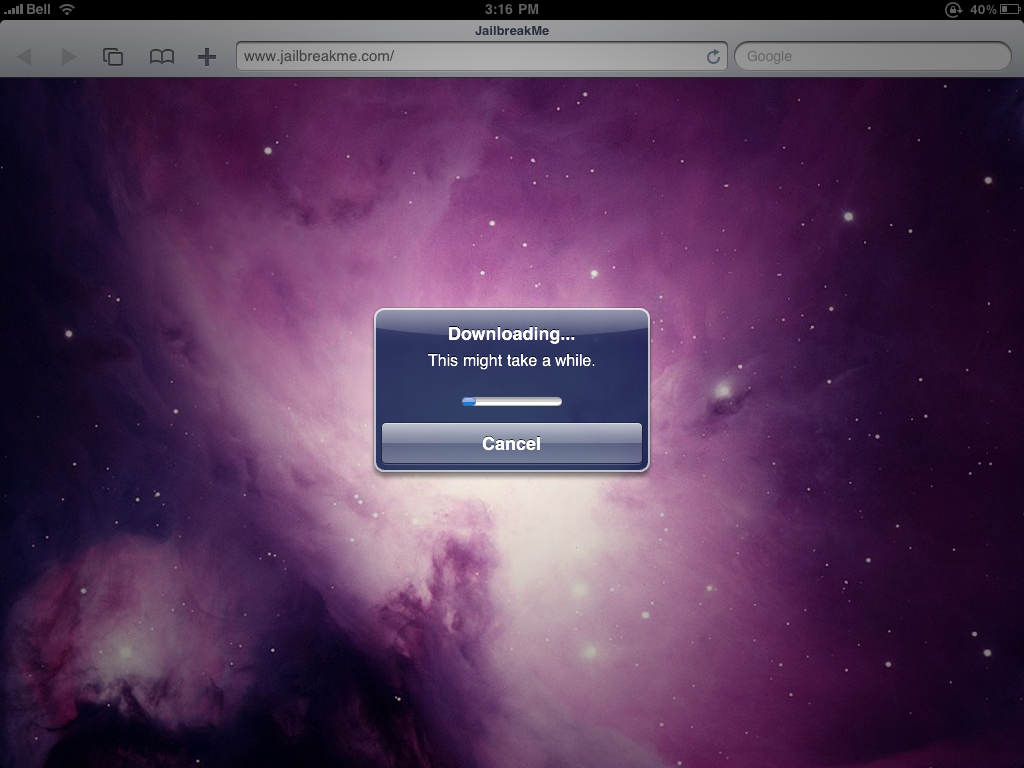
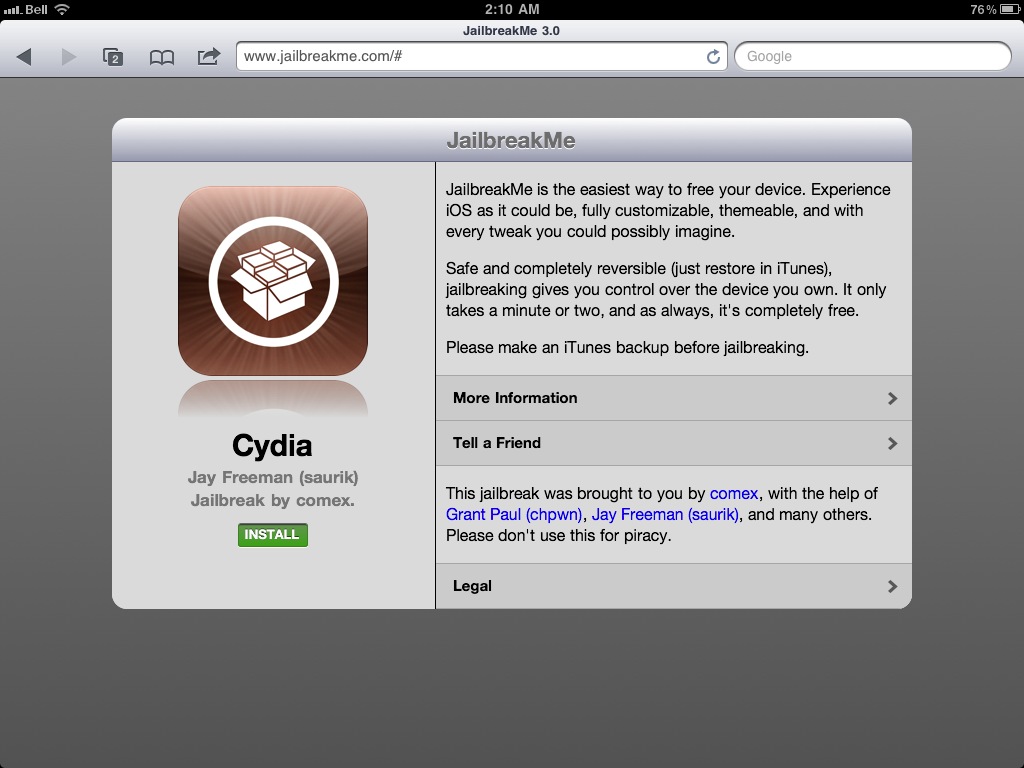
Pres the Install button.

Step Nine
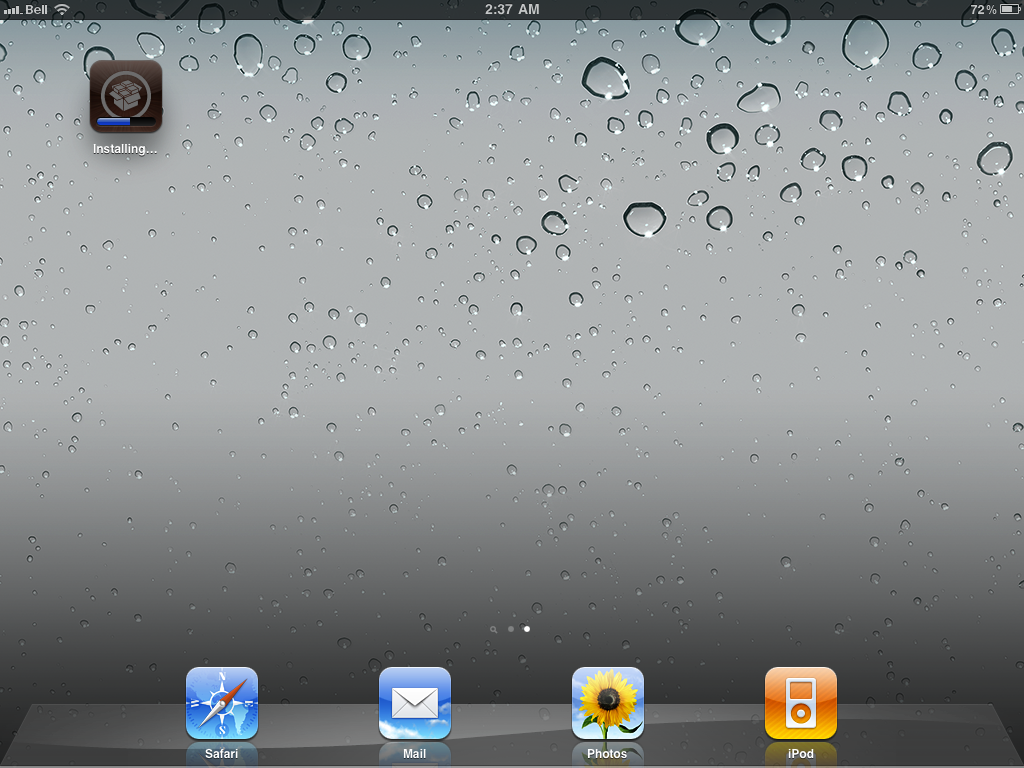
Safari will now close and Cydia will download and install.


Step Ten
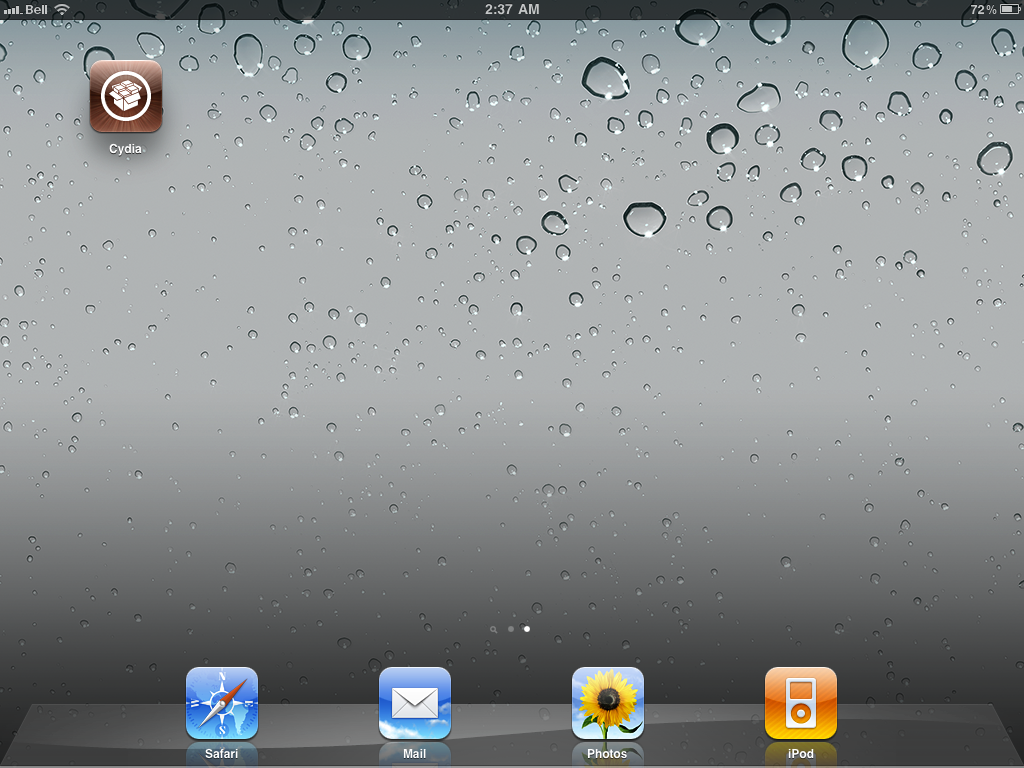
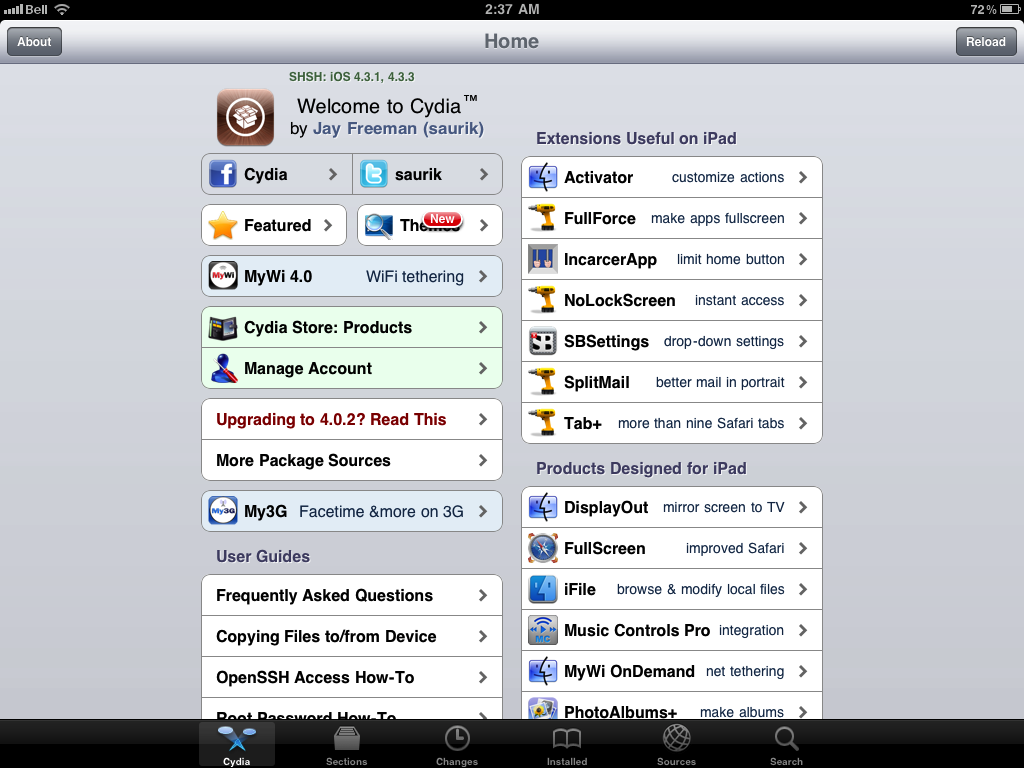
Press to launch Cydia and enjoy your jailbroken iPad!

***Thanks goes to Comex for his hard work on this impressive jailbreak!***
Create a Pwnage folder on your desktop and place the iOS 4.3.3 ipsw in it.
You can download the ipsw for your device from here:
4.3.3 (iPad 1): iPad1,1_4.3.3_8J3_Restore.ipsw
4.3.3 (iPad 2 Wi-Fi): iPad2,1_4.3.3_8J2_Restore.ipsw
4.3.3 (iPad 2 GSM): iPad2,2_4.3.3_8J2_Restore.ipsw
4.3.3 (iPad 2 CDMA): iPad2,3_4.3.3_8J2_Restore.ipsw
Step Two
Connect your iPad to the computer and launch iTunes.

Step Three
Select your iPad from the list of devices on the left
Step Four
Hold down the Option (Mac) or Shift (Windows) key and click the Restore button.
Step Five
Select the iOS 4.3.3 ipsw from the Pwnage folder on your desktop and click Open.
Step Six
Once your iPad is running iOS 4.3.3, press to launch Safari from your desktop.
Step Seven
Navigate to http://www.jailbreakme.com and press the Free button.
Step Eight
Pres the Install button.
Step Nine
Safari will now close and Cydia will download and install.
Step Ten
Press to launch Cydia and enjoy your jailbroken iPad!
***Thanks goes to Comex for his hard work on this impressive jailbreak!***