These are instructions on how to jailbreak your iPad on iOS 5.0.1 using PwnageTool for Mac.
Step One
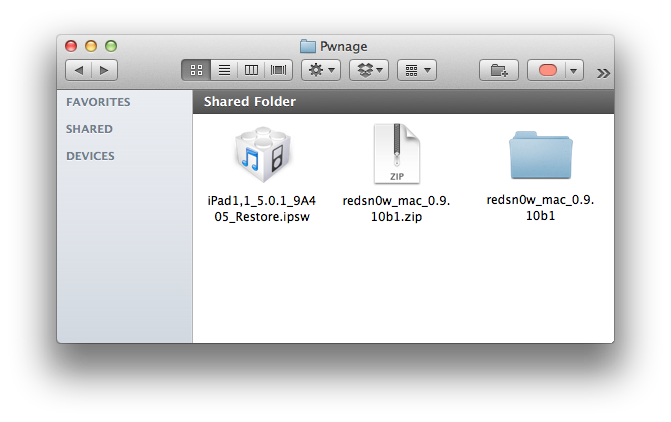
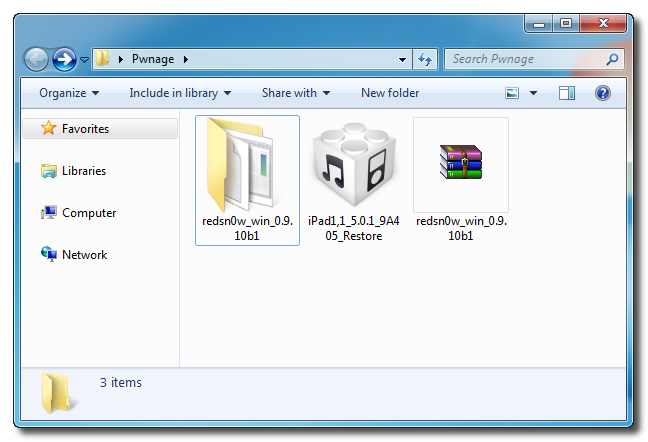
Make a folder called "Pwnage" on the desktop. In it, you will need a couple of things. PwnageTool 5.0.1, found here.
You will also need the 5.0.1 iPad firmware which can be downloaded from here.
When downloading the IPSW file, it is best to download it with Firefox since Safari often auto extracts it!

Step Two
Double click to mount PwnageTool then drag the PwnageTool icon into the Pwnage folder.

Then from the Pwnage folder double click to launch the PwnageTool application.

Click Ok if presented with a warning.

Step Three
Click to select Expert Mode from the top menu bar

Step Four
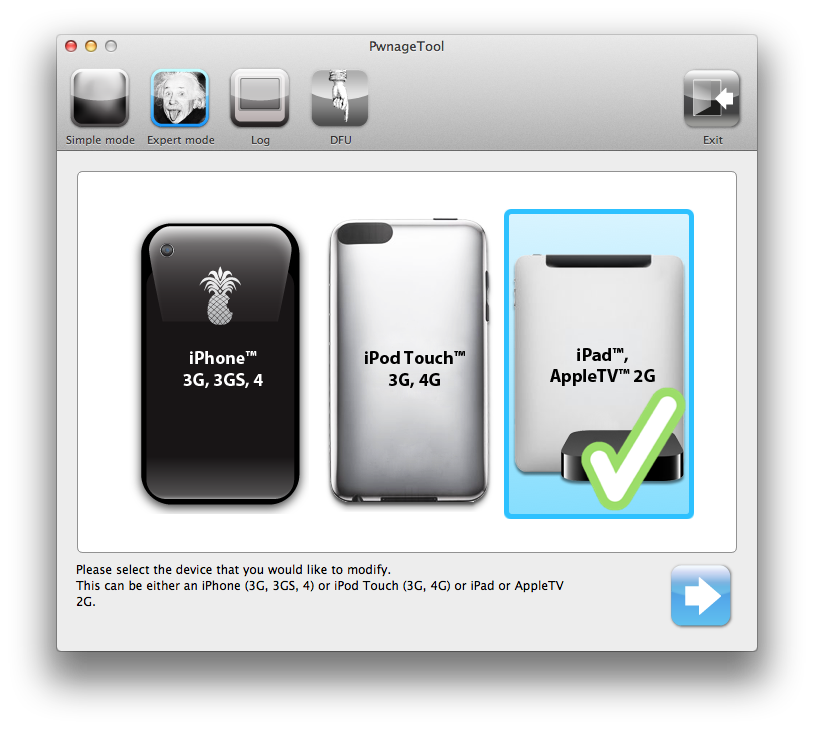
Click to select your iPad. A check-mark will appear over the image of the tablet. Click the blue arrow button to continue.

Step Five
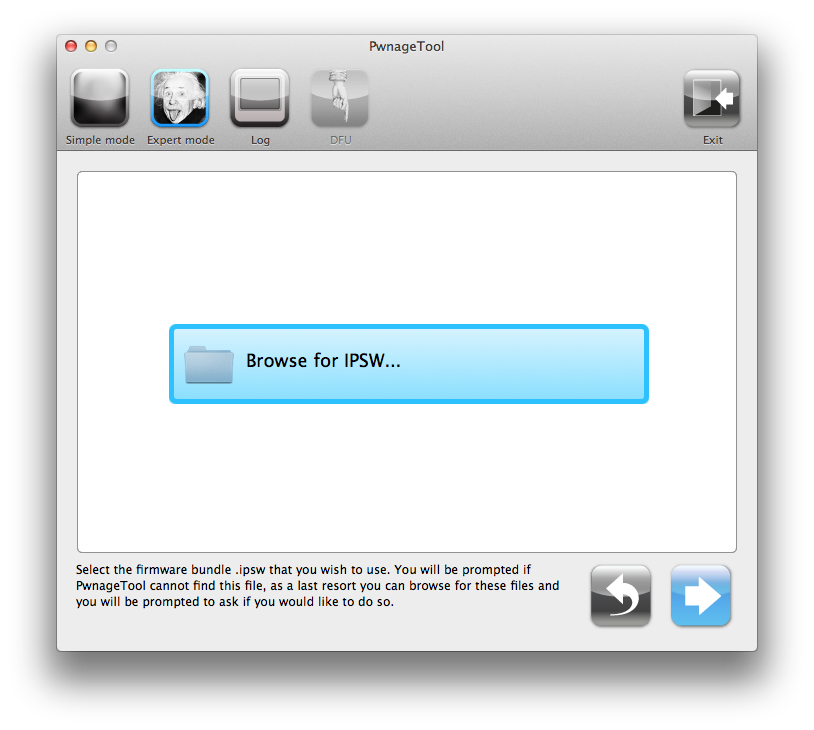
You will be brought to the "Browse for IPSW" page. Click the Browse for IPSW... button.

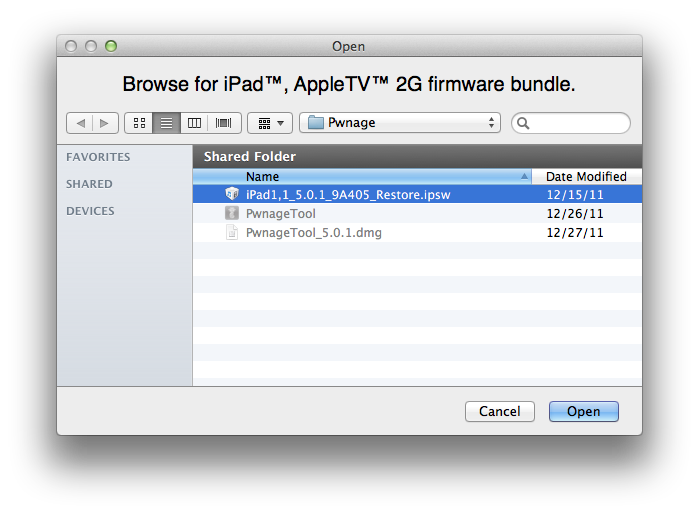
From the popup window select your firmware from the Pwnage folder then click the Open button.

Step Six
You will then be brought to a menu with several choices. Click to select General then click the blue arrow button.

The General settings allows you to decide the partition size.

The Cydia settings menu allows you to create custom packages so you do not have to manually install the necessary them later.

Click to select the Download packages tab. Then click the Refresh button to display all the available packages. Double clicking the package you want will download it and make it available in the Select Packages tab.

Checkmark the ones you want then Click the blue arrow button.

The Custom Packages Settings menu displays listed package settings for your custom IPSW. For know leave these settings as is. Click the blue arrow button to continue.

Step Seven
You are now ready to begin the pwnage process! Click the Build button to select it then click the Blue arrow button to begin.

Step Eight
You will be asked to save your custom .ipsw file. Save it to your Pwnage folder you created on your Desktop.

Your IPSW is now being built. Please allow up to 10 minutes.

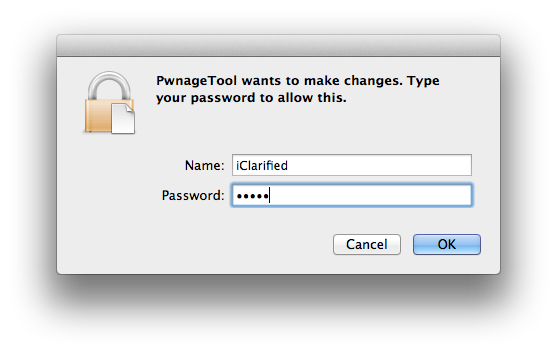
You will be asked to enter your administrator password. Do this then click the OK button.

Step Nine
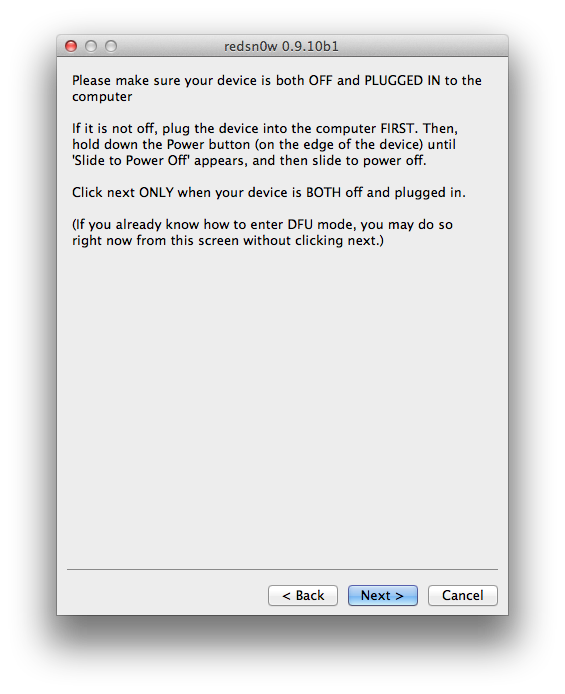
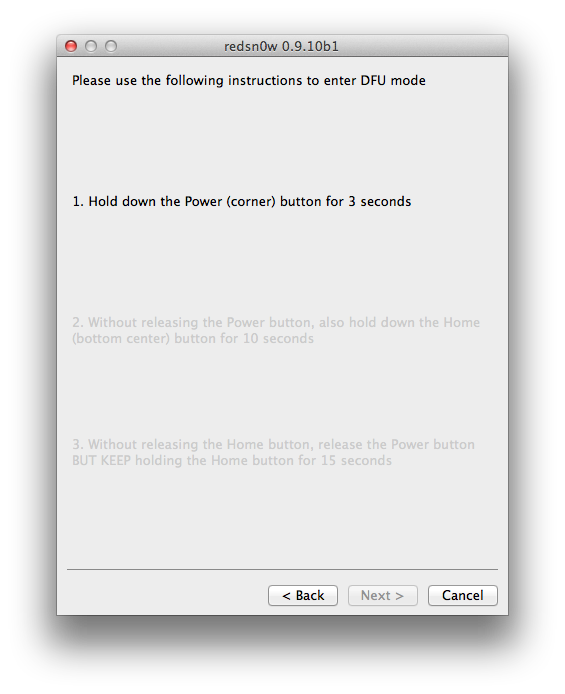
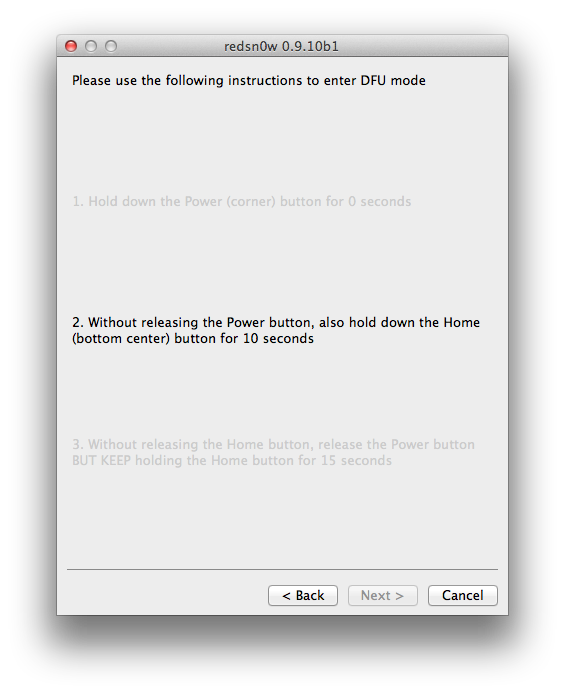
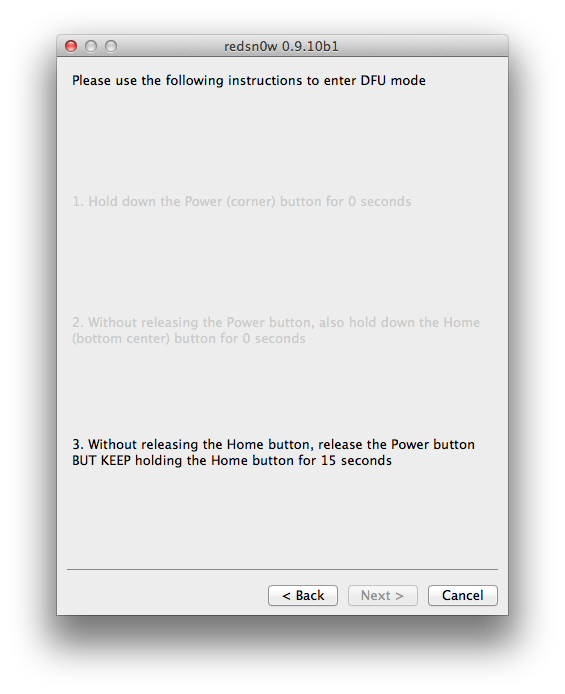
Once your ipsw has been built you will be asked to connect your iPad to the computer. Once it detects your device PwnageTool will guide your through the steps to putting your iPad into DFU mode.

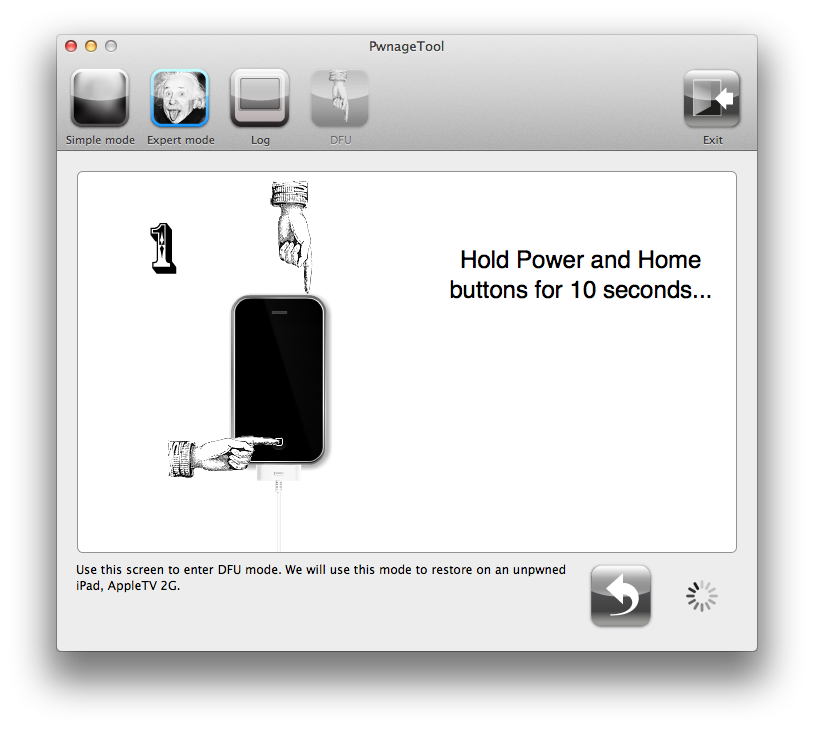
Press and hold the power and home buttons for 10 seconds.

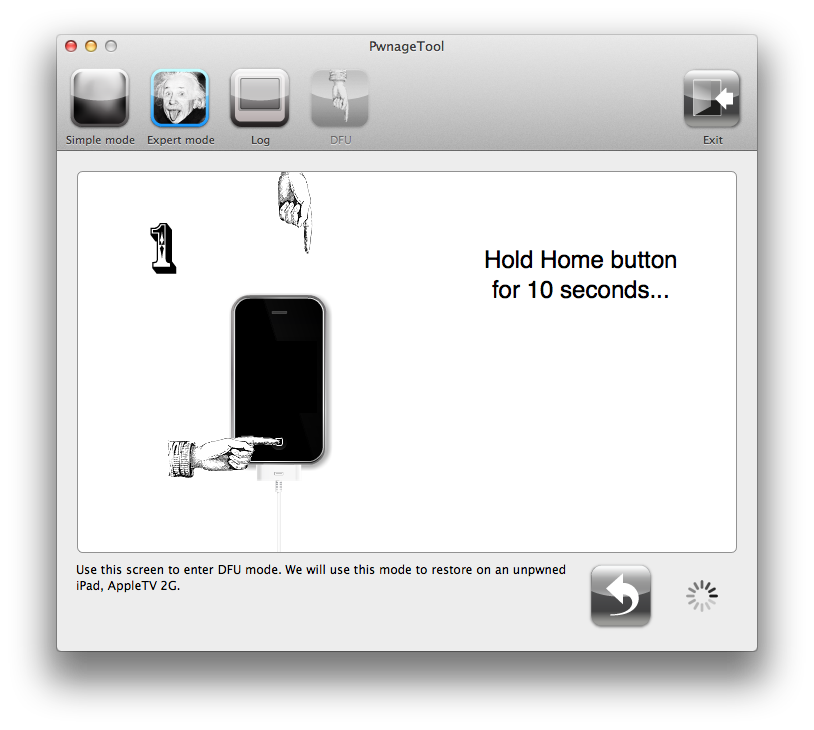
Then release the power button and continue holding the home button for 10 seconds.

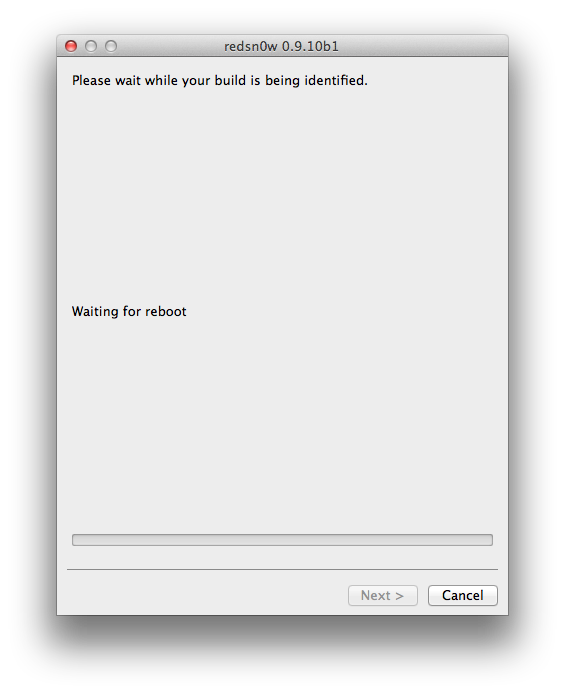
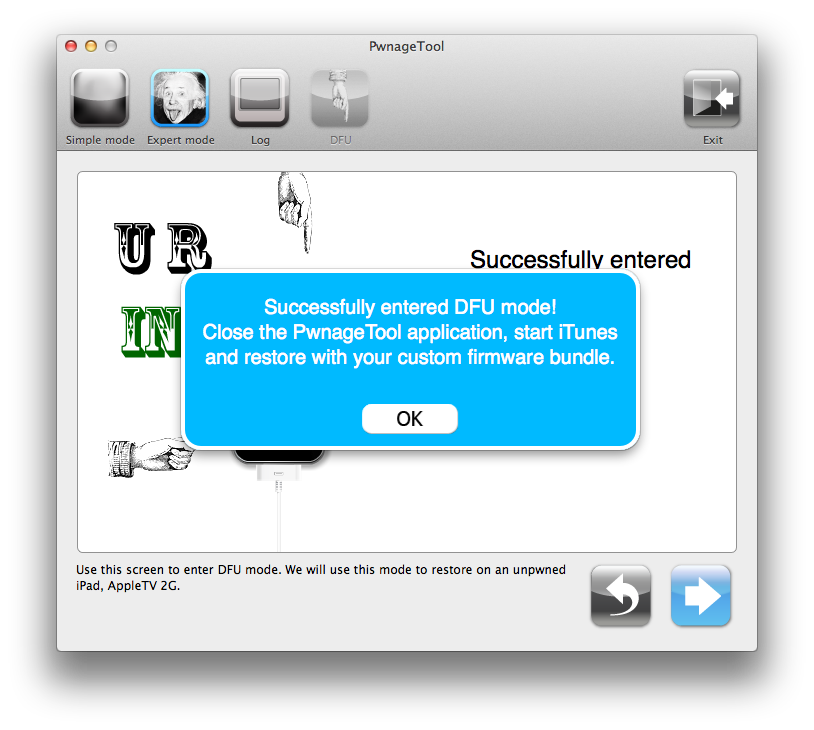
Once your iPad is successfully in DFU mode, PwnageTool will prompt you to launch iTunes.

Step Ten
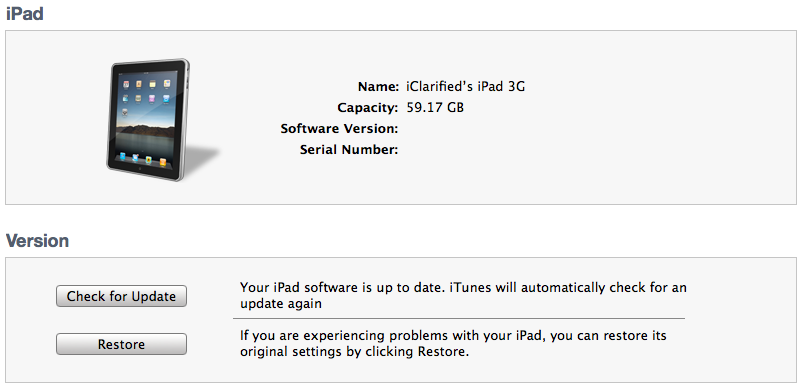
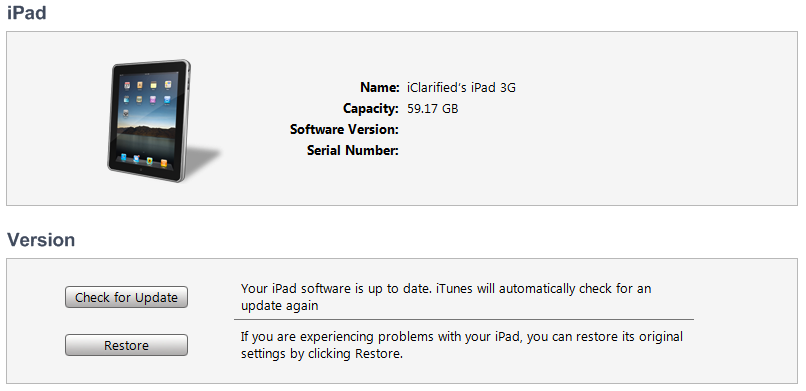
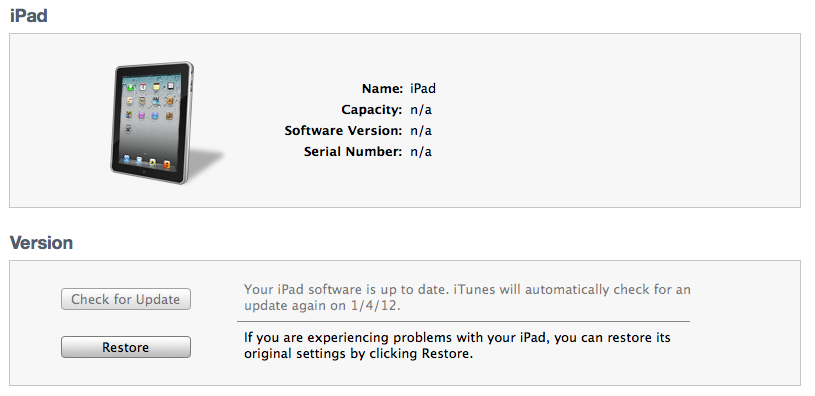
Once In iTunes, hold the Alt/Option key and click Restore.

Step Eleven
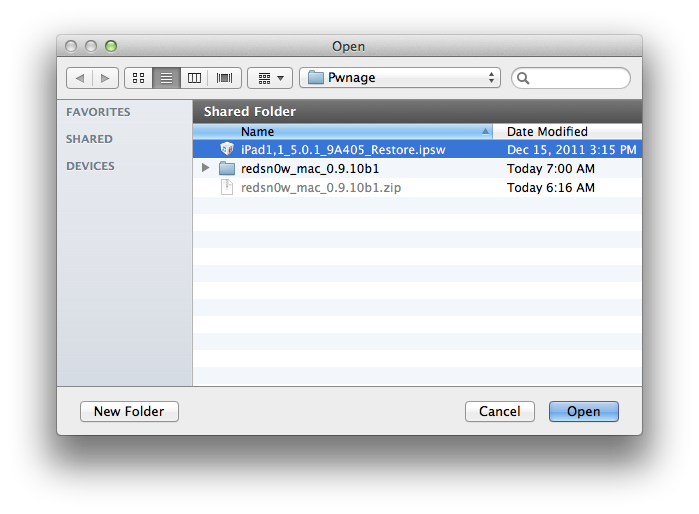
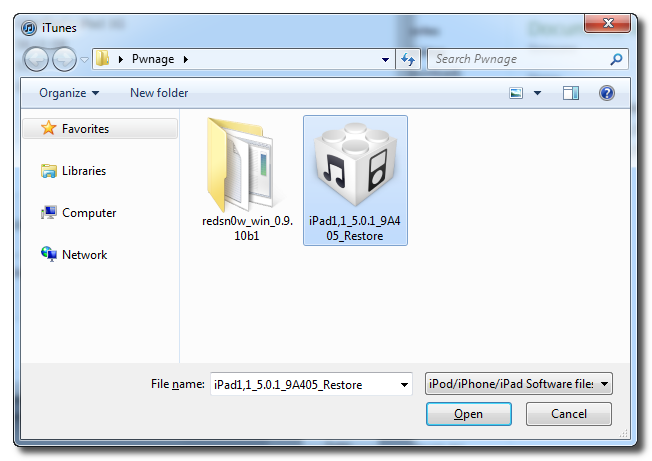
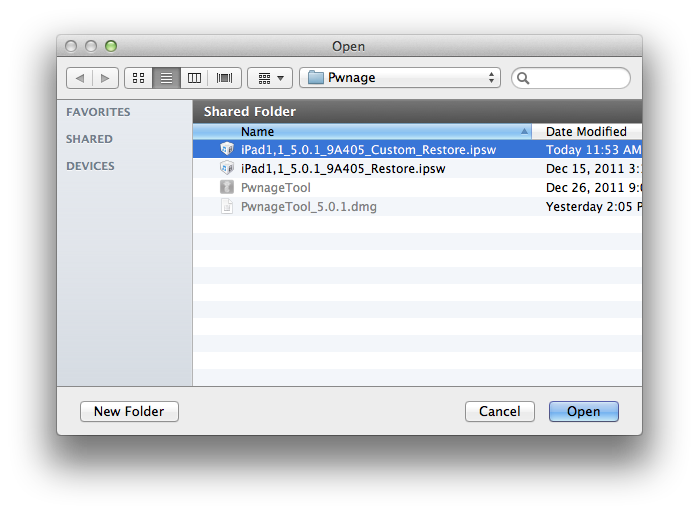
Navigate to the Pwnage folder on your desktop using the dialog window that appears. Select the custom IPSW that was created and click the Choose button.

Step Twelve
iTunes will now restore the firmware on your iPad. This can also take up to 10 minutes. Once done you will be rebooted into jailbroken iPad OS 5.0.1!
***THANKS: Thank you to the Dev-Teams, Geohot, and pod2g for their hard work in making this jailbreak and tutorial possible!
Step One
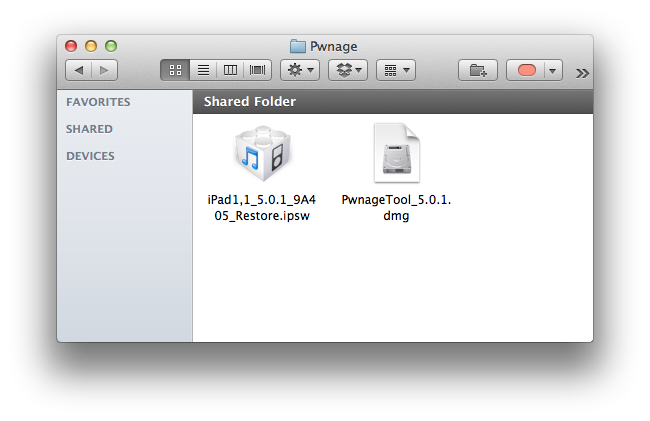
Make a folder called "Pwnage" on the desktop. In it, you will need a couple of things. PwnageTool 5.0.1, found here.
You will also need the 5.0.1 iPad firmware which can be downloaded from here.
When downloading the IPSW file, it is best to download it with Firefox since Safari often auto extracts it!
Step Two
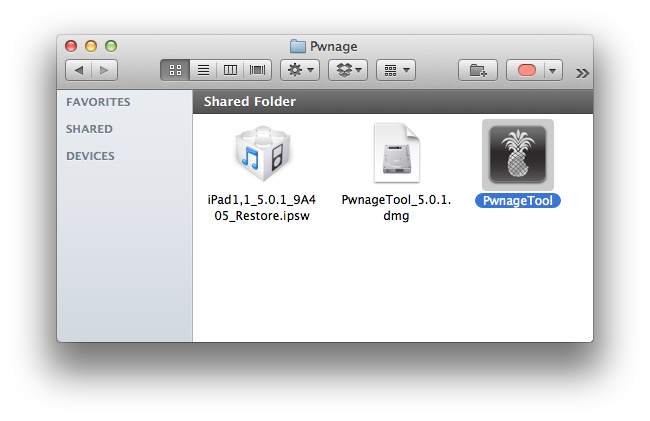
Double click to mount PwnageTool then drag the PwnageTool icon into the Pwnage folder.
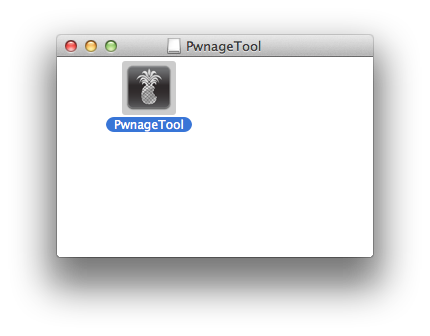
Then from the Pwnage folder double click to launch the PwnageTool application.
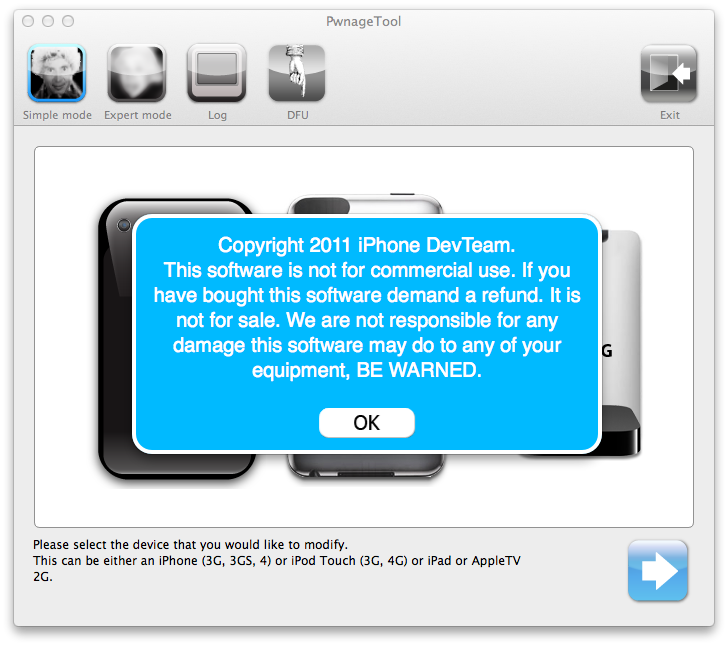
Click Ok if presented with a warning.
Step Three
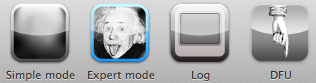
Click to select Expert Mode from the top menu bar
Step Four
Click to select your iPad. A check-mark will appear over the image of the tablet. Click the blue arrow button to continue.
Step Five
You will be brought to the "Browse for IPSW" page. Click the Browse for IPSW... button.
From the popup window select your firmware from the Pwnage folder then click the Open button.
Step Six
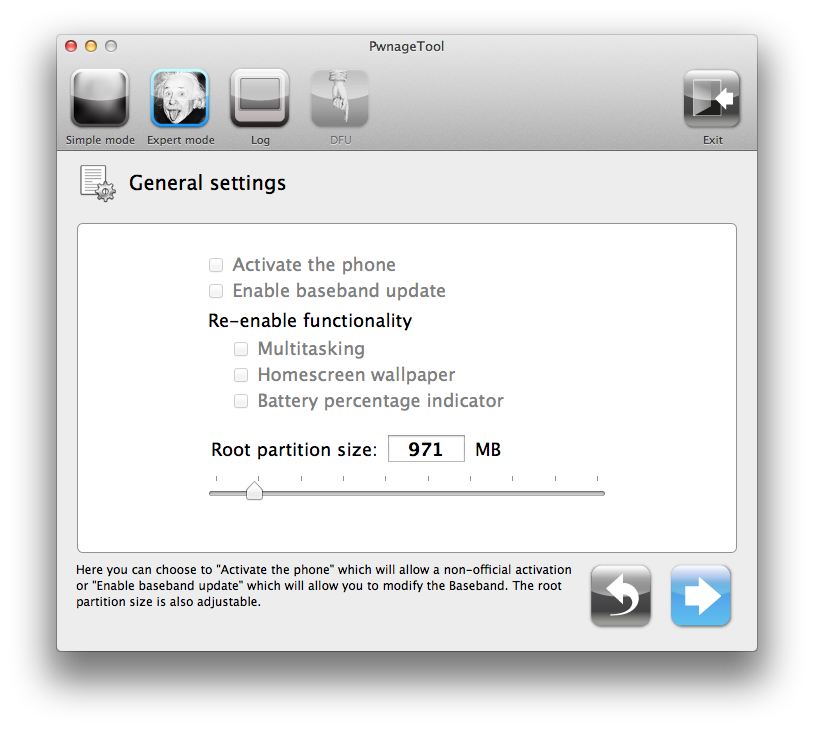
You will then be brought to a menu with several choices. Click to select General then click the blue arrow button.
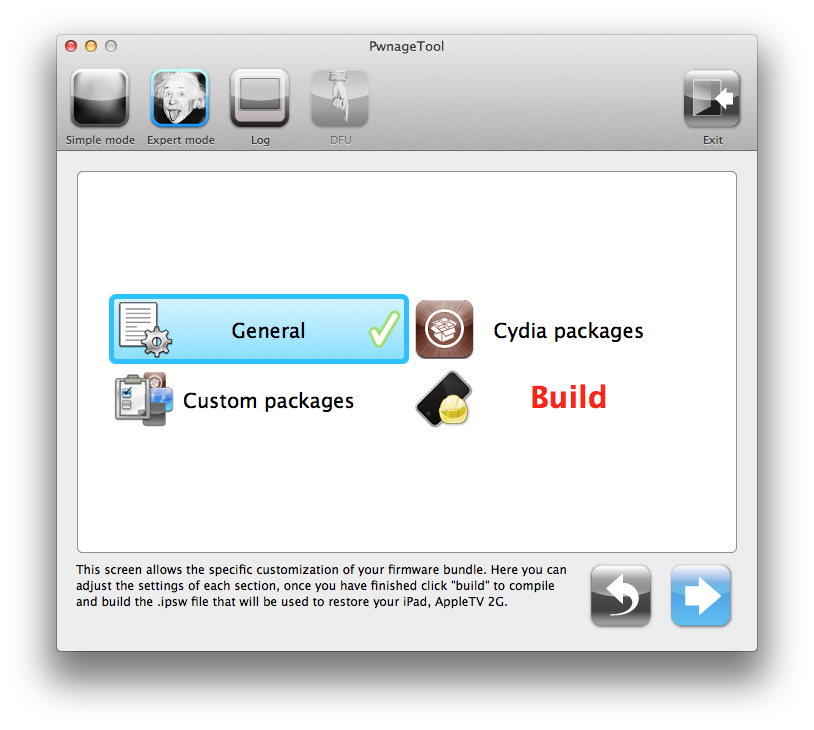
The General settings allows you to decide the partition size.
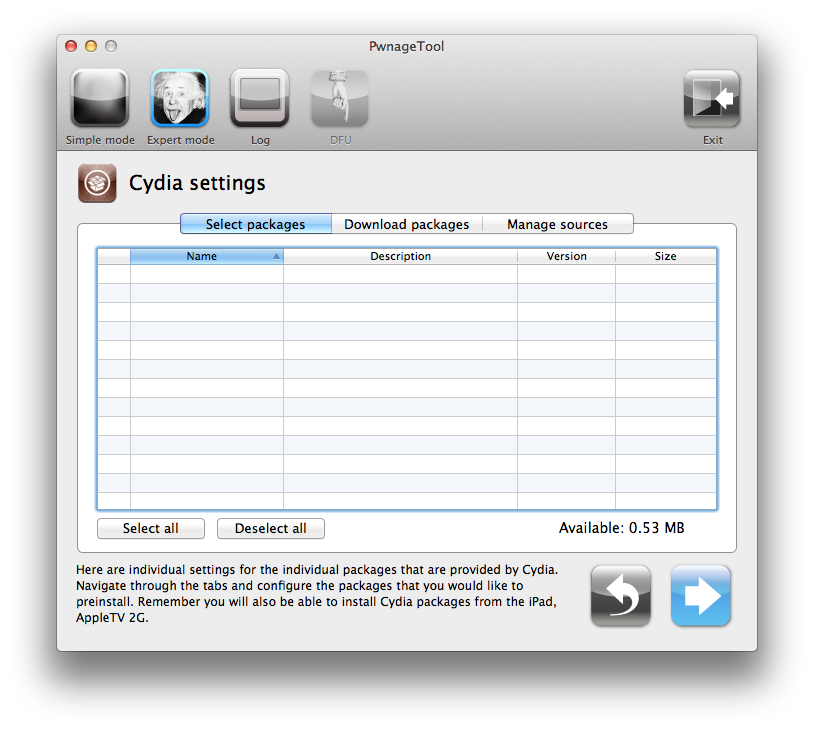
The Cydia settings menu allows you to create custom packages so you do not have to manually install the necessary them later.
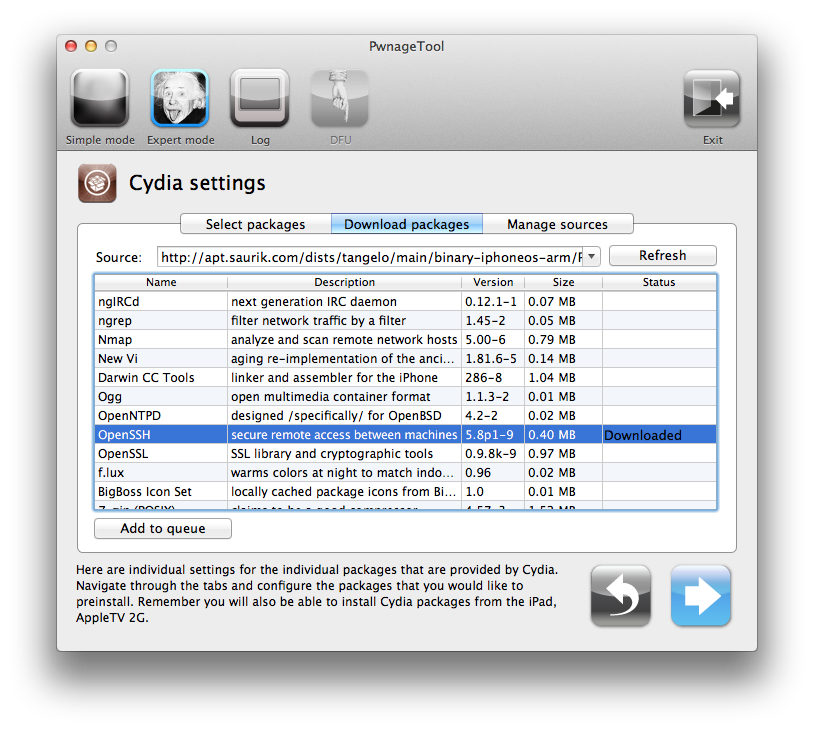
Click to select the Download packages tab. Then click the Refresh button to display all the available packages. Double clicking the package you want will download it and make it available in the Select Packages tab.
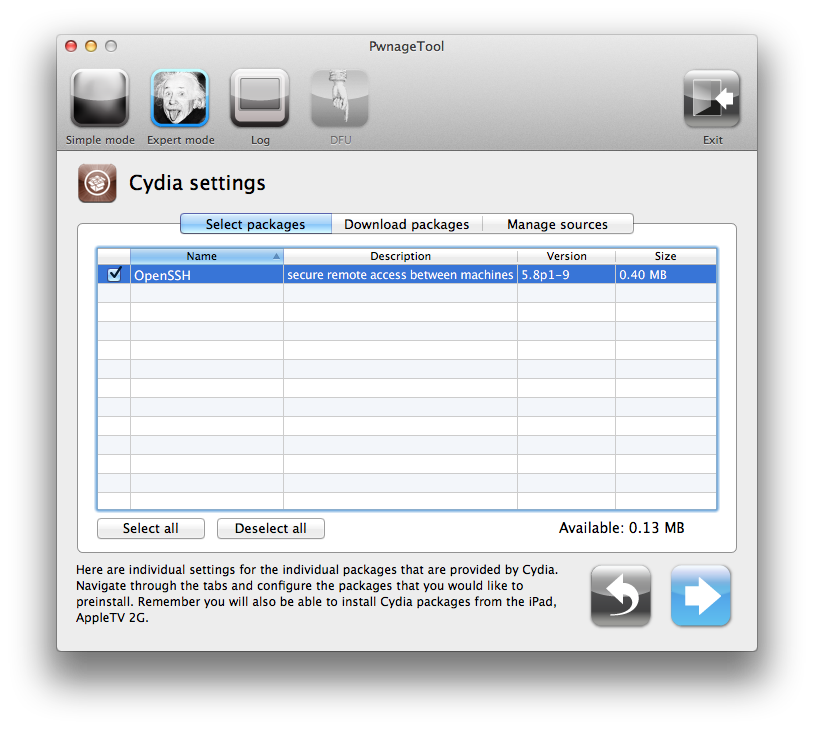
Checkmark the ones you want then Click the blue arrow button.
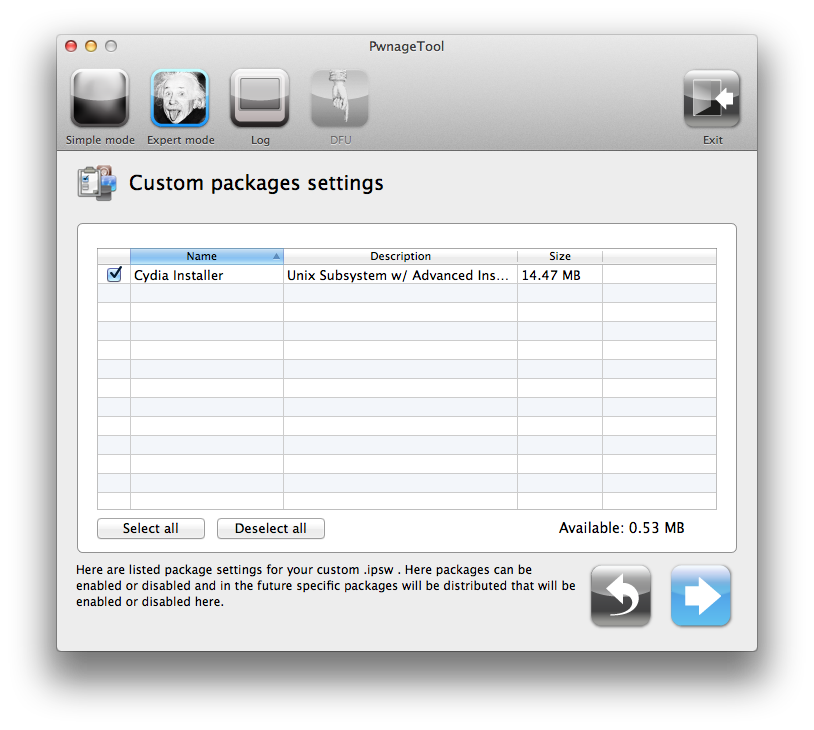
The Custom Packages Settings menu displays listed package settings for your custom IPSW. For know leave these settings as is. Click the blue arrow button to continue.
Step Seven
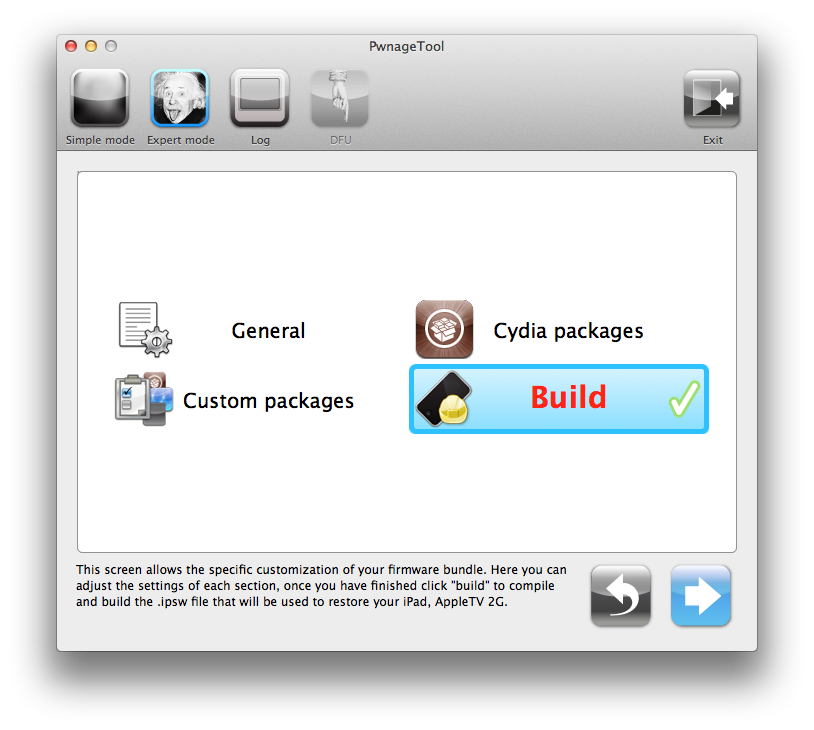
You are now ready to begin the pwnage process! Click the Build button to select it then click the Blue arrow button to begin.
Step Eight
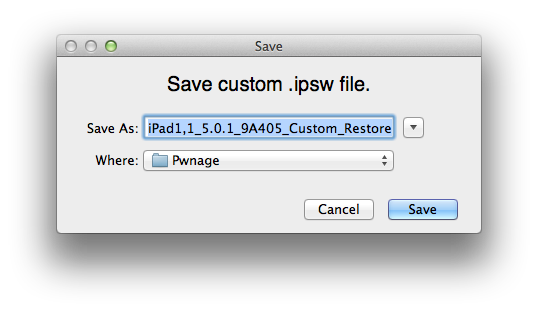
You will be asked to save your custom .ipsw file. Save it to your Pwnage folder you created on your Desktop.
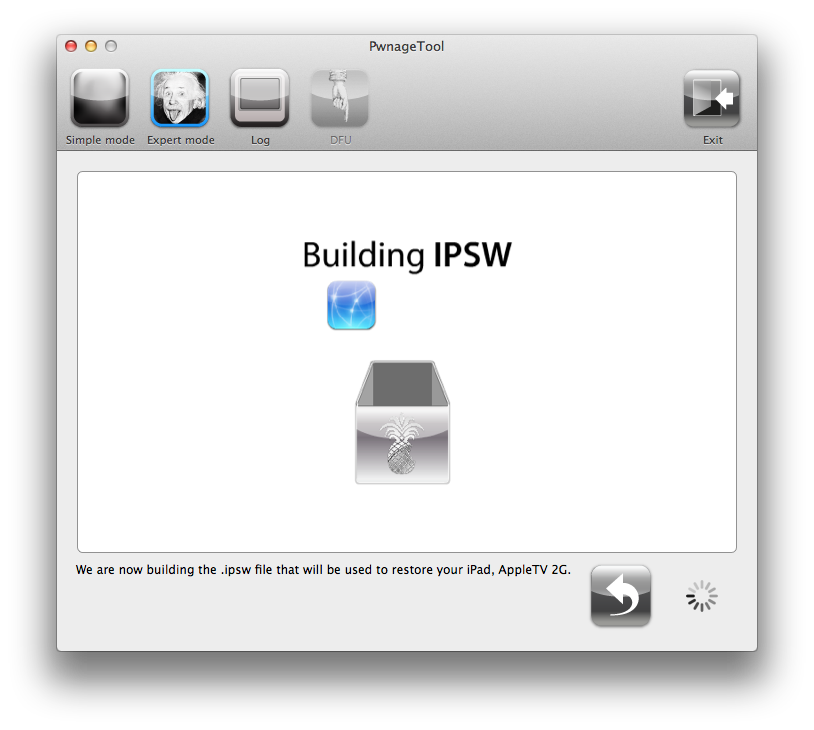
Your IPSW is now being built. Please allow up to 10 minutes.
You will be asked to enter your administrator password. Do this then click the OK button.
Step Nine
Once your ipsw has been built you will be asked to connect your iPad to the computer. Once it detects your device PwnageTool will guide your through the steps to putting your iPad into DFU mode.
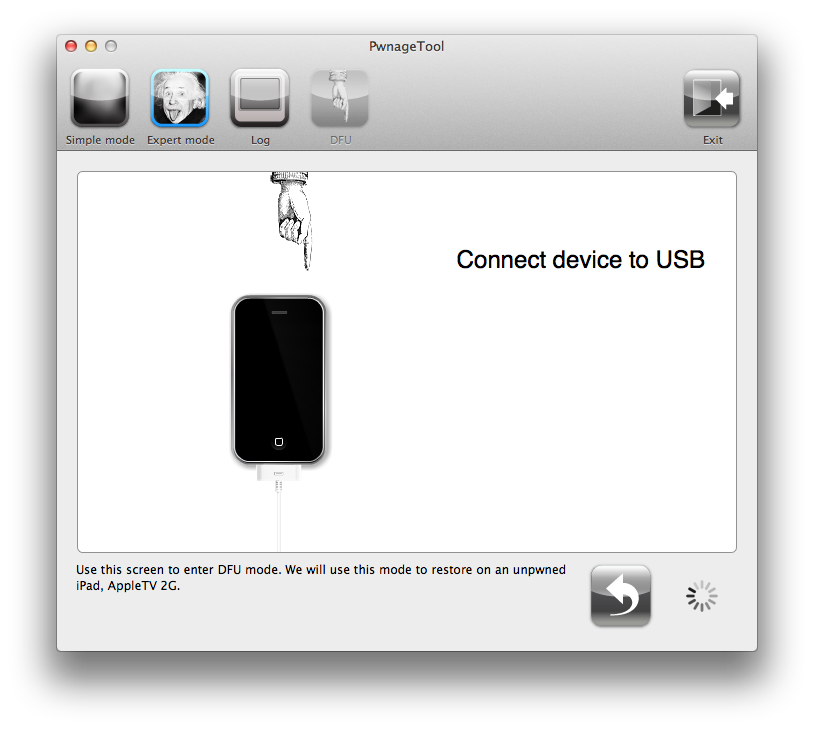
Press and hold the power and home buttons for 10 seconds.
Then release the power button and continue holding the home button for 10 seconds.
Once your iPad is successfully in DFU mode, PwnageTool will prompt you to launch iTunes.
Step Ten
Once In iTunes, hold the Alt/Option key and click Restore.
Step Eleven
Navigate to the Pwnage folder on your desktop using the dialog window that appears. Select the custom IPSW that was created and click the Choose button.
Step Twelve
iTunes will now restore the firmware on your iPad. This can also take up to 10 minutes. Once done you will be rebooted into jailbroken iPad OS 5.0.1!
***THANKS: Thank you to the Dev-Teams, Geohot, and pod2g for their hard work in making this jailbreak and tutorial possible!