Tuesday, 12 October 2010

How to Jailbreak Your iPad Using Greenpois0n (Windows)


These are instructions on how to jailbreak your iPad using Greenpois0n for Windows.

Step One
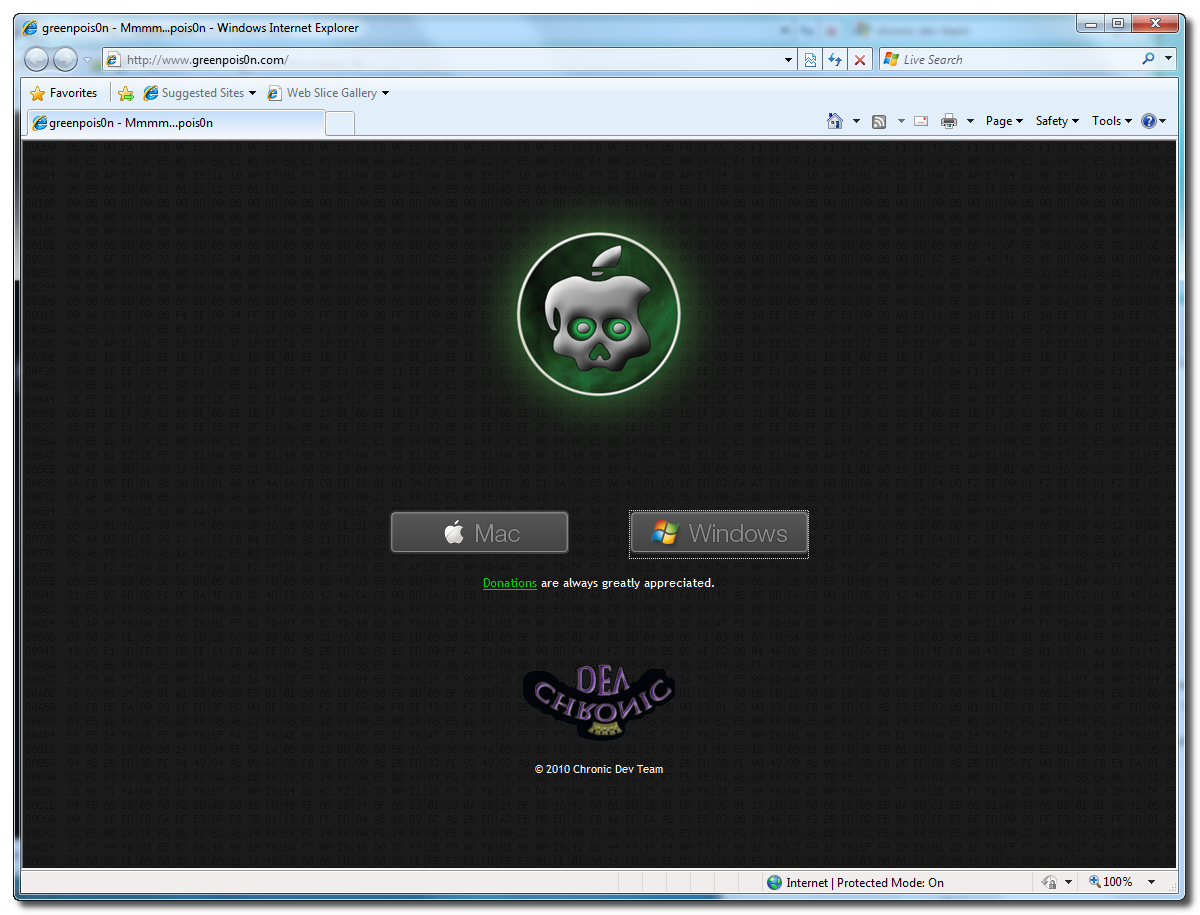
Open your web browser of choice and navigate to
http://www.greenpois0n.com. Click the Windows link at the bottom of the screen.


Step Two
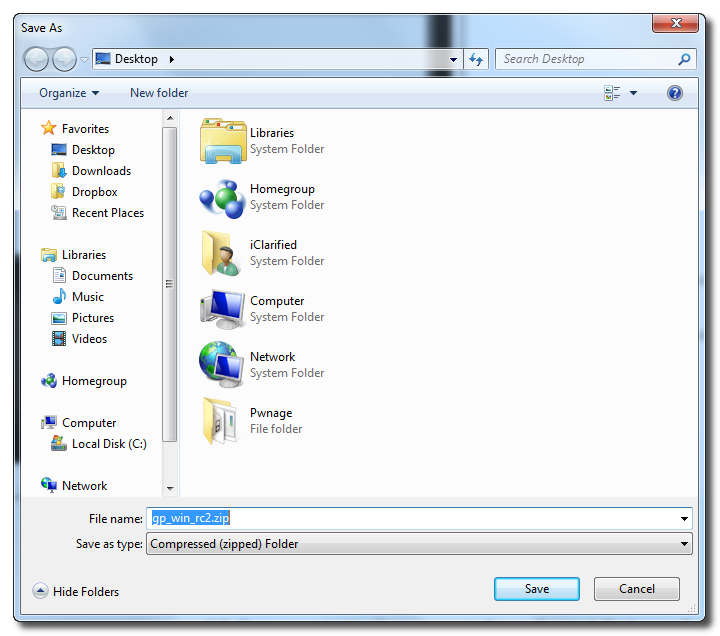
When prompted save the download to your desktop


Step Three
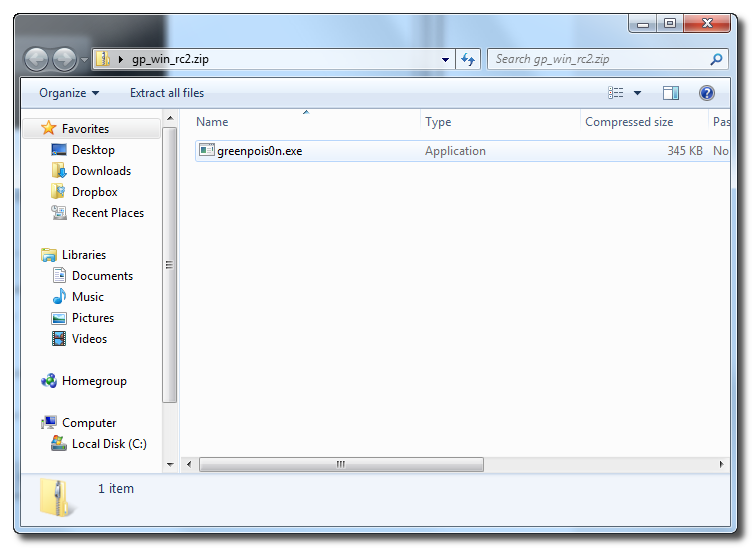
Double click the downloaded
gp_win_rc2.zip file then drag the greenpois0n.exe file to the desktop. Double click greenpois0n.exe from the desktop to launch the application


Step Four
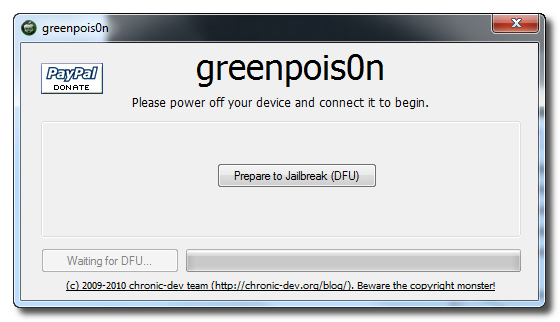
Power off your iPad then click the large
Prepare to Jailbreak (DFU) button


Step Five
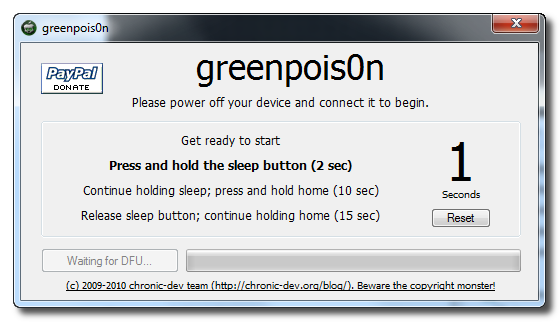
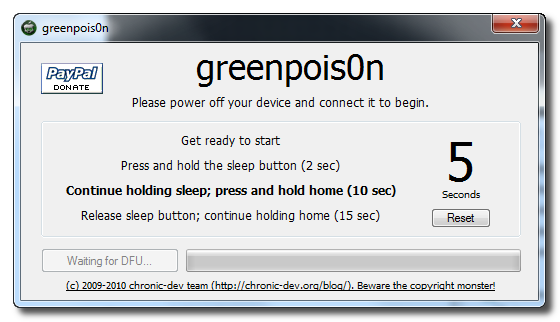
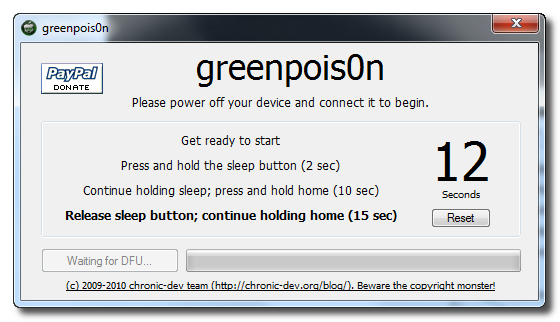
You will now be instructed on how to place your iPad into DFU mode.


You will be asked to press and hold the sleep button for 2 seconds.


Continue holding sleep; press and hold home for 10 seconds.


Release sleep button; continue holding home for 15 seconds.


Step Six
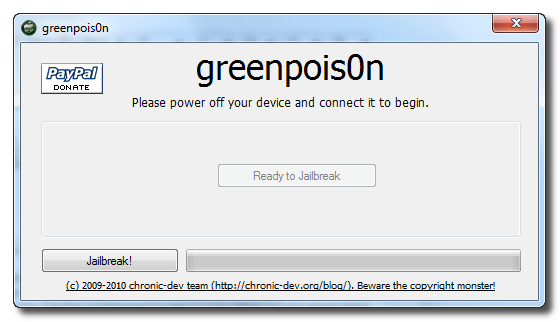
Once your iPad is successfully in DFU mode you may click the
Jailbreak button.


Step Seven
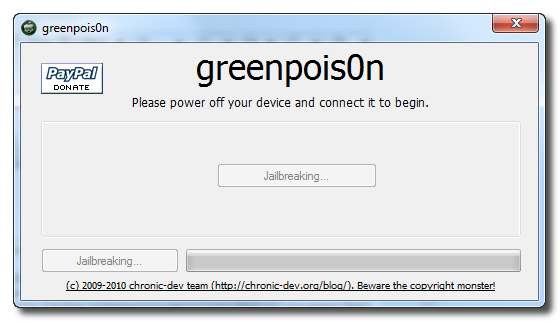
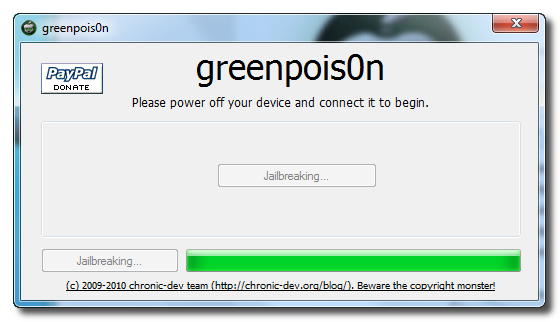
Greenpois0n will now jailbreak your device.


Step Eight
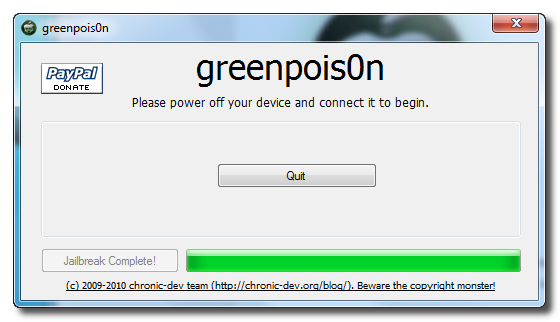
Click the
Quit button once the software application has completed.


You'll notice some verbose mode text scrolling on your device.

Step Nine
After the iPhone restarts you'll have a new
Loader application on your Springboard. Press to launch it.


Step Ten
Press to select Cydia then press the large
Install Cydia button that appears.


Step Eleven
Once Cydia has installed successfully you will be asked if you want to remove Loader from your device. Press the
Remove button then press the Home button. Your device will now automatically reboot.


Step Twelve
When your iPad has restarted you can run Cydia. Let it do all the necessary updates.


***A big thanks goes to the Chronic Dev Team who made this jailbreak possible.

Saturday, 9 October 2010

How to Jailbreak Your iPad Using Limera1n (Windows)


These are instructions on how to jailbreak your iPad using Limera1n for Windows.

Step One
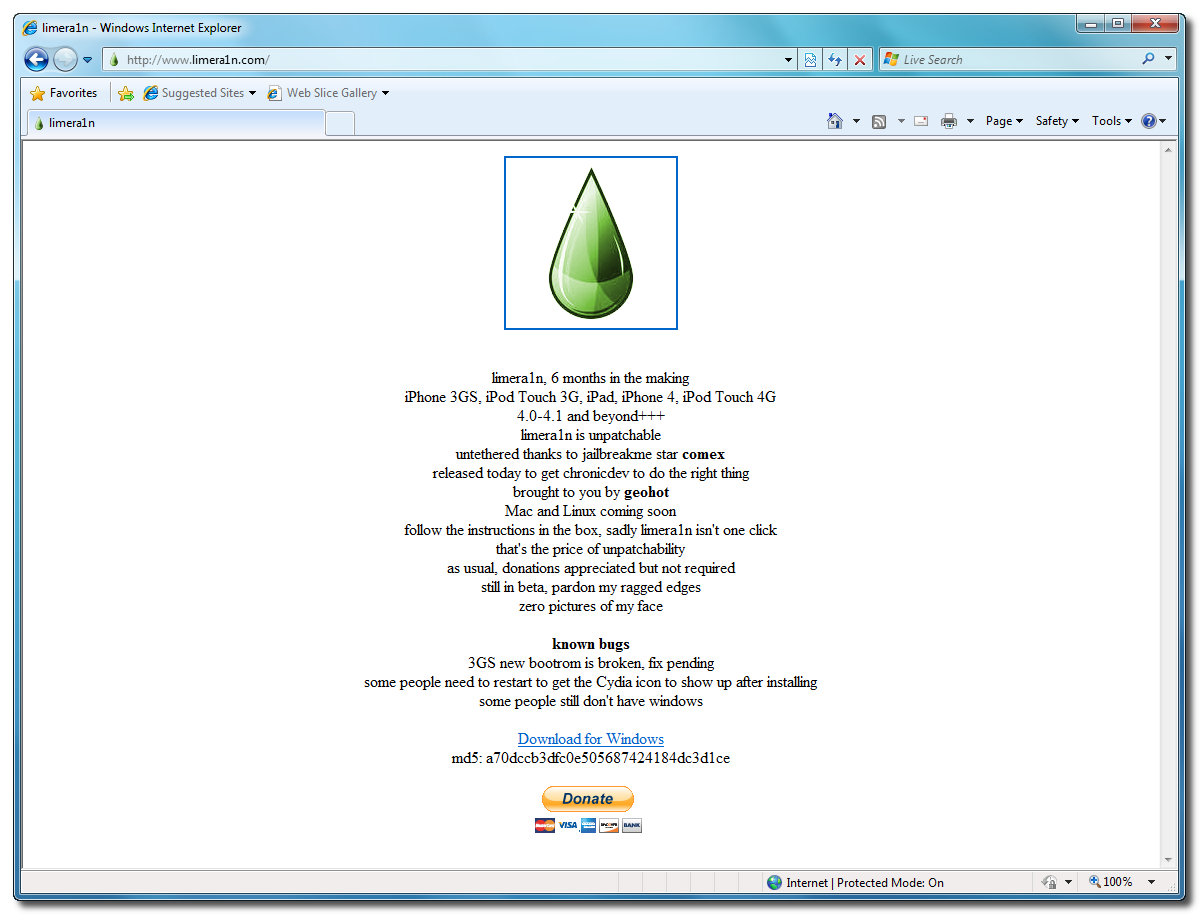
Open your web browser of choice and navigate to
http://www.limera1n.com. Click the Download for Windows link at the bottom of the screen.


Step Two
When prompted save the download to your desktop


Step Three
Double click the
limera1n.exe file from the desktop to launch the application


Step Four
Click the large
make it ra1n button


Step Five
You iPad will now be placed in recovery mode.


Press both the power and the home buttons.


When Limera1n asks you to, release the power button.


Your phone will now be in DFU mode


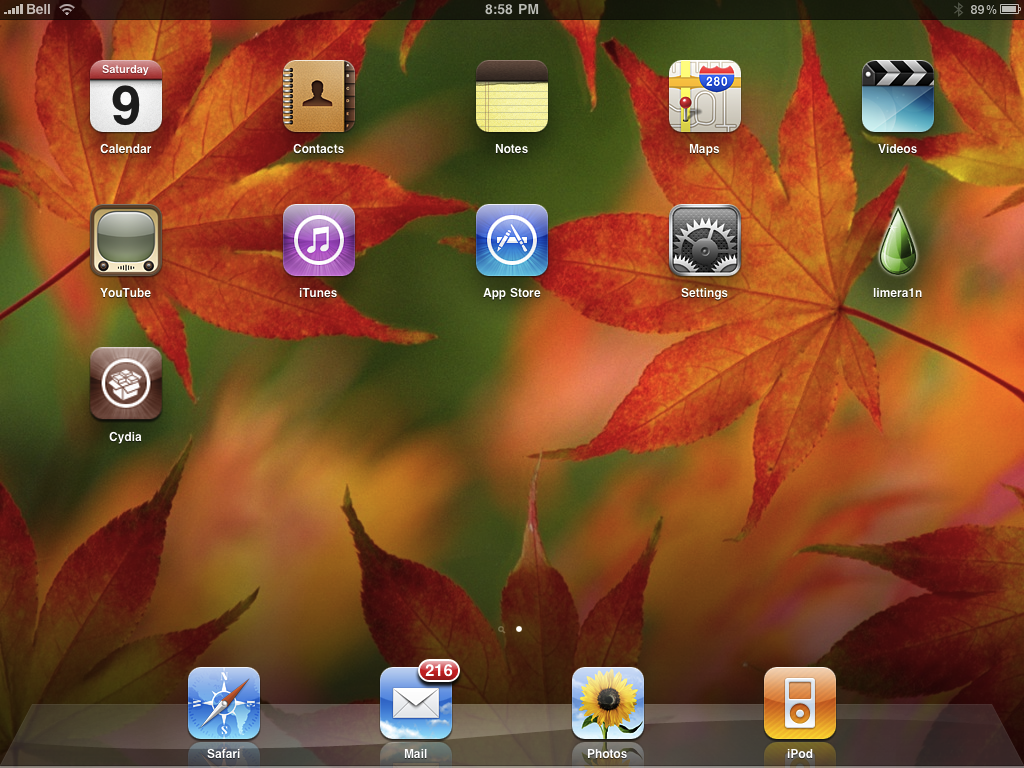
As limera1n performs its exploit you will see the image of a lime raindrop on your iPad.


Limera1n will let you know when it is complete.


Step Six
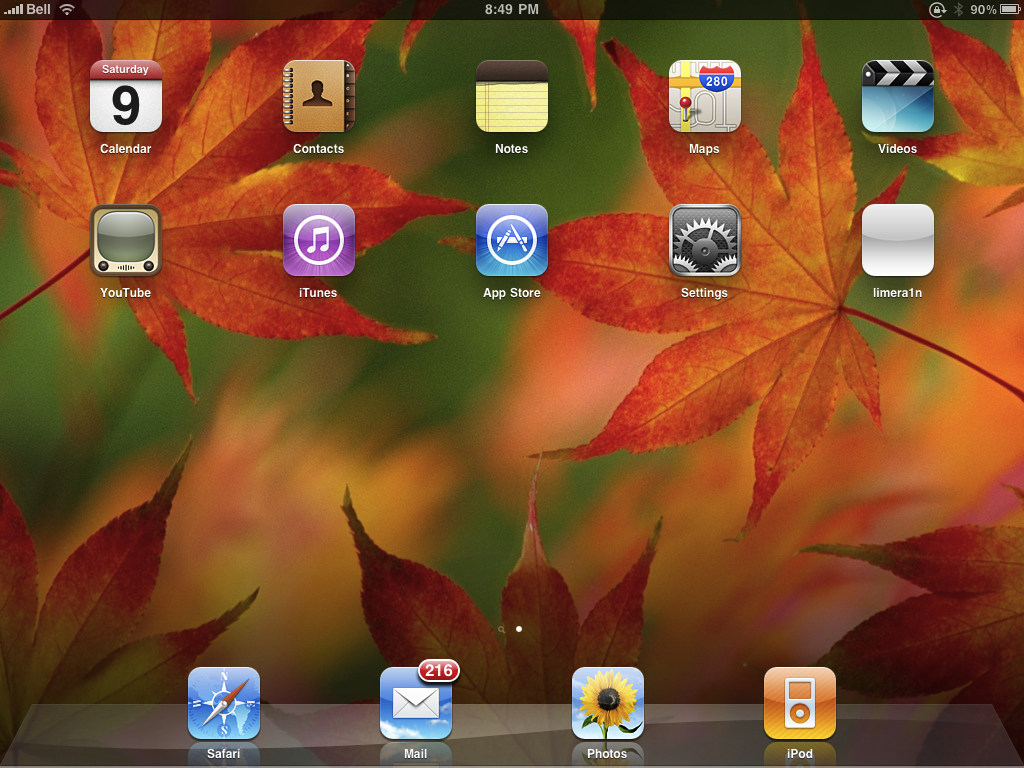
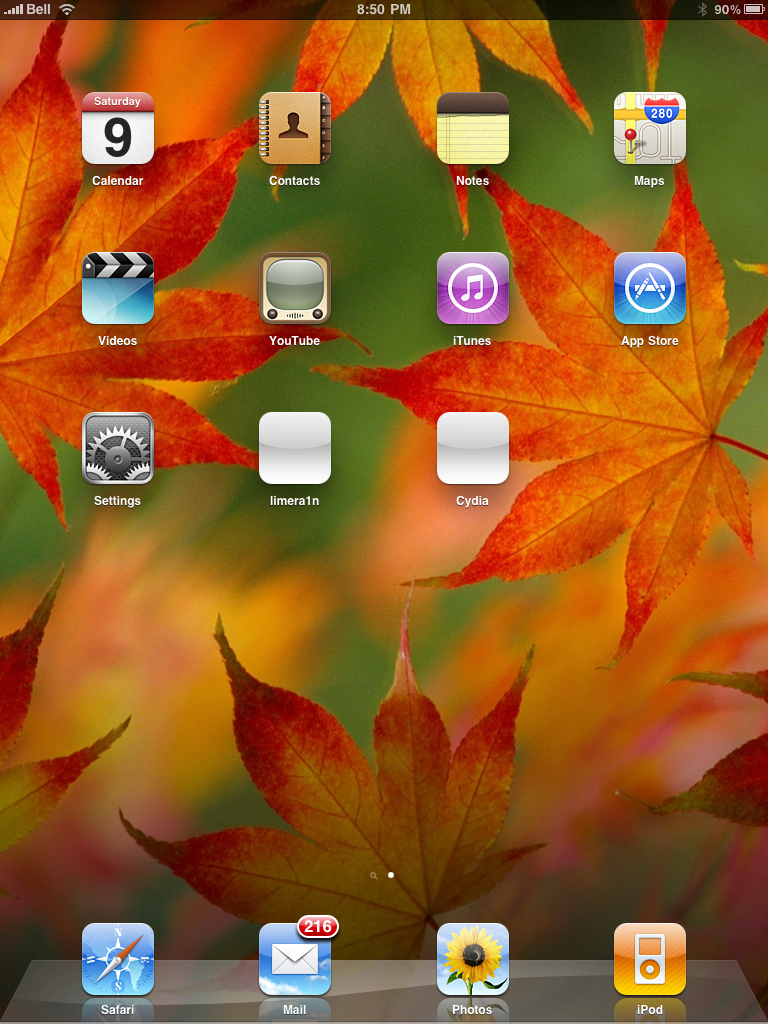
After you power back on your iPad you will see a new icon on the SpringBoard entitled
limera1n. Press it to continue.


Step Seven
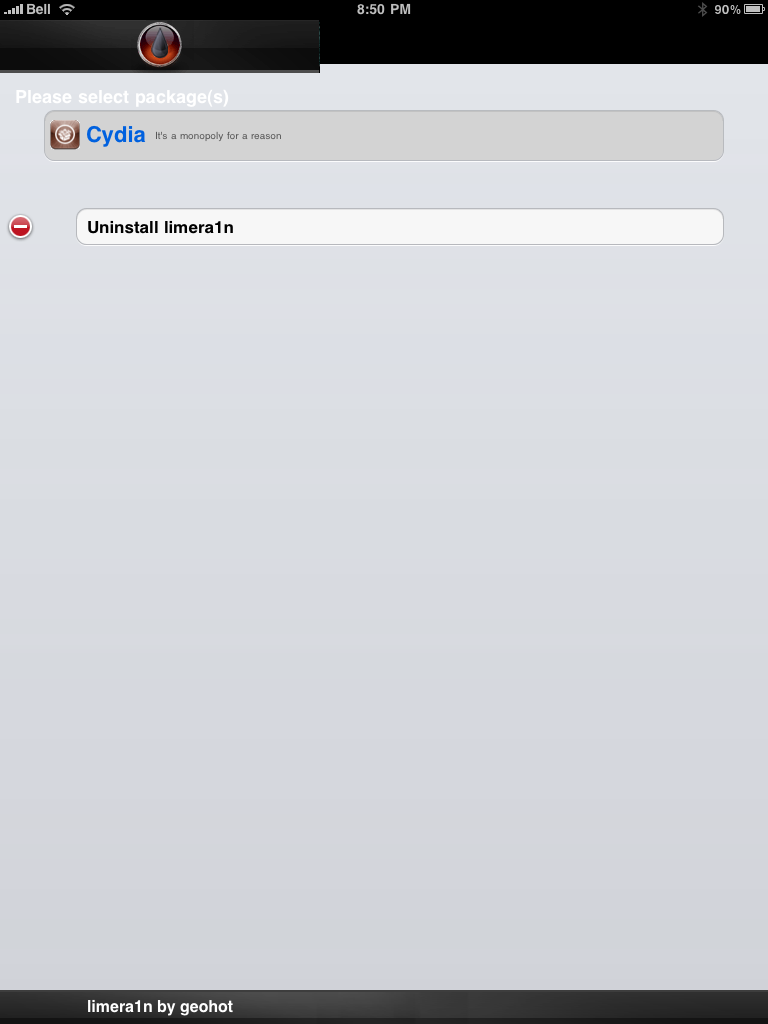
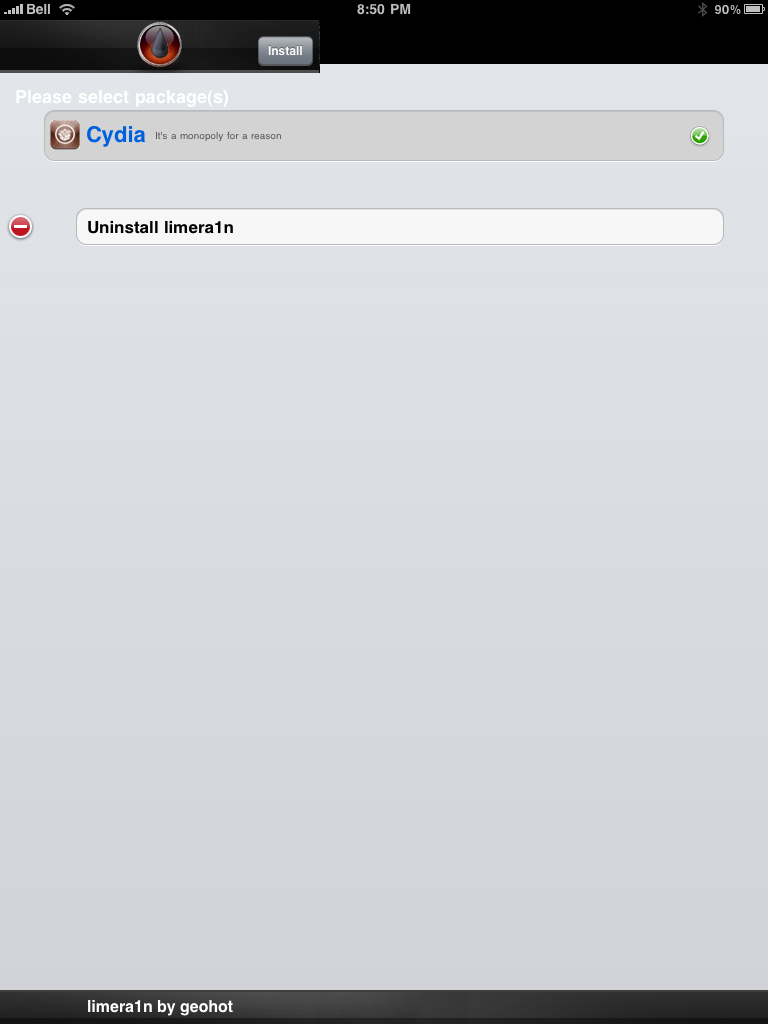
Once Limera1n opens select
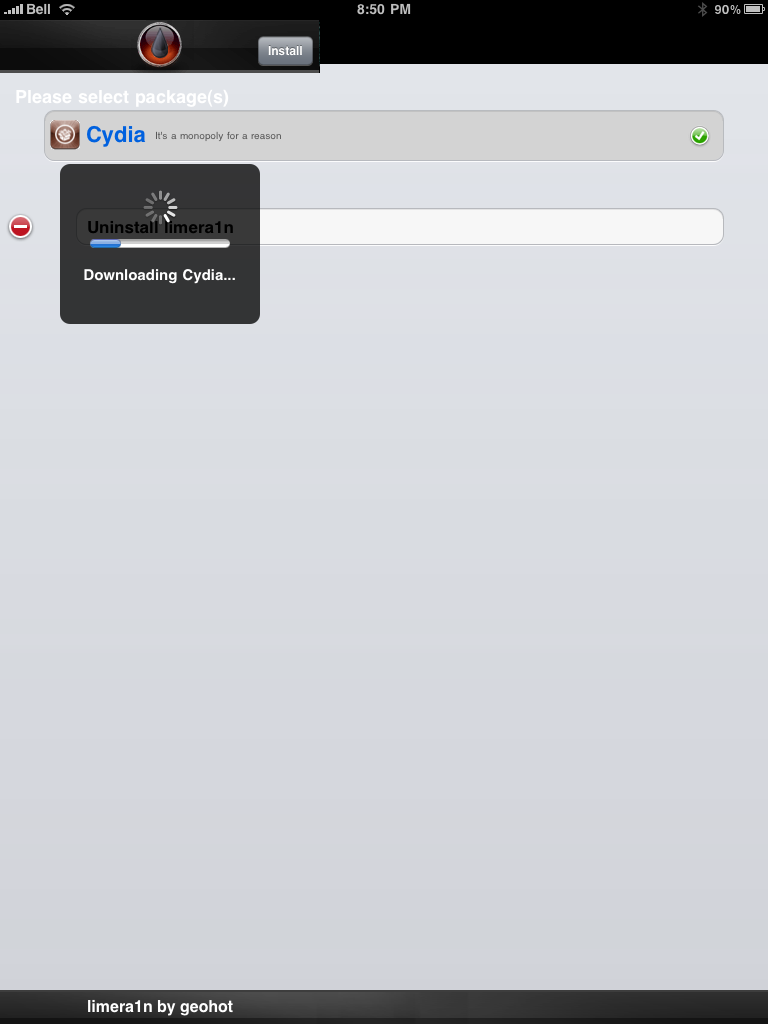
Cydia then press the Install button at the top right of the screen.


Step Eight
Once the
Cydia installation has completed you must reboot your iPad.


Step Nine
When your iPad has restarted you can run Cydia. Let it do all the necessary updates.


NOTE*: To remove the
limera1n icon from your desktop you can install CyDelete from Cydia then use it to delete the application. Eventually this capability should be present in limera1n itself.

***A big thanks goes to Geohot who made this jailbreak possible.

Monday, 2 August 2010

How to Jailbreak Your iPad Using JailbreakMe [3.2.0, 3.2.1]


These are instructions on how to jailbreak your iPad on iOS 3.2 and 3.2.1 using JailbreakMe by Comex.

Step One
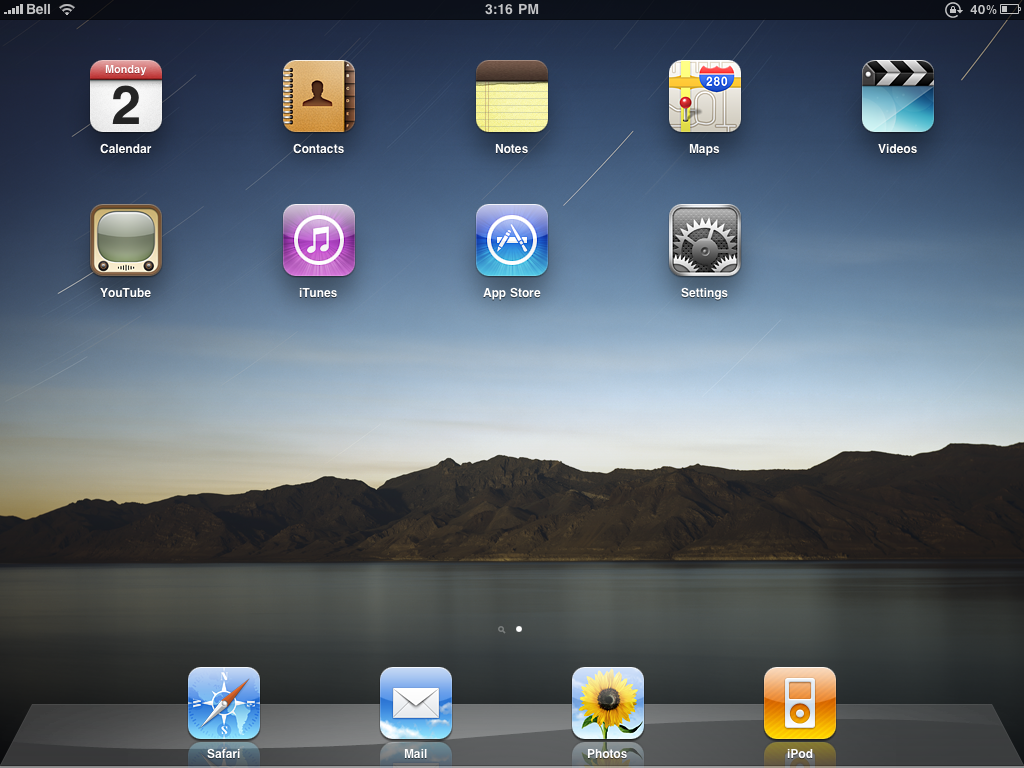
Press to launch
Safari from your Springboard.


Step Two
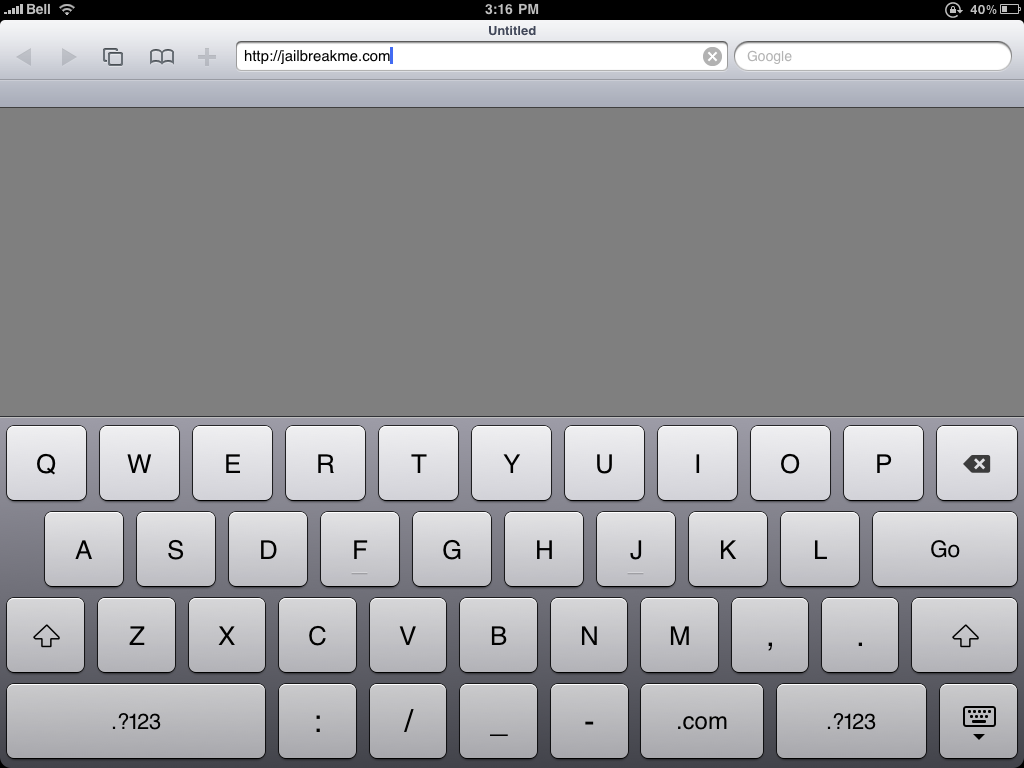
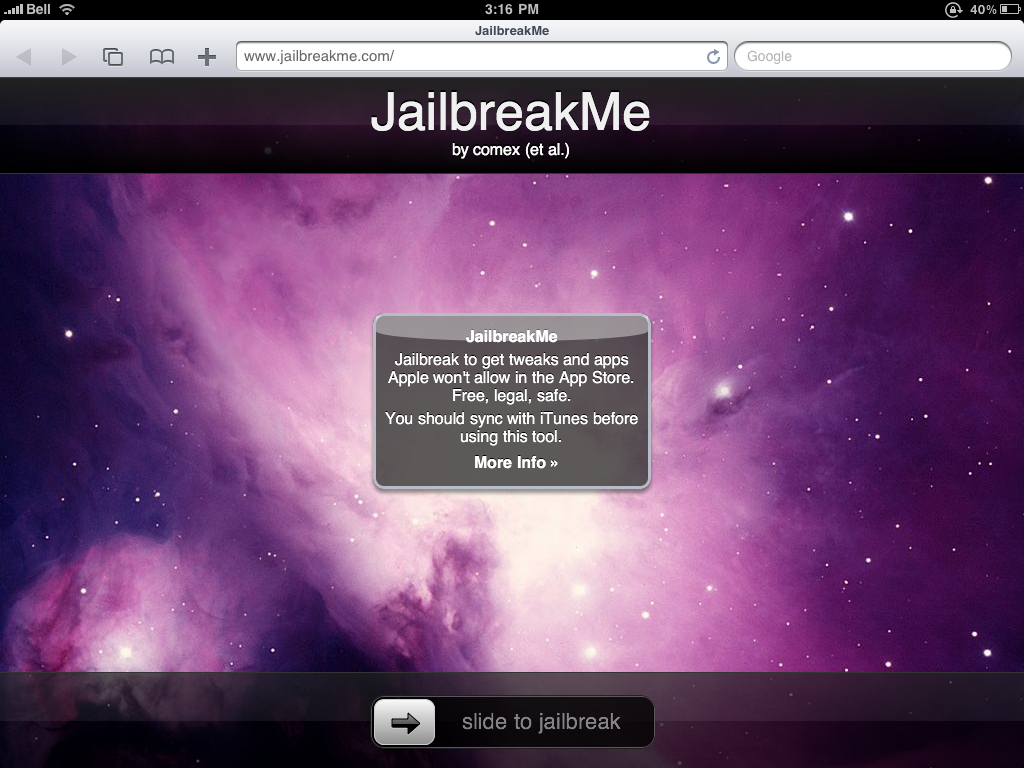
Press to select the address bar and input
http://jailbreakme.com then press the Go button.


Step Three
To begin the jailbreak simply move the slider to right.


Step Four
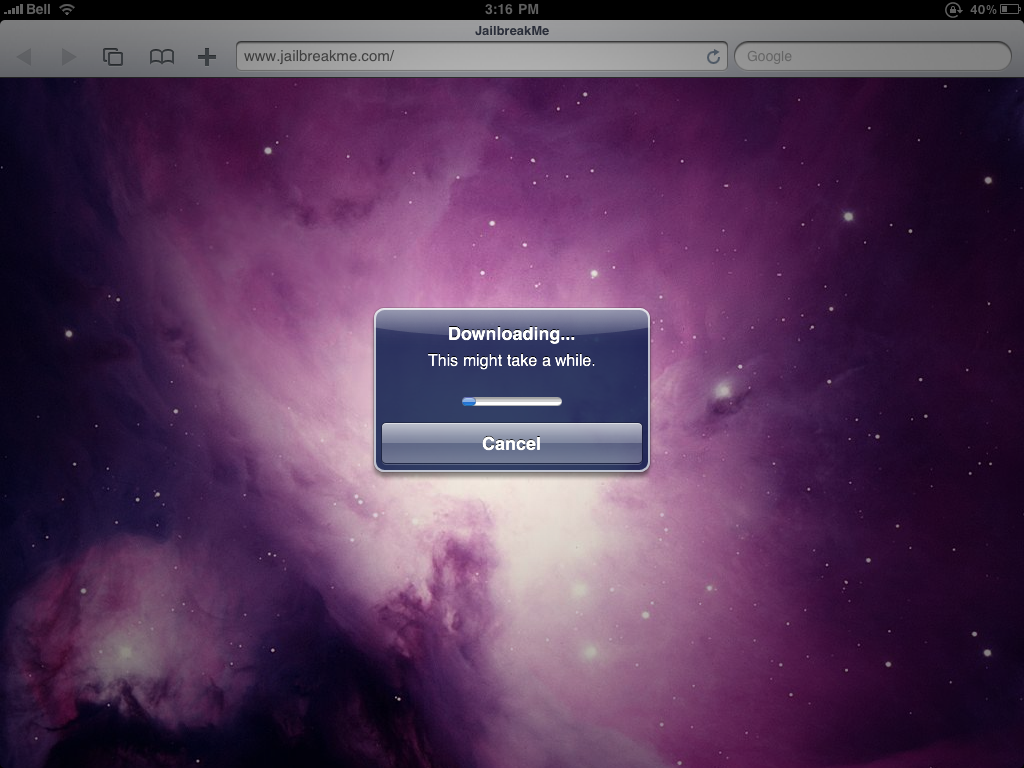
You will be displayed a status bar as the download progresses.


Step Five
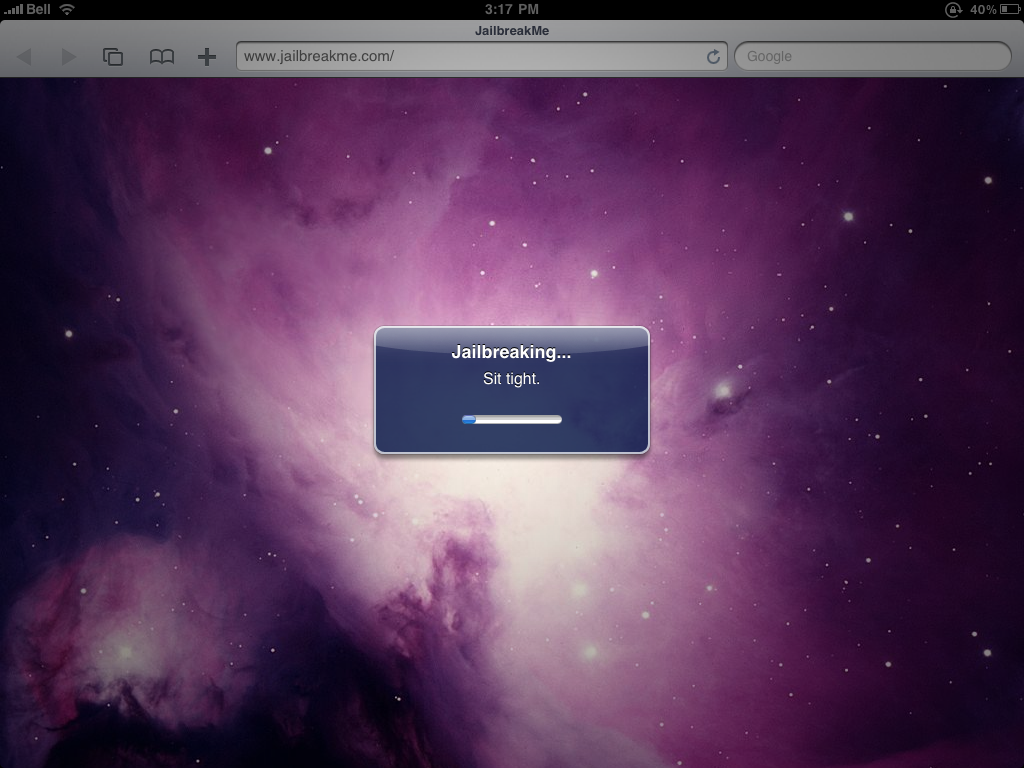
Once the download is complete the jailbreak process will begin


Step Six
Once you are notified that the jailbreak process is complete press the
OK button.


Press the
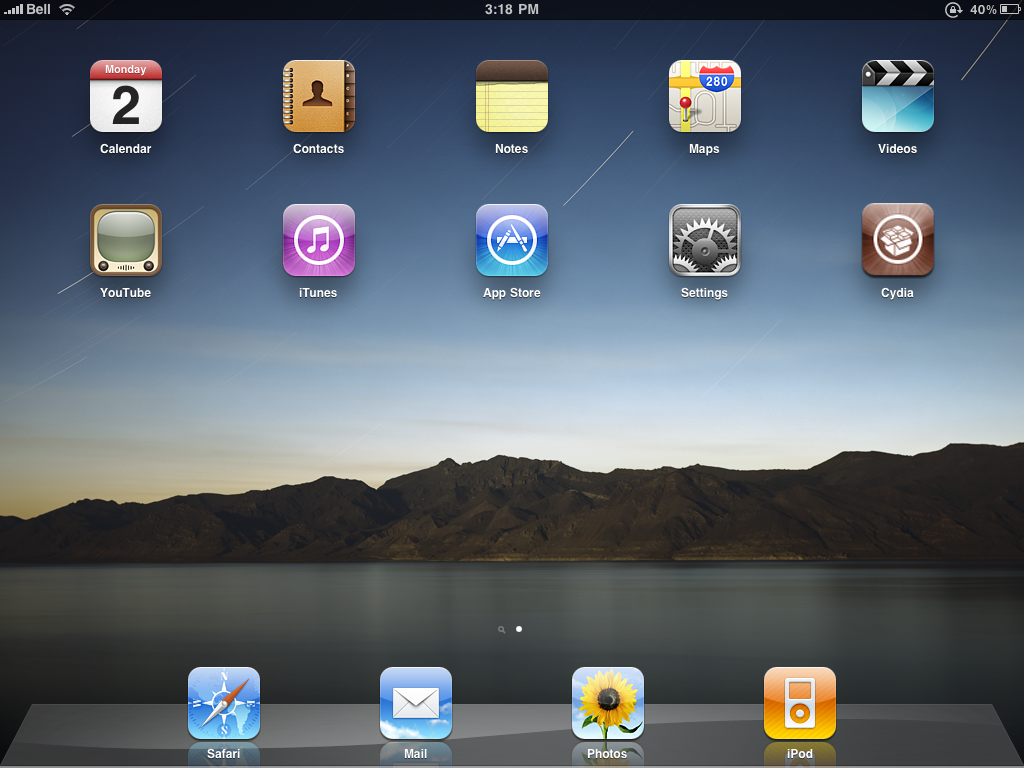
Home button to reveal Cydia on your desktop!


Congratulations you are done! You may now continue by launching Cydia and installing some great apps.

A big thanks goes to Comex and the iPhone Dev-Team for their efforts and successes.

Thursday, 3 June 2010

Apple's iBookstore Agency Model Under Questioning?


Reports are coming in claiming that the Texas Attorney General is investigating Apple’s entrance into the e-books market. US Publishers told the Wall Street Journal that they were being approached by the Attorney General’s office to discuss this matter, but refused to give details.

Under question is the agency model which Apple is pushing because it enforces a standard contract on publishers, a condition of which is that e-books cannot be sold cheaper elsewhere.

US Trade site, Publishers Lunch, reported the following “As best we can determine, the questioning so far has been highly-focused in scope, directed at the largest book publishers and at least some retailers." The questioning was described as a general “fishing expedition” for information, which could go on for months, or end very quickly.

However, these concerns have not prevented most publishers from offering their titles via Apple’s iBookstore, as it has had a successful launch.

Earlier, US trade website Publishers Lunch reported that Apple was the subject of an anti-trust inquiry by the Texas Attorney General's office into the agency model. The publication cited well-placed sources as claiming the queries had started in early to mid-April - within days of the launch of Apple's iPad and iBookstore.

Research Scientists Use iPad to Communicate With Dolphins


Yesterday we saw a dog play air hockey on the iPad. Today we hear about a young bottlenose dolphin named Merlin who became the first of his species to use the Apple iPad. Dolphin research scientist, Jack Kassewitz of SpeakDolphin.com, introduced the iPad to the dolphin in early steps towards build a language interface.

“The use of the iPad is part of our continuing search to find a suitable touch screen technology which the dolphins can activate with the tip of their rostrums or beaks. After extensive searching and product review, it looks like our choice is between the Panasonic Toughbook and the Apple iPad” Kassewitz explained. “We think that once the dolphins get the hang of the touch screen, we can let them choose from a wide assortment of symbols to represent objects, actions and even emotions”.

Kassewitz explained the requirements of the technology. “Waterproofing, processor speed, touch- sensitivity, anti-glare screens, and dolphin-friendly programs are essential. As this database of dolphin symbols grows – we’ll need fast technology to help us respond appropriately and quickly to the dolphins.”

The research was being conducted at Dolphin Discovery’s dolphin swim facility in Puerto Aventuras, Mexico along the picturesque coast now referred to as the Riviera Maya. The dolphin, Merlin, is a juvenile, born at the facility only two years ago. “Merlin is quite curious, like most dolphins, and he showed complete willingness to exam the iPad” said Kassewitz.

For now, the researchers are getting Merlin used to the touch screen by showing him real objects, such as a ball, cube or plastic duck, then asking the dolphin to touch photos of those same objects on the screen. “This is an easy task for a dolphin, but it is a necessary building block towards our goal of a complete language interface between humans and dolphins”, Kassewitz said.