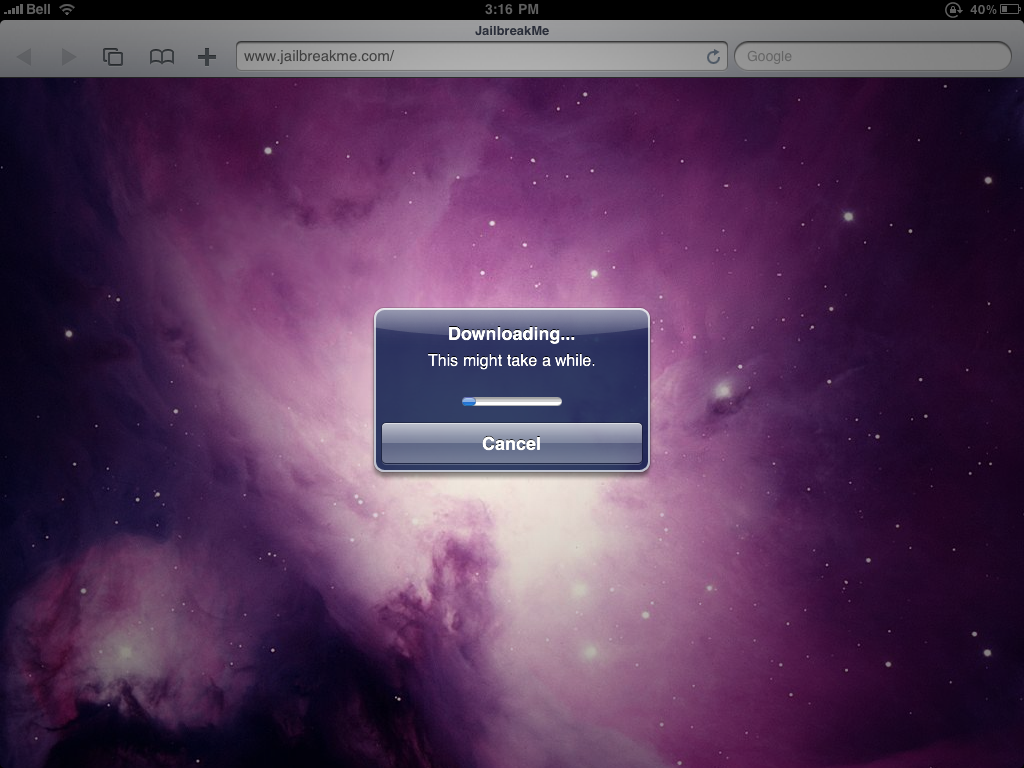
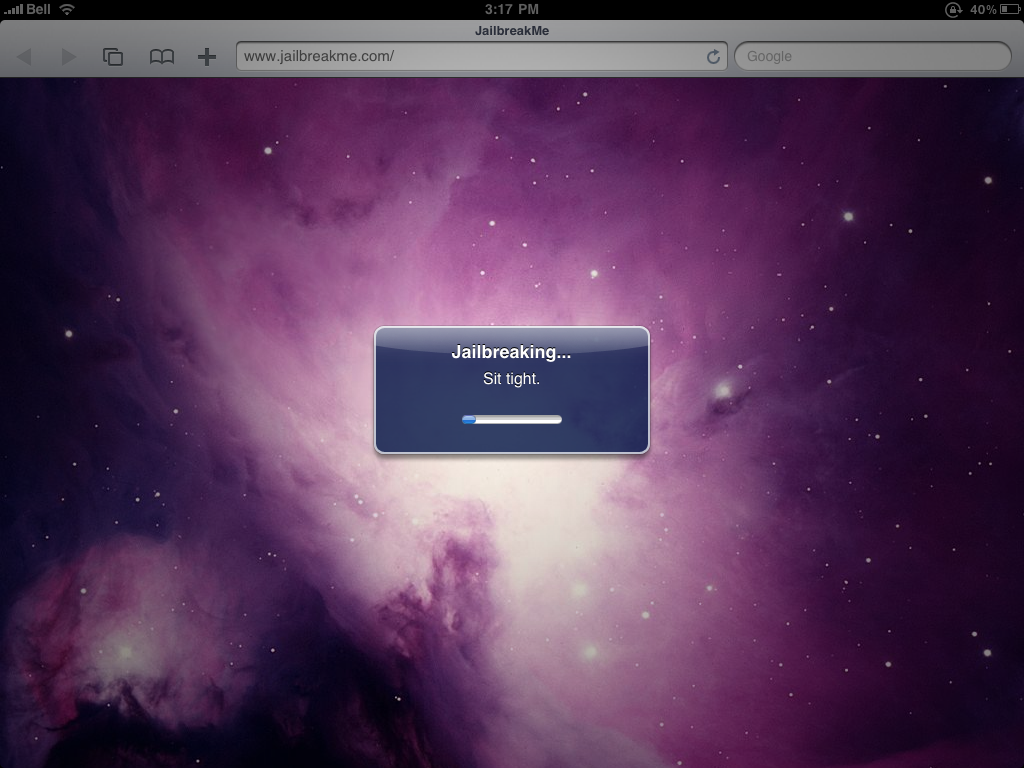
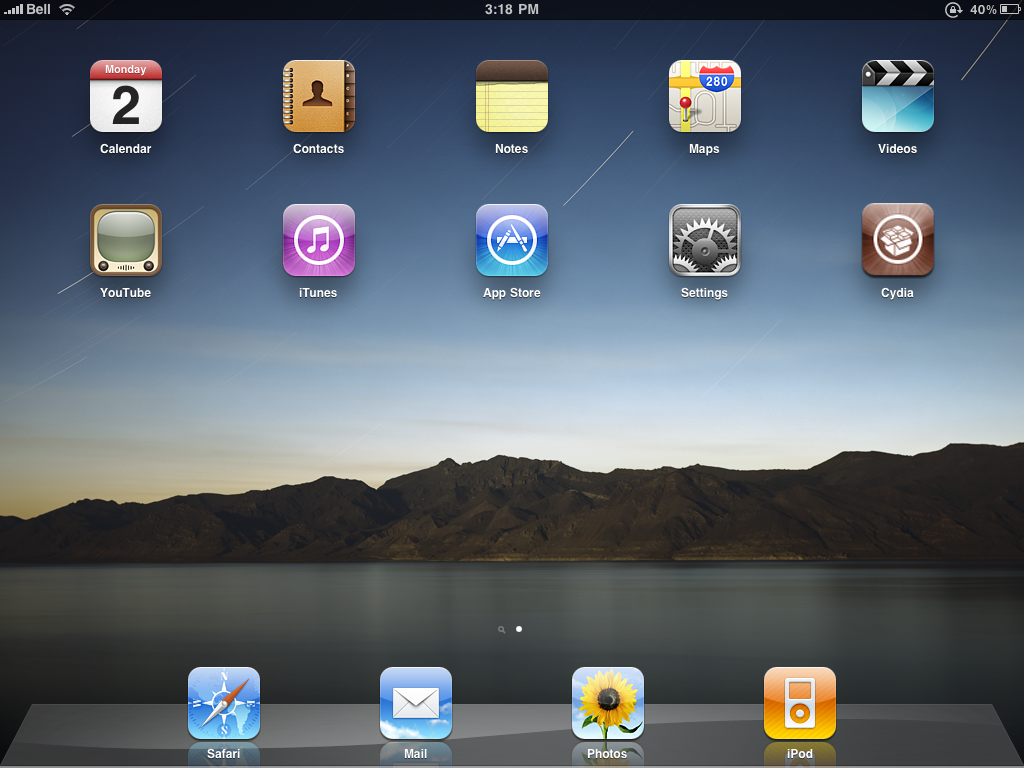
These are instructions on how to jailbreak your iPad using Limera1n for Mac. You can find the Windows version of this tutorial here
Step One
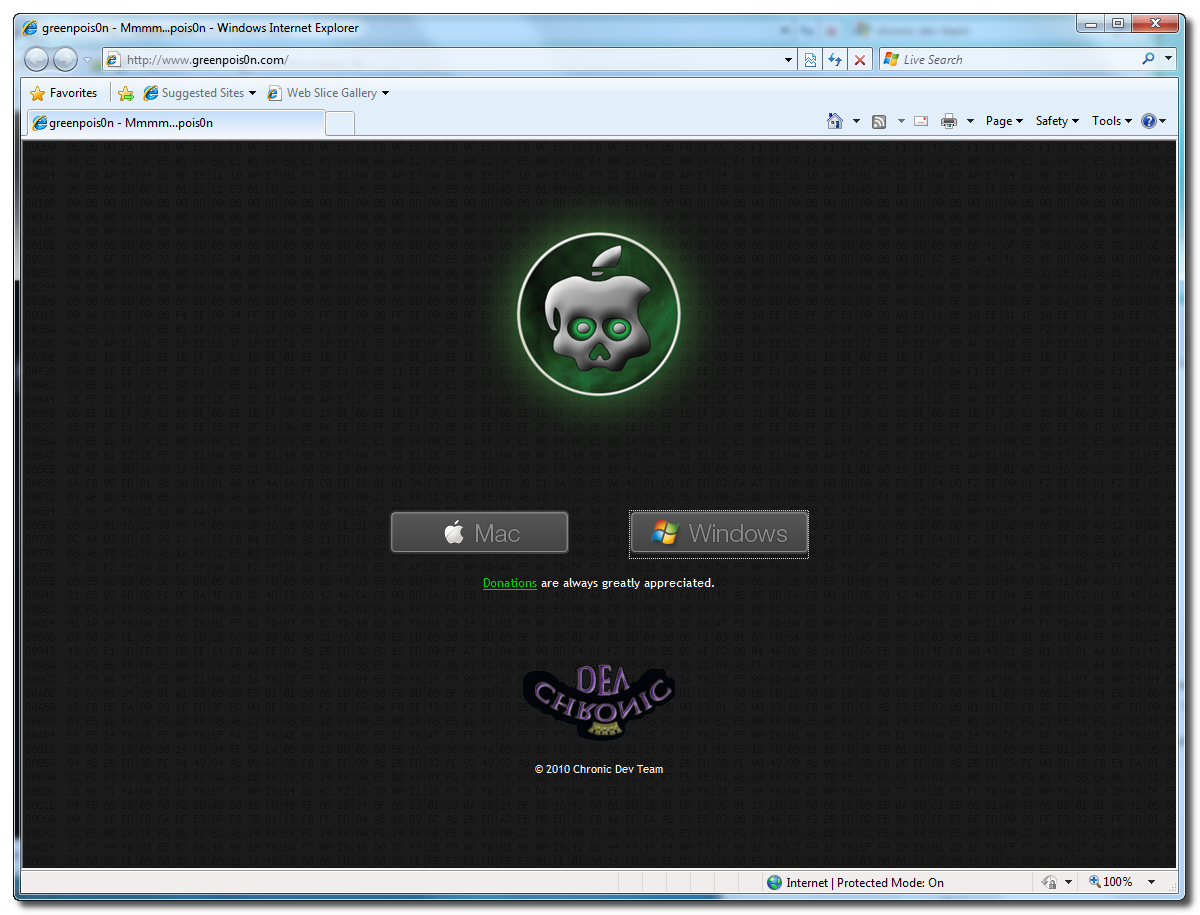
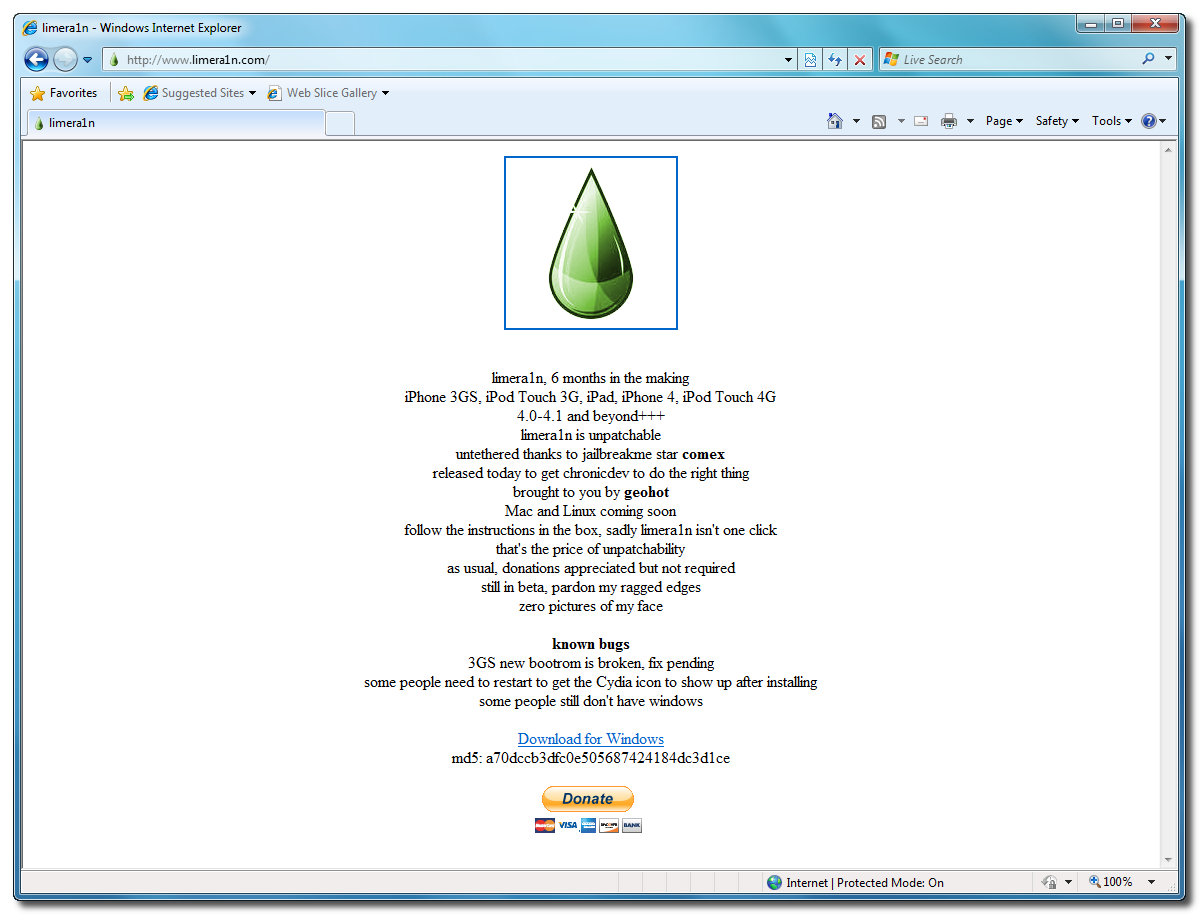
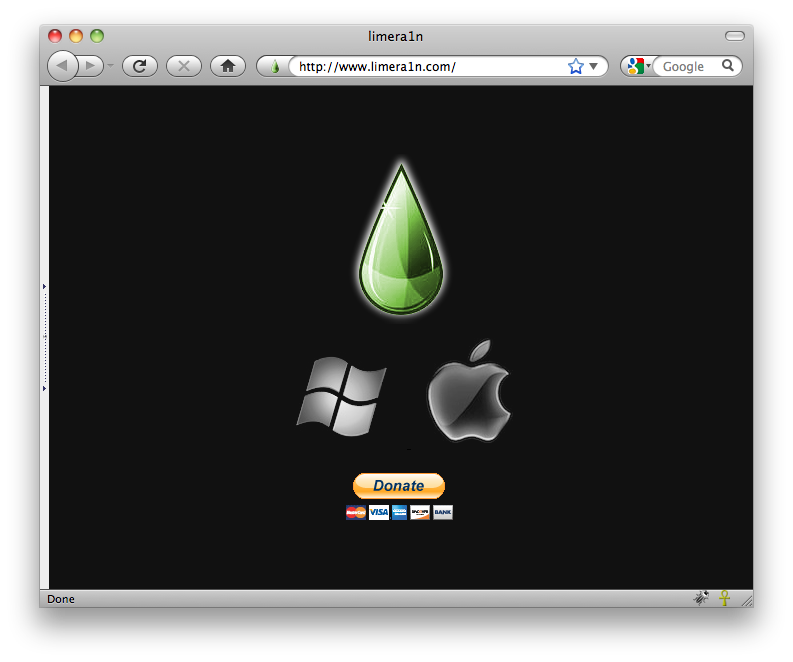
Open your web browser of choice and navigate to http://www.limera1n.com. Click the Mac logo at the bottom of the screen.

Step Two
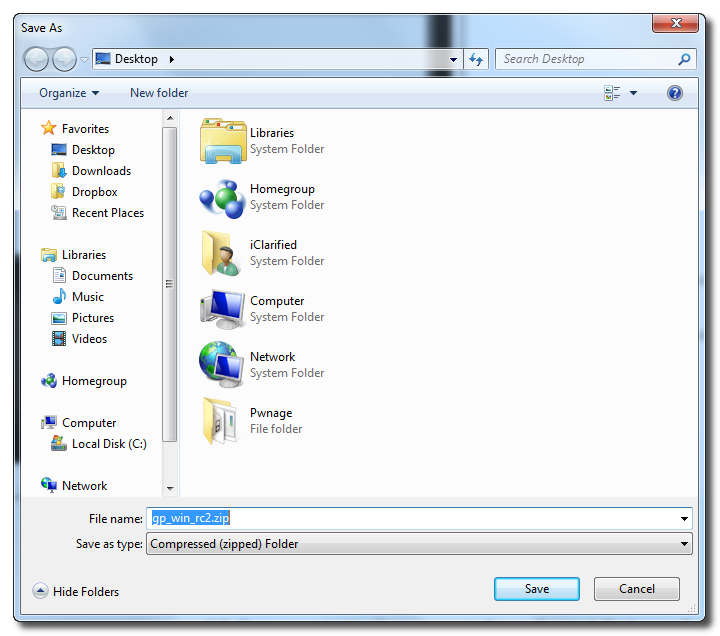
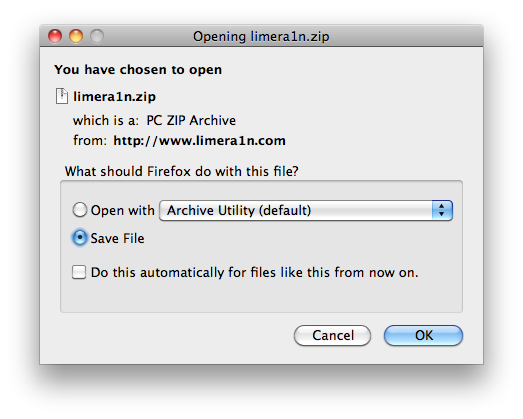
When prompted save the download to your desktop

Step Three
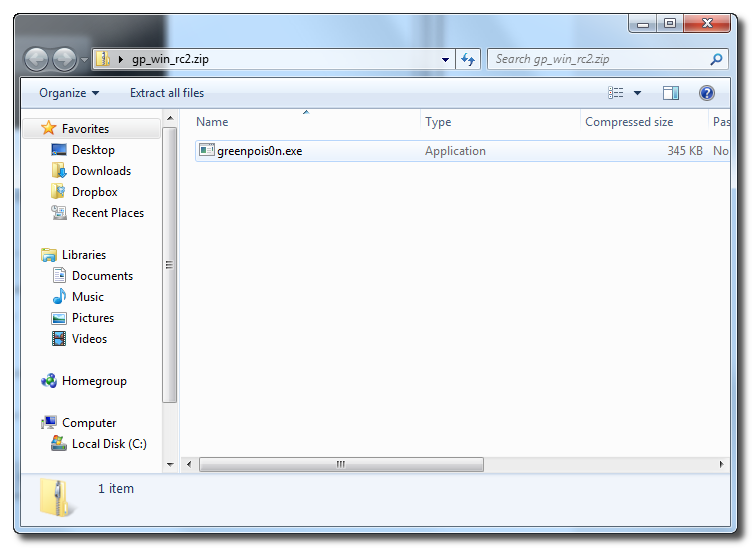
Double click the limera1n.zip file from the desktop to extract the archive, then double click to launch.

Step Four
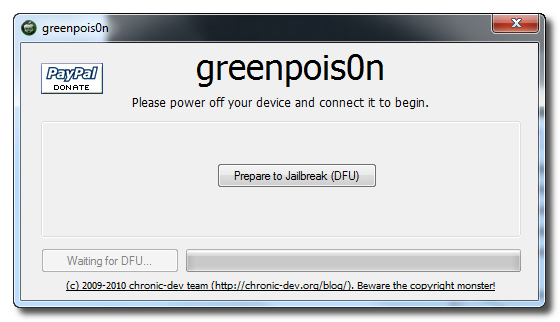
Connect your iPad to the computer and click the large make it ra1n button

Step Five
You iPad will now be placed in recovery mode.

Press both the power and the home buttons.

When Limera1n asks you to, release the power button.

Your phone will now be in DFU mode

As limera1n performs its exploit you will see the image of a lime raindrop on your iPad.


Limera1n will let you know when it is complete.


Step Six
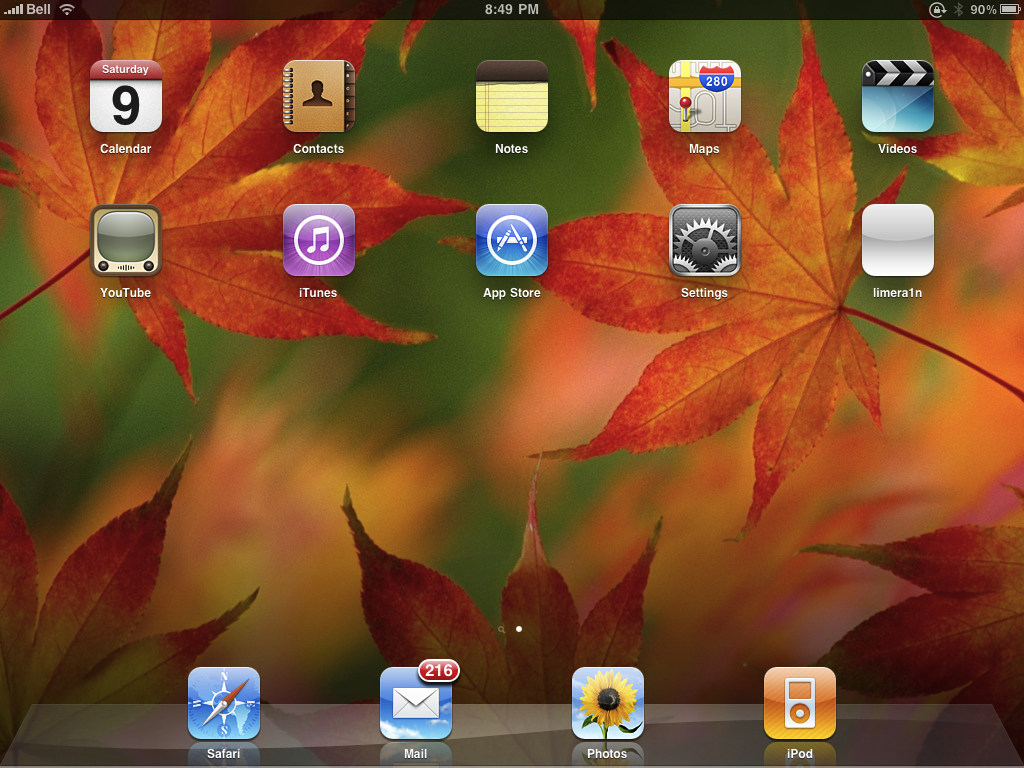
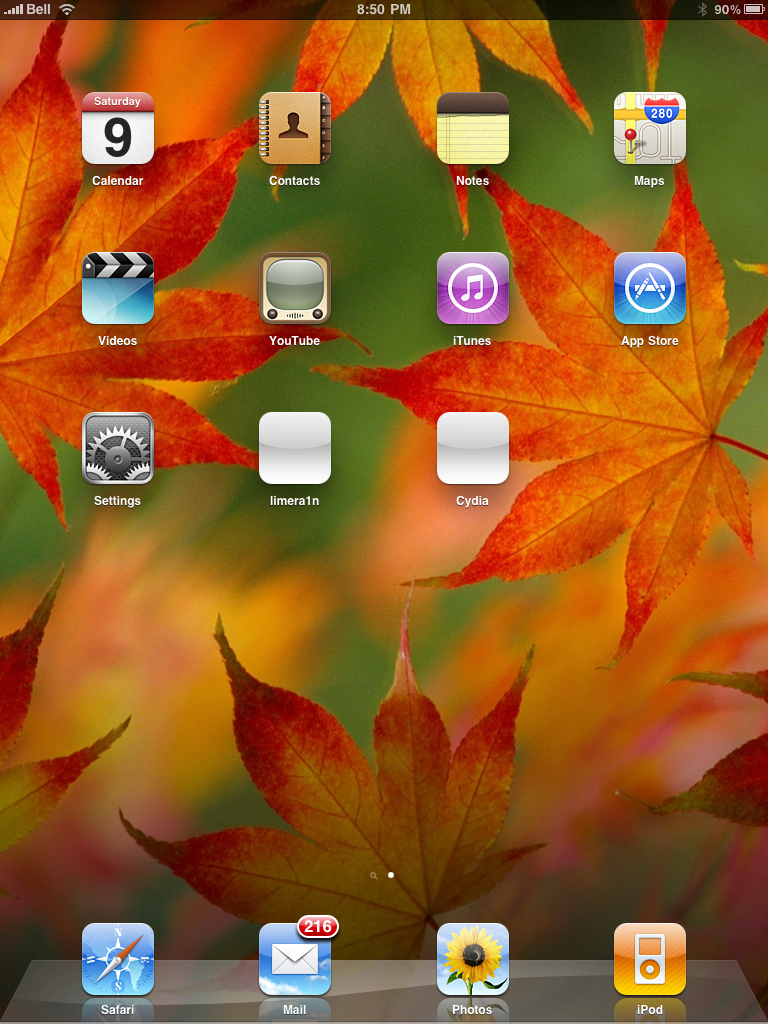
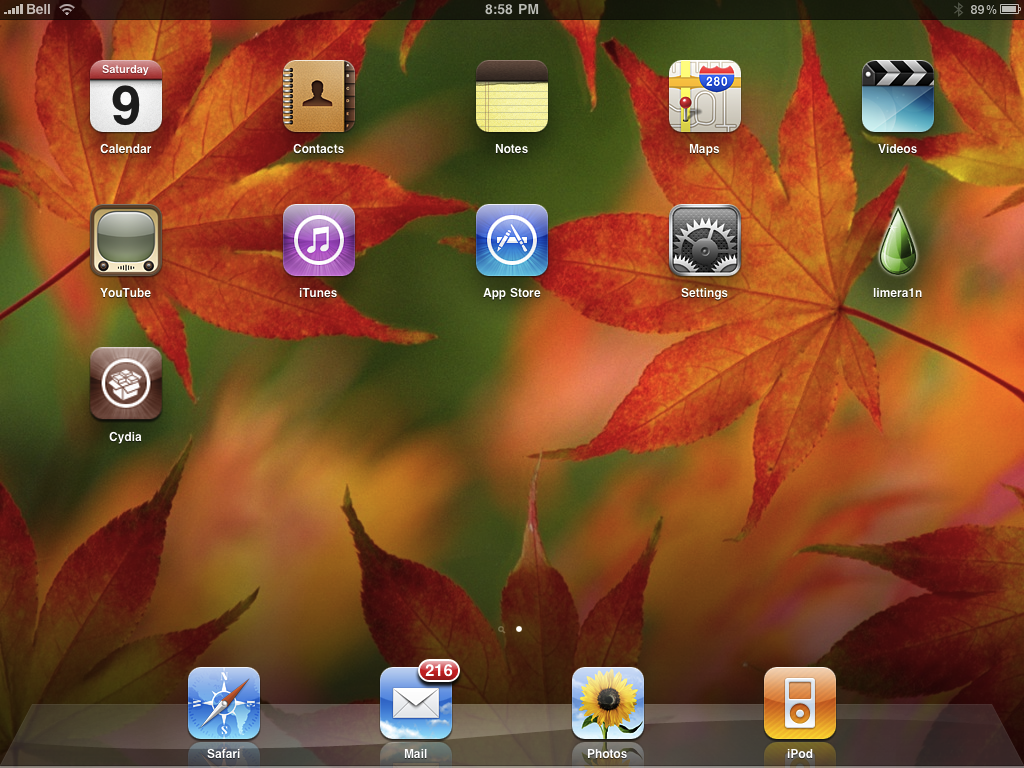
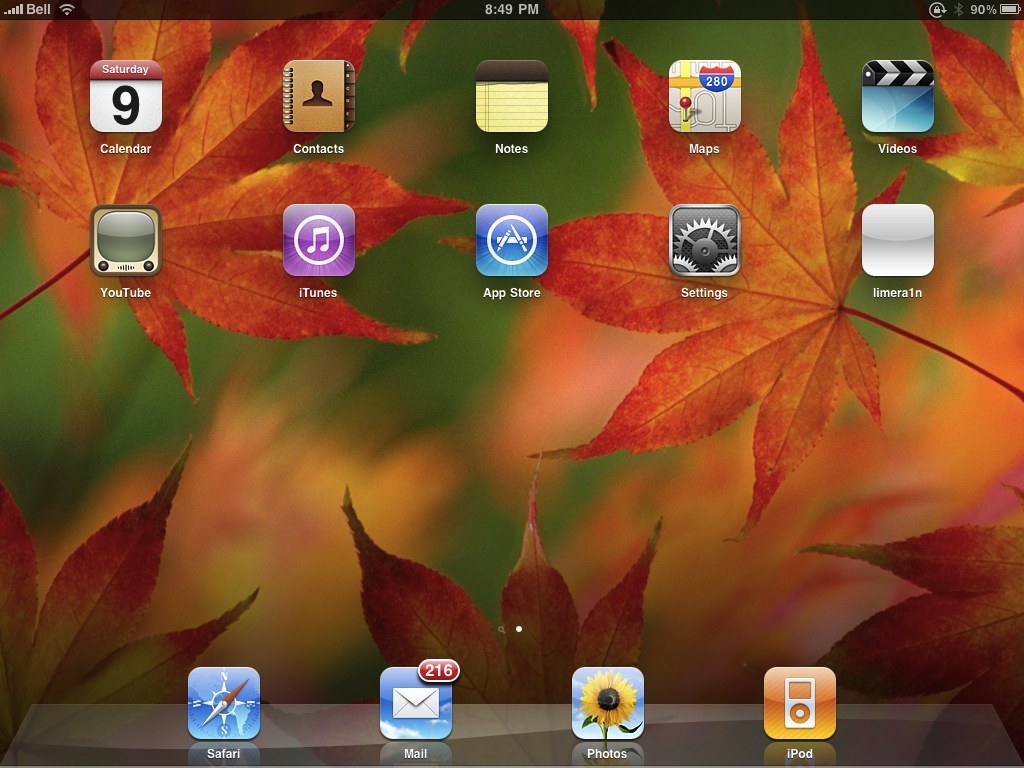
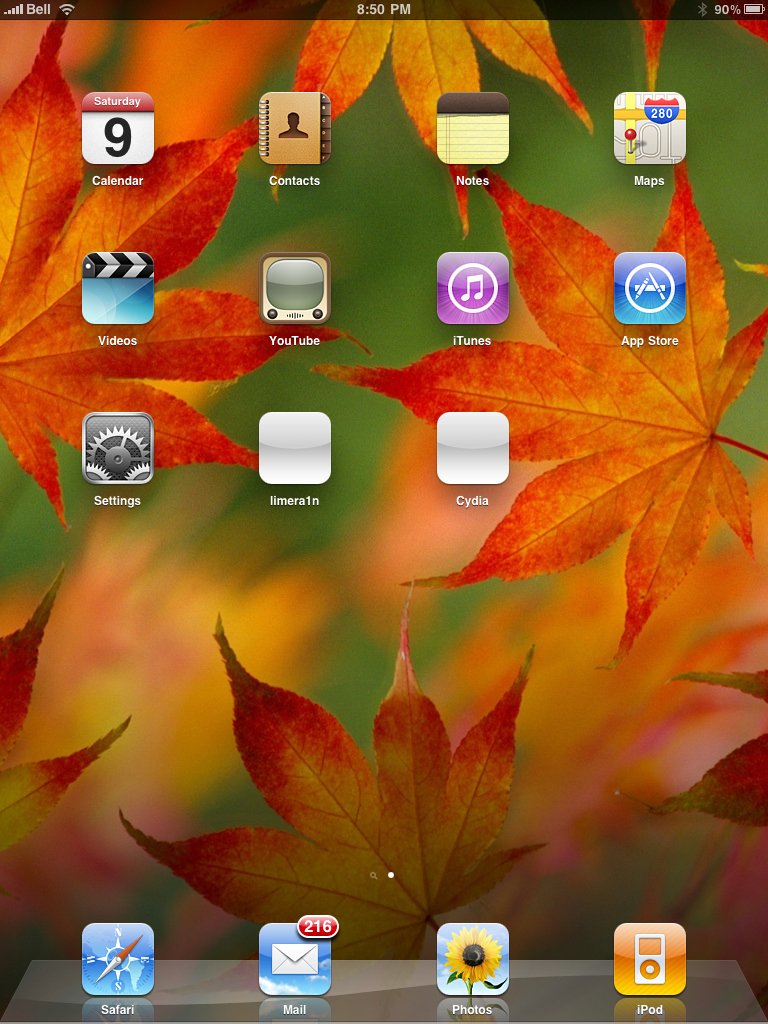
After you power back on your iPad you will see a new icon on the SpringBoard entitled limera1n. Press it to continue.

Step Seven
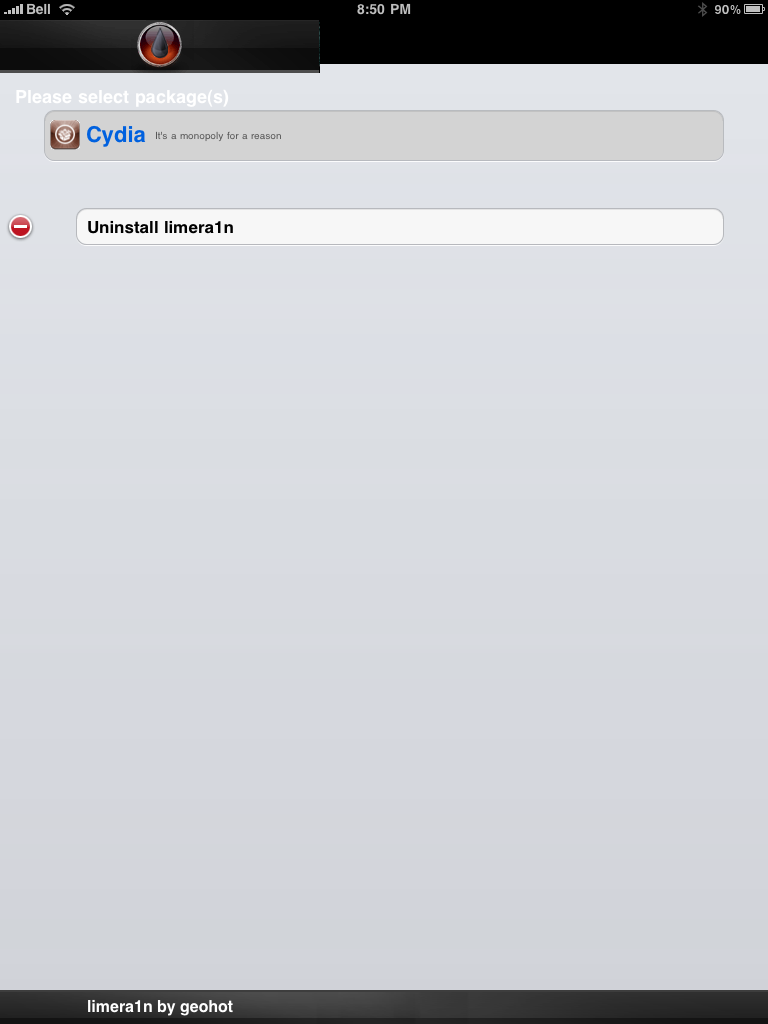
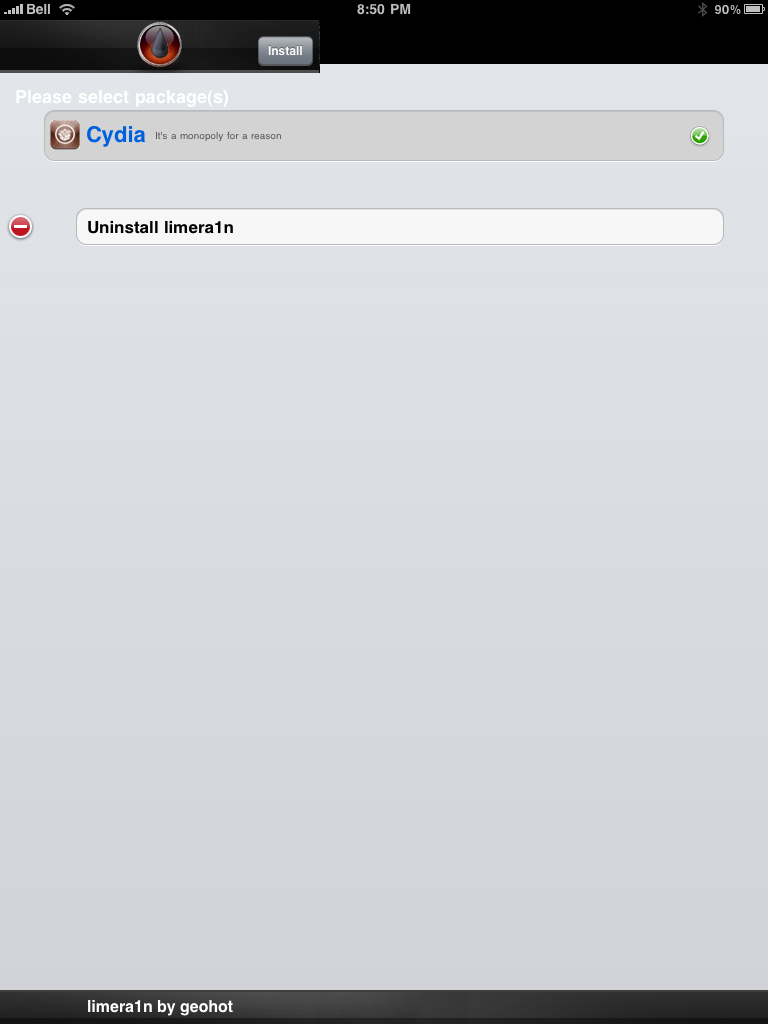
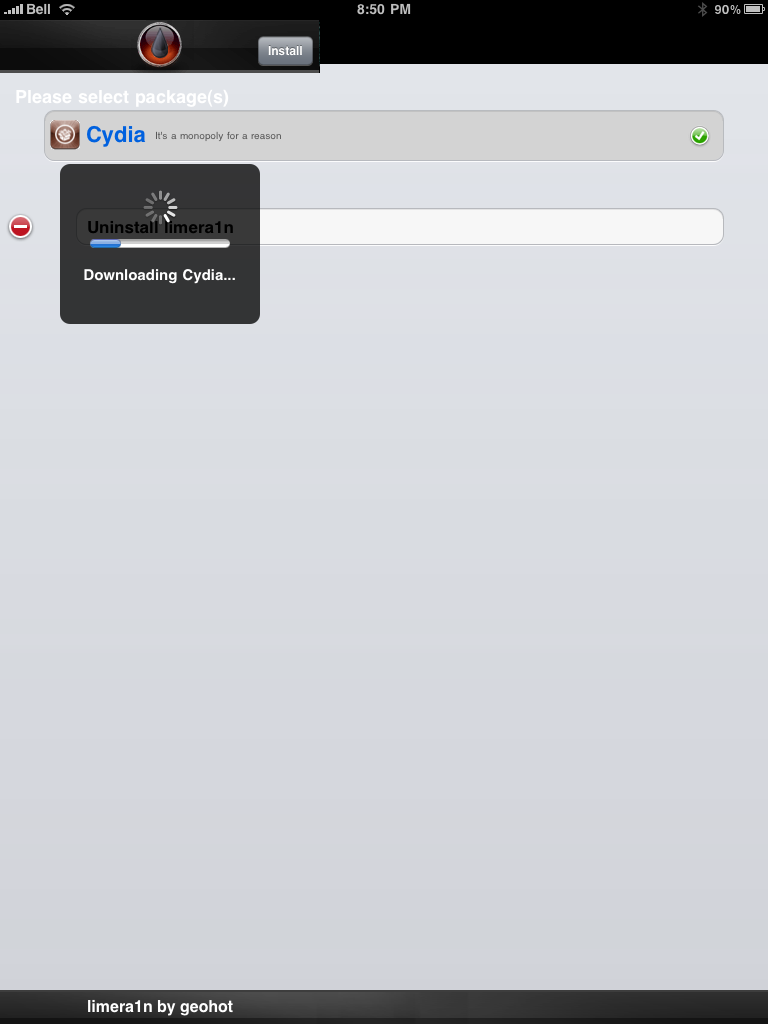
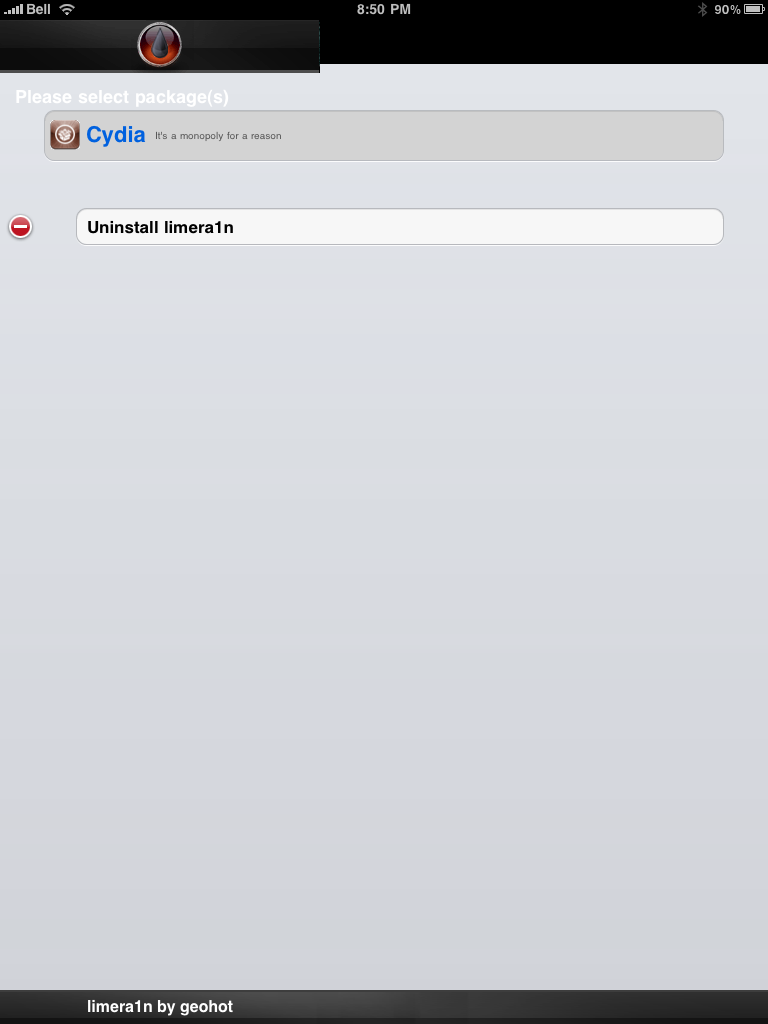
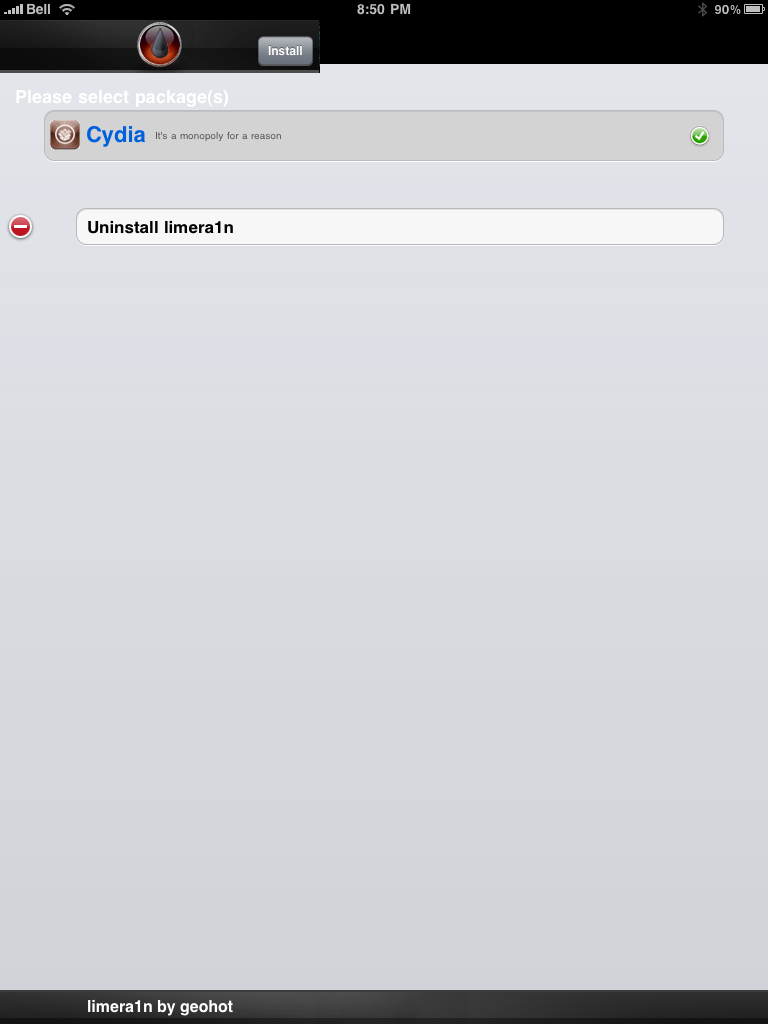
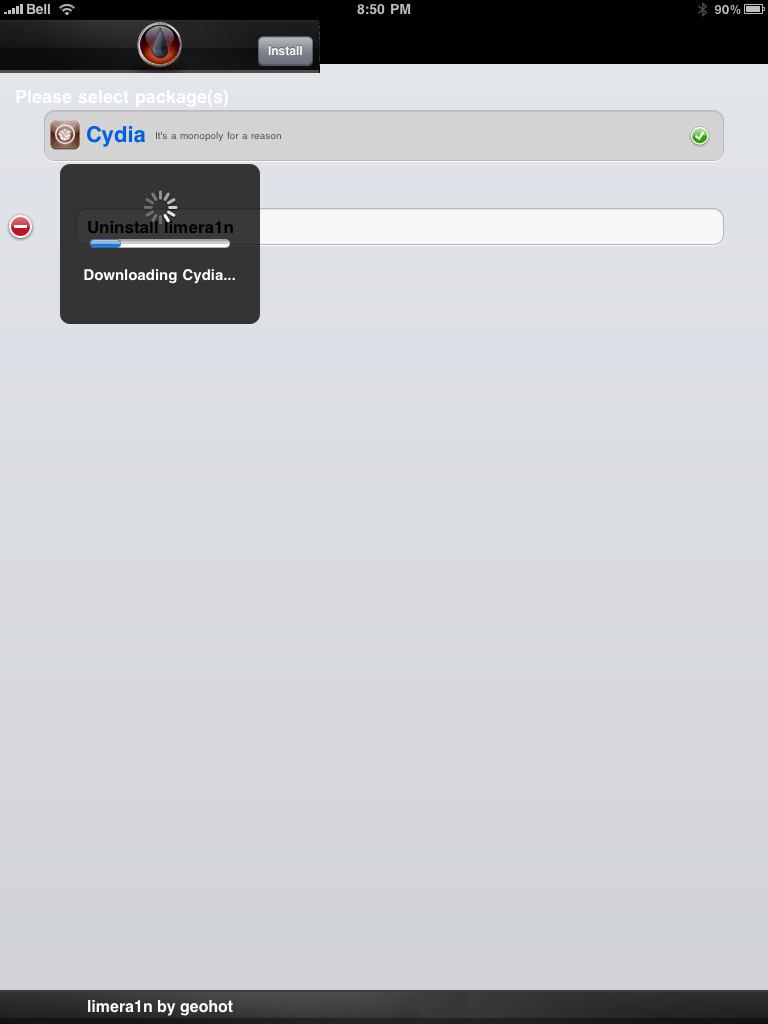
Once Limera1n opens select Cydia then press the Install button at the top right of the screen.


Step Eight
Once the Cydia installation has completed you must reboot your iPad.


Step Nine
When your iPad has restarted you can run Cydia. Let it do all the necessary updates.

NOTE*: To remove the limera1n icon from your desktop you can relaunch the app and tap the Uninstall Limera1n button or install CyDelete from Cydia then use it to delete the application.
***A big thanks goes to Geohot who made this jailbreak possible.
Step One
Open your web browser of choice and navigate to http://www.limera1n.com. Click the Mac logo at the bottom of the screen.
Step Two
When prompted save the download to your desktop
Step Three
Double click the limera1n.zip file from the desktop to extract the archive, then double click to launch.

Step Four
Connect your iPad to the computer and click the large make it ra1n button

Step Five
You iPad will now be placed in recovery mode.

Press both the power and the home buttons.

When Limera1n asks you to, release the power button.

Your phone will now be in DFU mode

As limera1n performs its exploit you will see the image of a lime raindrop on your iPad.


Limera1n will let you know when it is complete.


Step Six
After you power back on your iPad you will see a new icon on the SpringBoard entitled limera1n. Press it to continue.
Step Seven
Once Limera1n opens select Cydia then press the Install button at the top right of the screen.
Step Eight
Once the Cydia installation has completed you must reboot your iPad.
Step Nine
When your iPad has restarted you can run Cydia. Let it do all the necessary updates.

NOTE*: To remove the limera1n icon from your desktop you can relaunch the app and tap the Uninstall Limera1n button or install CyDelete from Cydia then use it to delete the application.
***A big thanks goes to Geohot who made this jailbreak possible.