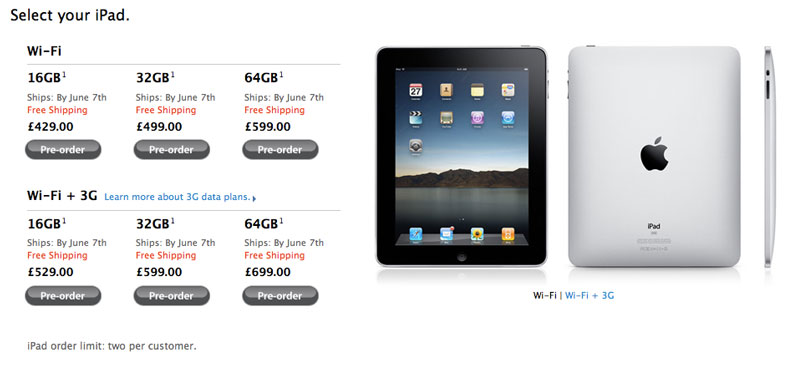
These are instructions on how to access your iPad files including documents, photos, and video using Mac OS X Finder
Step One
Jailbreak your iPad. If you haven't already done this you can find instructions here
Step Two
Press to launch Cydia from your iPad Springboard.

Step Three
Once Cydia opens press to open the Sections tab from the bottom of the screen.

Step Four
Tap to select Networking from the list of Sections.

Step Five
Tap to select Netatalk from the list of Packages

Step Six
Press the Install button at the top right of the screen.

Step Seven
Press the Confirm button to begin installation.

Step Eight
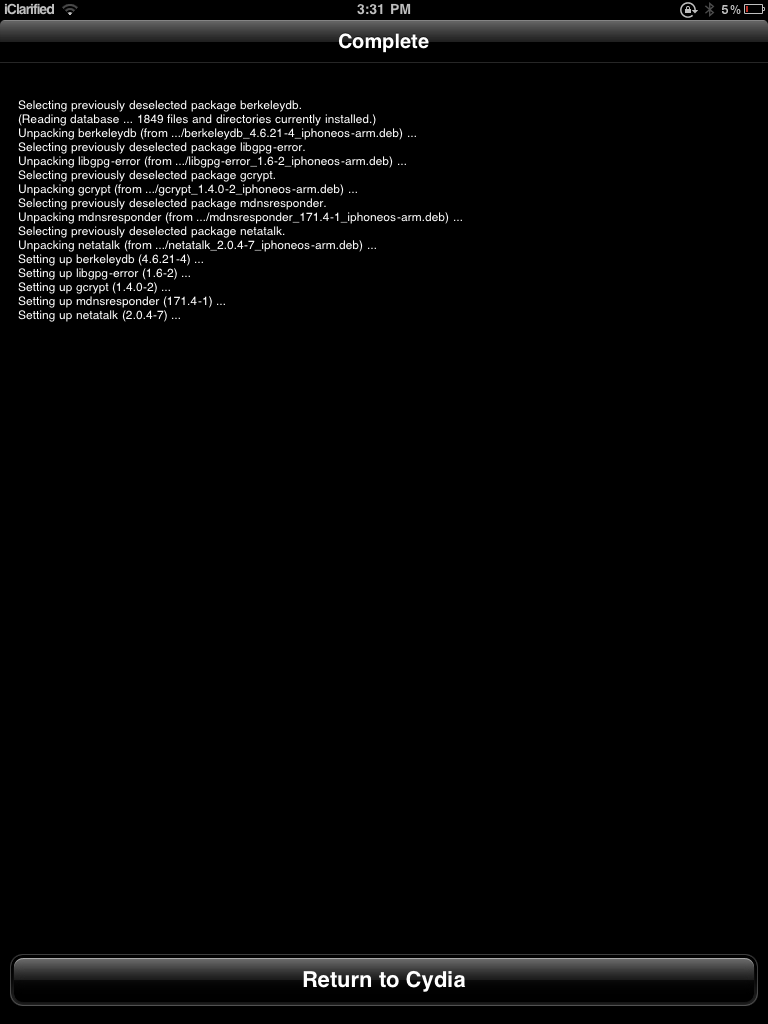
Once the installation has completed successfully, press the large Return to Cydia button.

Step Nine
You must now restart your iPad. Press and hold the Power button until the slider appears. Drag the slider to the right to turn off the iPad. Once off, press the Power button again to turn the device back on.
Step Ten
Open a new Finder window by clicking its icon in the dock.

Step Eleven
Notice you will now see your iPad in the list of Shared Devices.


Click to select the iPad from the list then click the Connect As.. button.

You will be asked to enter a name and password for the device. Input root as the username and alpine as the password. If you have changed the root password then enter your custom password. Click the Connectbutton to login.

Step Twelve
You will now have access to the root filesystem of the iPad. From here you can get or put any files you choose.

For example you can find your photos at: root/var/mobile/Media/DCIM/100Apple

Application folders can be found at: root/var/mobile/Applications

Step One
Jailbreak your iPad. If you haven't already done this you can find instructions here
Step Two
Press to launch Cydia from your iPad Springboard.
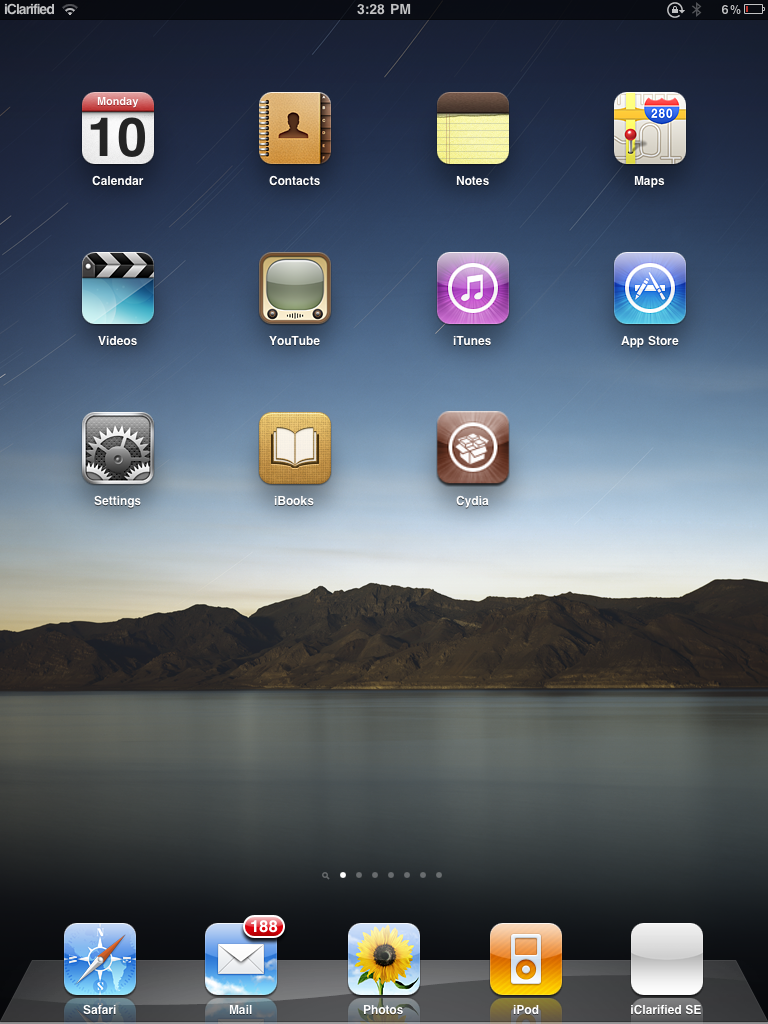
Step Three
Once Cydia opens press to open the Sections tab from the bottom of the screen.
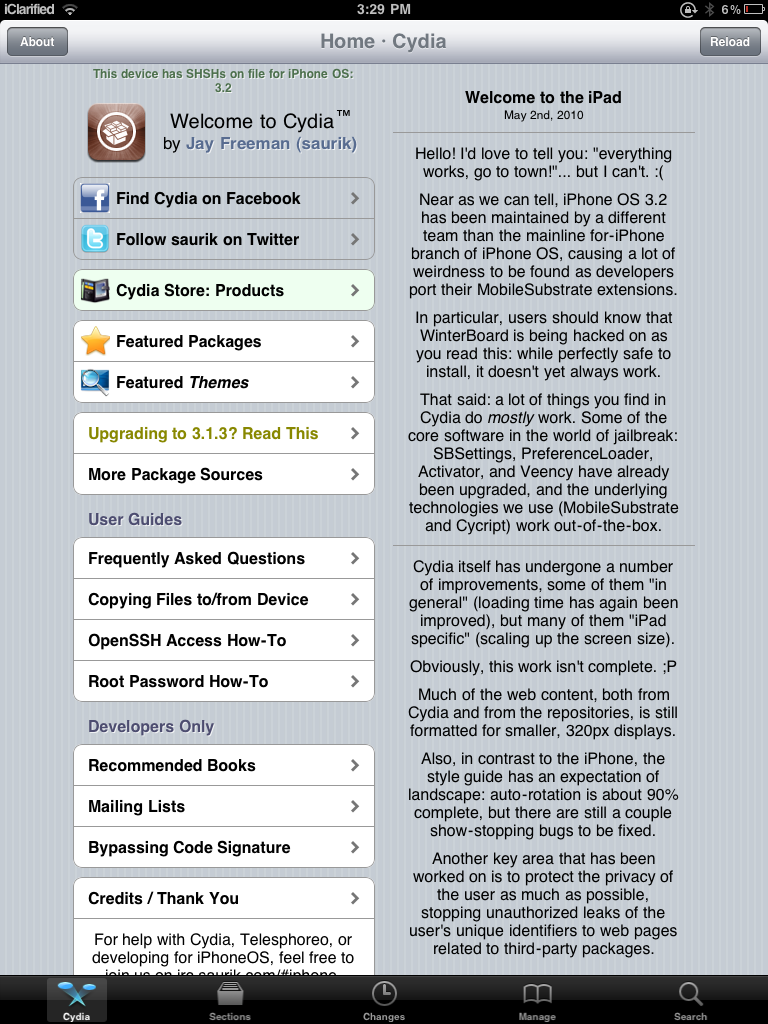
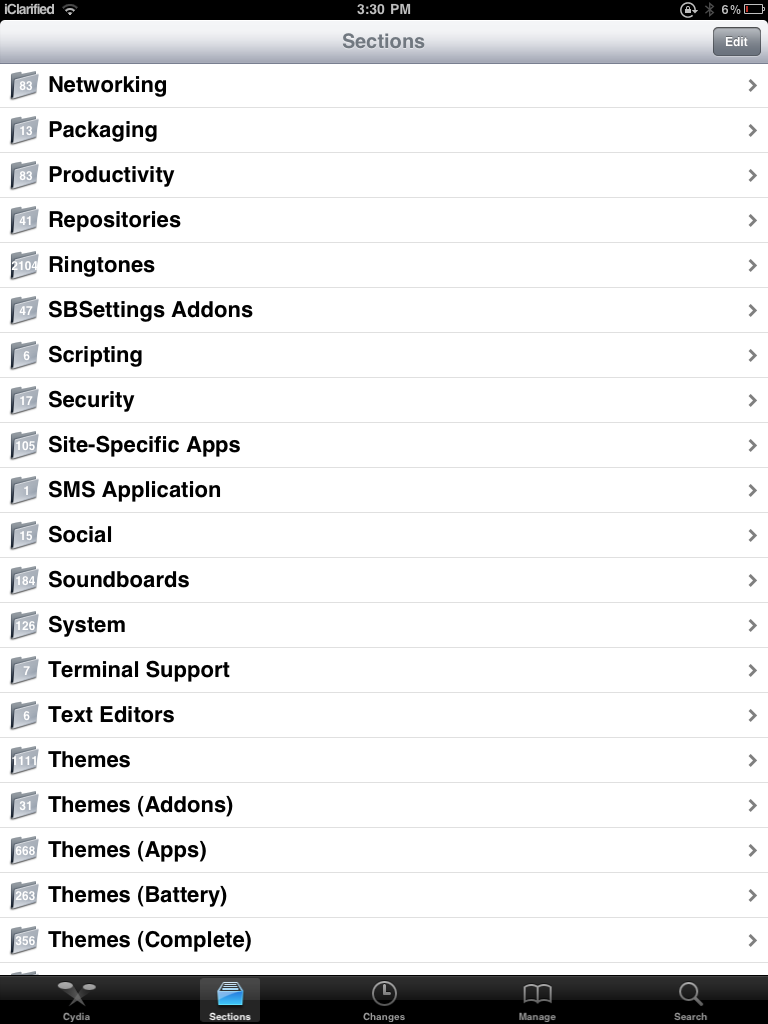
Step Four
Tap to select Networking from the list of Sections.
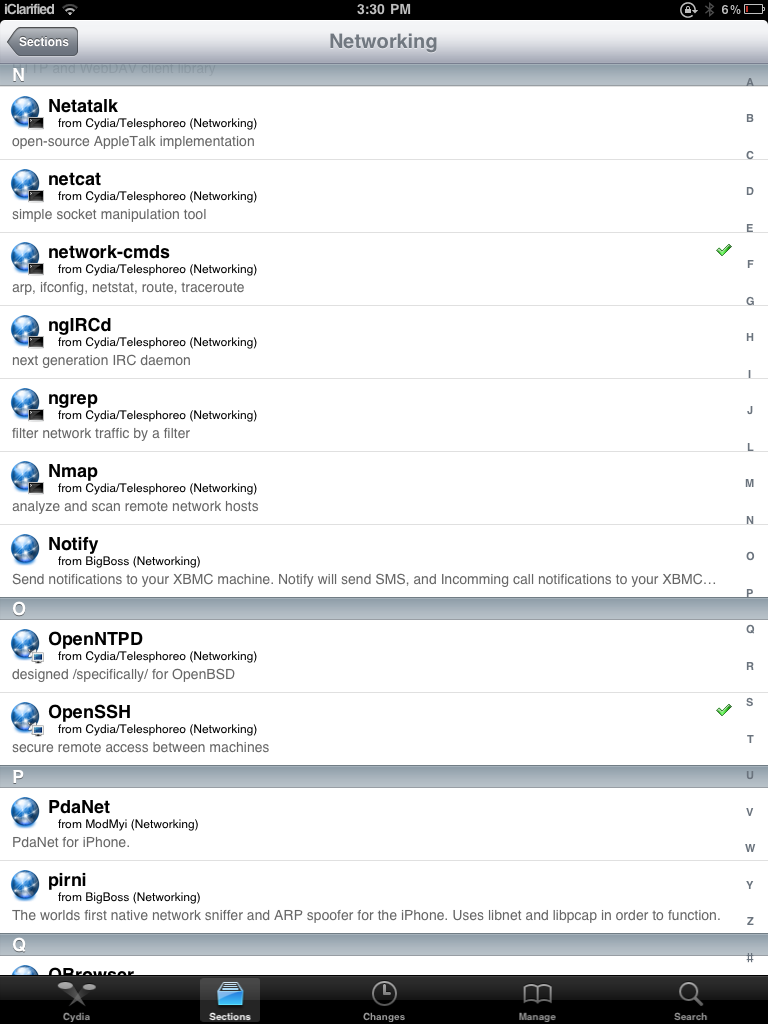
Step Five
Tap to select Netatalk from the list of Packages
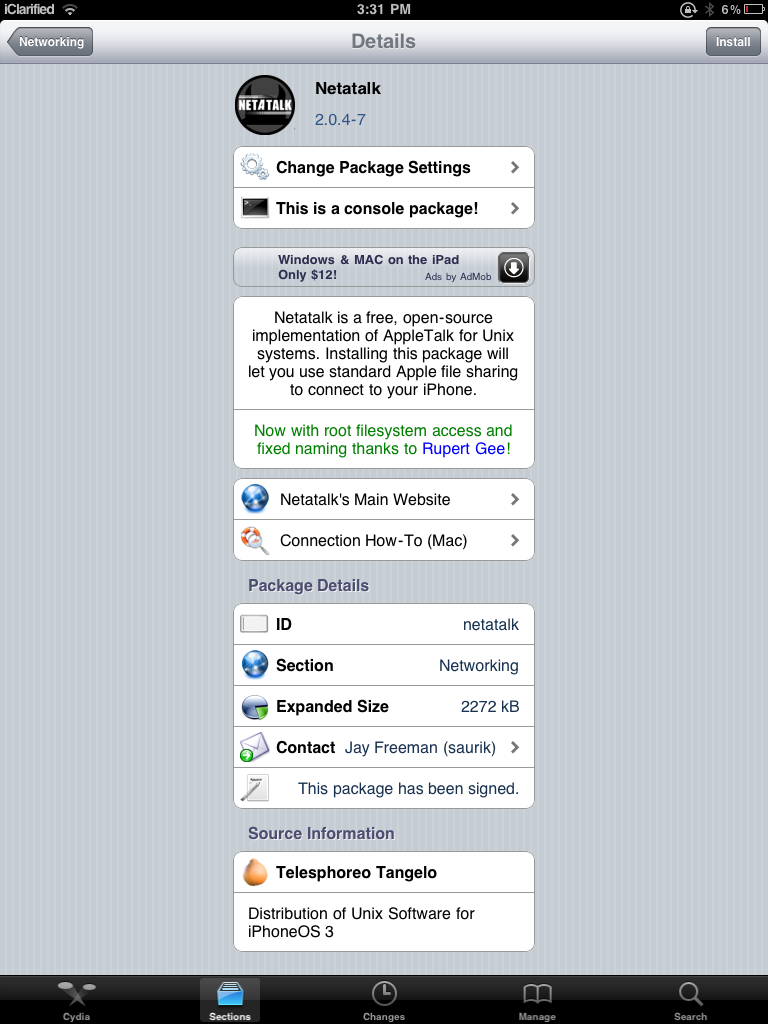
Step Six
Press the Install button at the top right of the screen.
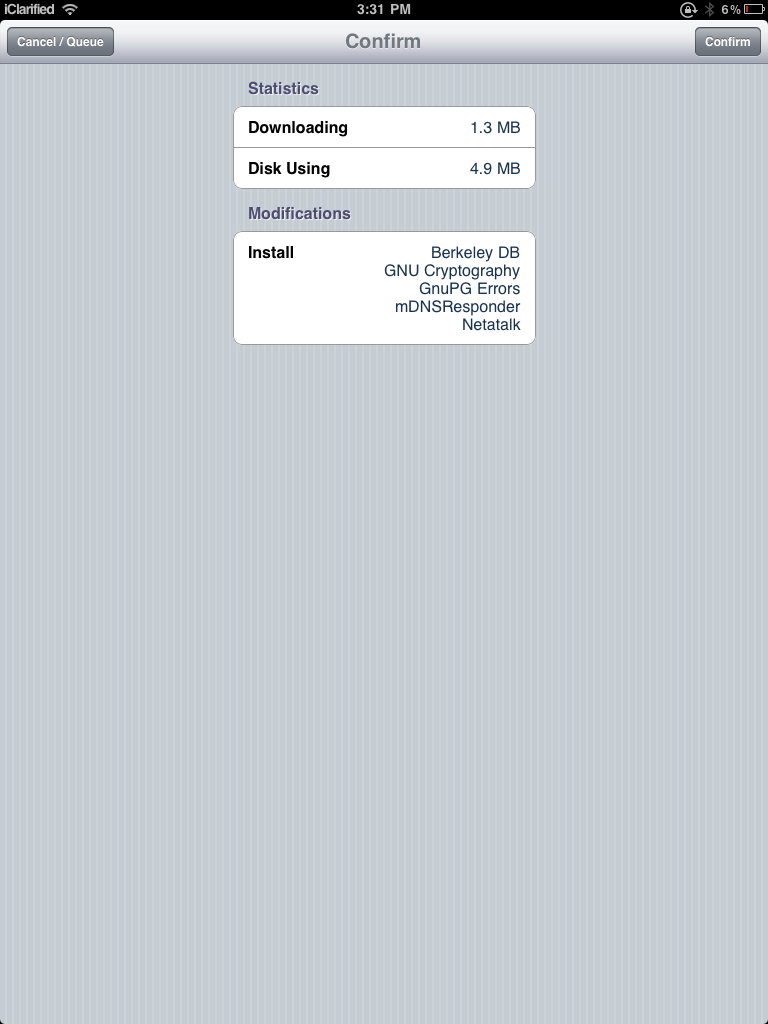
Step Seven
Press the Confirm button to begin installation.
Step Eight
Once the installation has completed successfully, press the large Return to Cydia button.
Step Nine
You must now restart your iPad. Press and hold the Power button until the slider appears. Drag the slider to the right to turn off the iPad. Once off, press the Power button again to turn the device back on.
Step Ten
Open a new Finder window by clicking its icon in the dock.

Step Eleven
Notice you will now see your iPad in the list of Shared Devices.


Click to select the iPad from the list then click the Connect As.. button.

You will be asked to enter a name and password for the device. Input root as the username and alpine as the password. If you have changed the root password then enter your custom password. Click the Connectbutton to login.

Step Twelve
You will now have access to the root filesystem of the iPad. From here you can get or put any files you choose.

For example you can find your photos at: root/var/mobile/Media/DCIM/100Apple

Application folders can be found at: root/var/mobile/Applications